Start Visit on Sandata Mobile Connect

This section outlines the process for starting and ending a visit. Follow the steps in the Sandata Mobile Connect app to capture your visits.
-
Locate the client you're visiting and start the visit.
-
Enter the services you're providing and select the location.
-
If prompted, add any tasks or have the client verify the visit.
-
Finally, call out and end the visit.
For more details on starting a visit, refer to the following topics:
Start Visit from the Client Tab
Start Visit from the Client Search Tab
Start Visit from the Search Client Tab (Unknown Client)
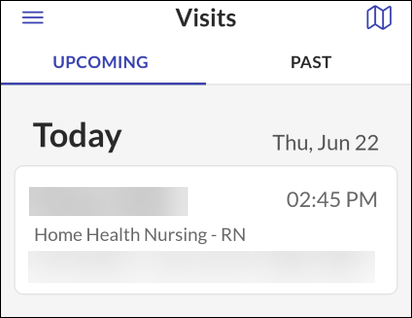
If the client is scheduled, the client is listed in the Upcoming visits on the Visits Screen. Tap on the client and follow the prompts to begin the visit.
If the client isn’t listed, use the Search tab to find the client. Enter a client identifier such as a Client ID or Medicaid ID. When you find the client follow the prompts to start the visit.
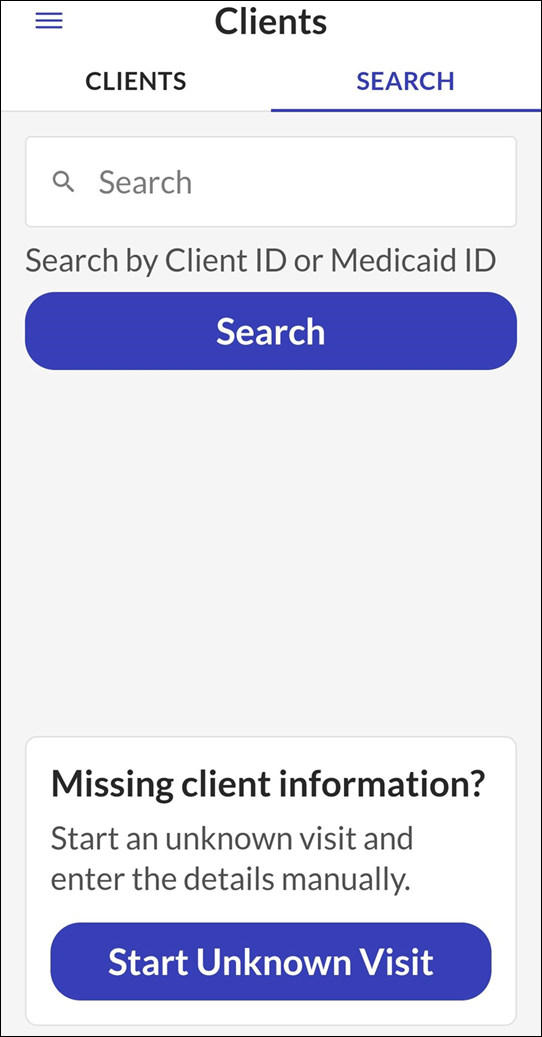
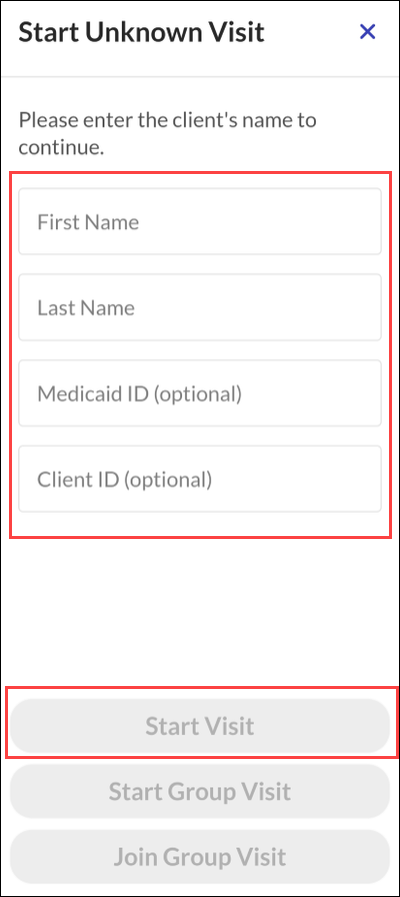
If you do not find the client, then you can start a visit for an Unknown Client. Enter the clients first and last name. Tap Start Unknown Visit and follow the prompts to start the visit.
The app times out for security reasons while you are providing services to the client. Log back in to the app when the visit is complete.
For more details on completing a visit, refer to the following topics:
-
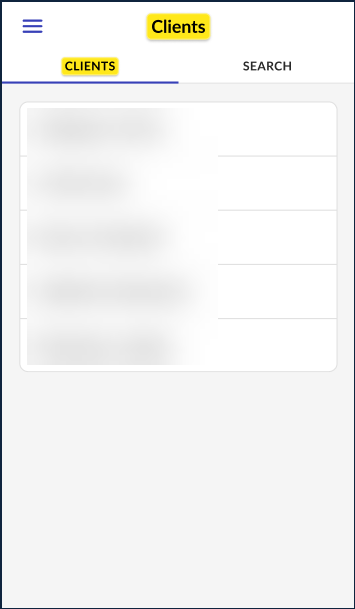
Go to the Client tab on the Clients screen.
-
Tap a Client from the list.
-
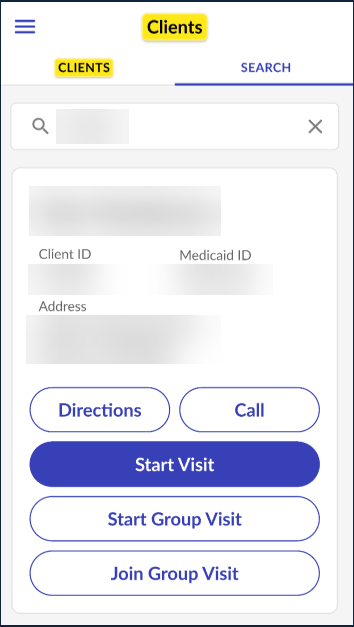
Tap Start Visit.
-
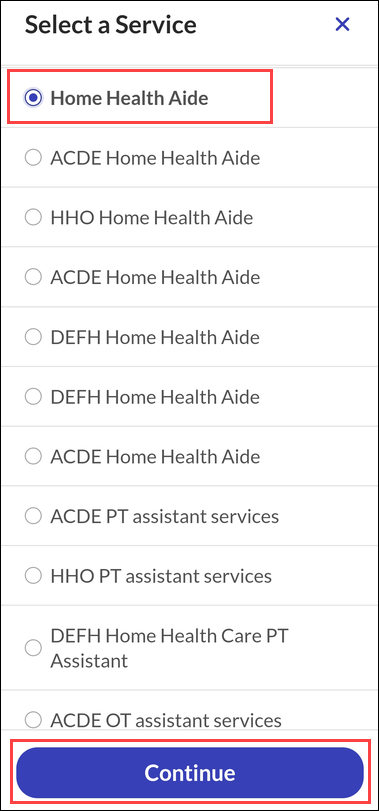
Select a Service.
-
Tap Continue.
-
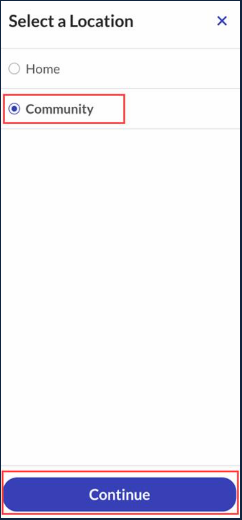
Select a Location.
-
Tap Continue.
-
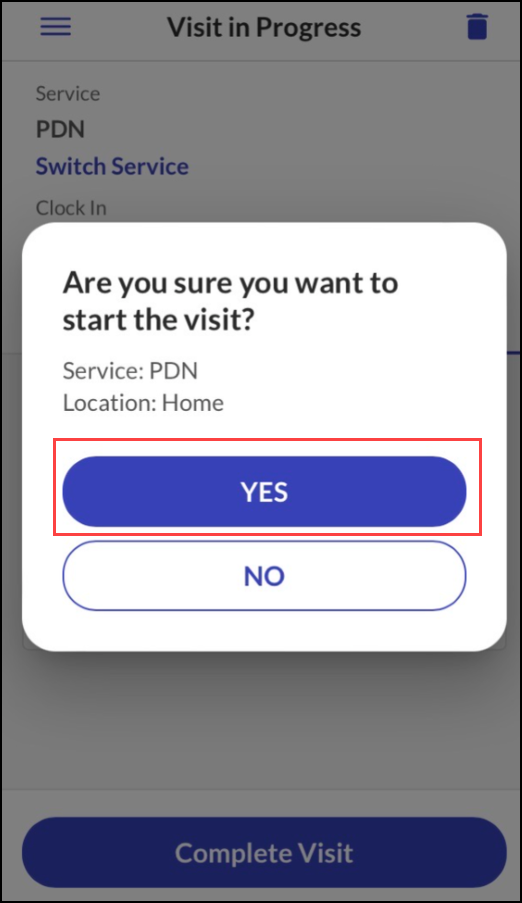
Tap Yes to start the visit.
-
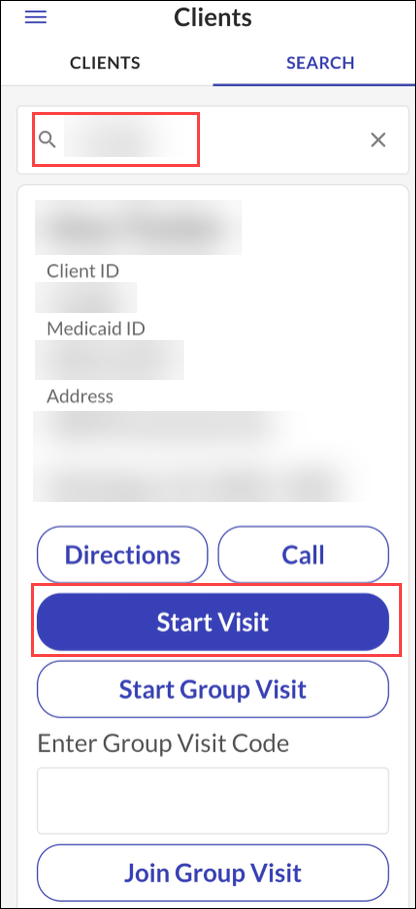
Go to the Search tab on the clients screen.
-
Tap the Enter Client Identifier field, enter search criteria.
-
Tap Search.
Client identifiers include Medicaid ID, Client ID, or Customer Number.
-
Tap Start Visit.
-
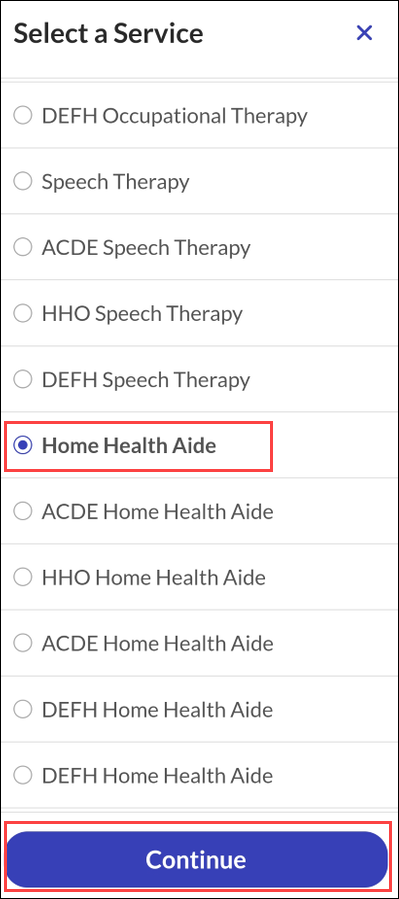
Select a Service.
-
Tap Continue.
-
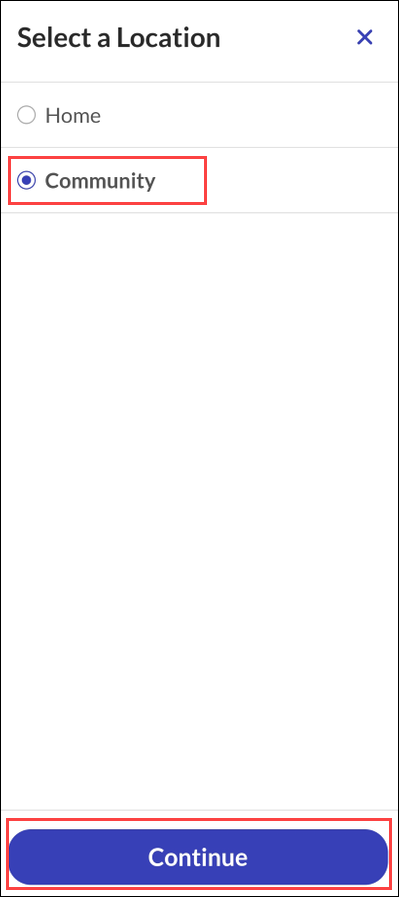
Select a Location.
-
Tap Continue.
-
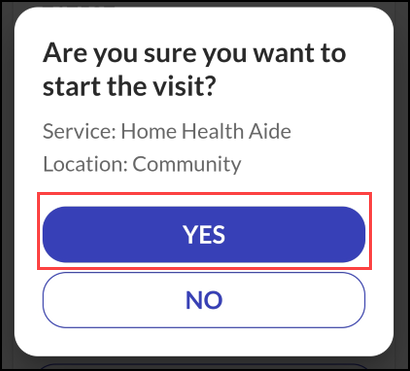
Tap Yes to start the visit.
-
Go to the Search tab on the clients screen.
-
Tap Start Unknown Visit.
-
Complete the required fields, tap Start Visit.
Tapping Start Visit starts a standard visit with an unknown clients. Tap Start Group Visit to start a group visit with an unknown client or enter a group visit number and tap Join Group Visit to add an unknown client to an existing group visit. There is a limit of one unknown client per group visit.
-
Select a Service.
-
Tap Continue.
-
Select a Location.
-
Tap Continue.
-
Tap Yes to start the visit.
-
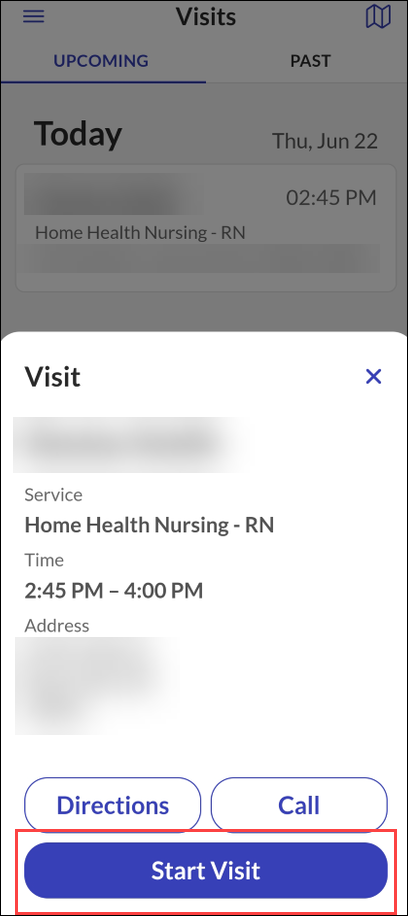
Go to the Upcoming tab on the Visits screen.
-
Tap a Visit from the list of available visits on the Upcoming Tab.
-
Tap Start Visit.
-
Select a Service.
-
Tap Continue.
-
Select a Location.
-
Tap Continue.
-
Tap Yes to start the visit.