Sandata Mobile Connect Group Visits
The Group Visit feature allows multiple employees to provide services for two or more individual clients. A group visit refers to visits that involve two or more individual clients who are connected by a shared group visit code.

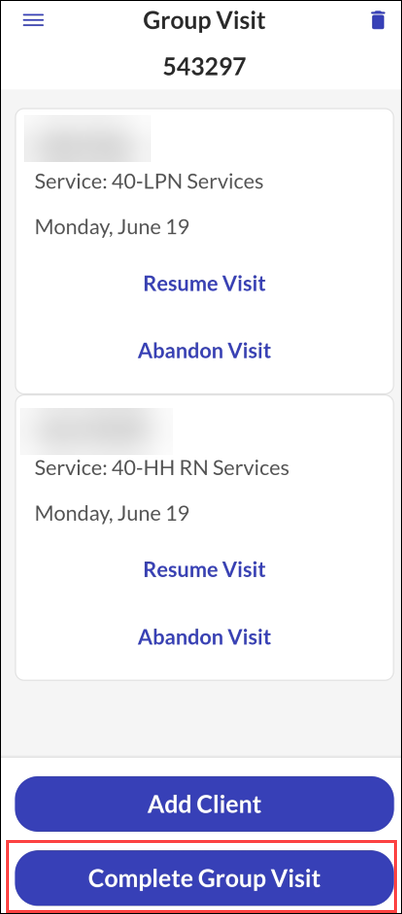
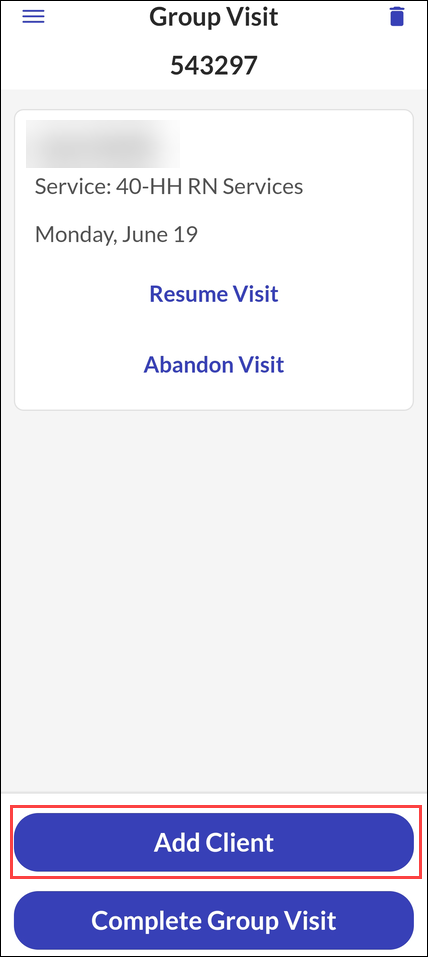
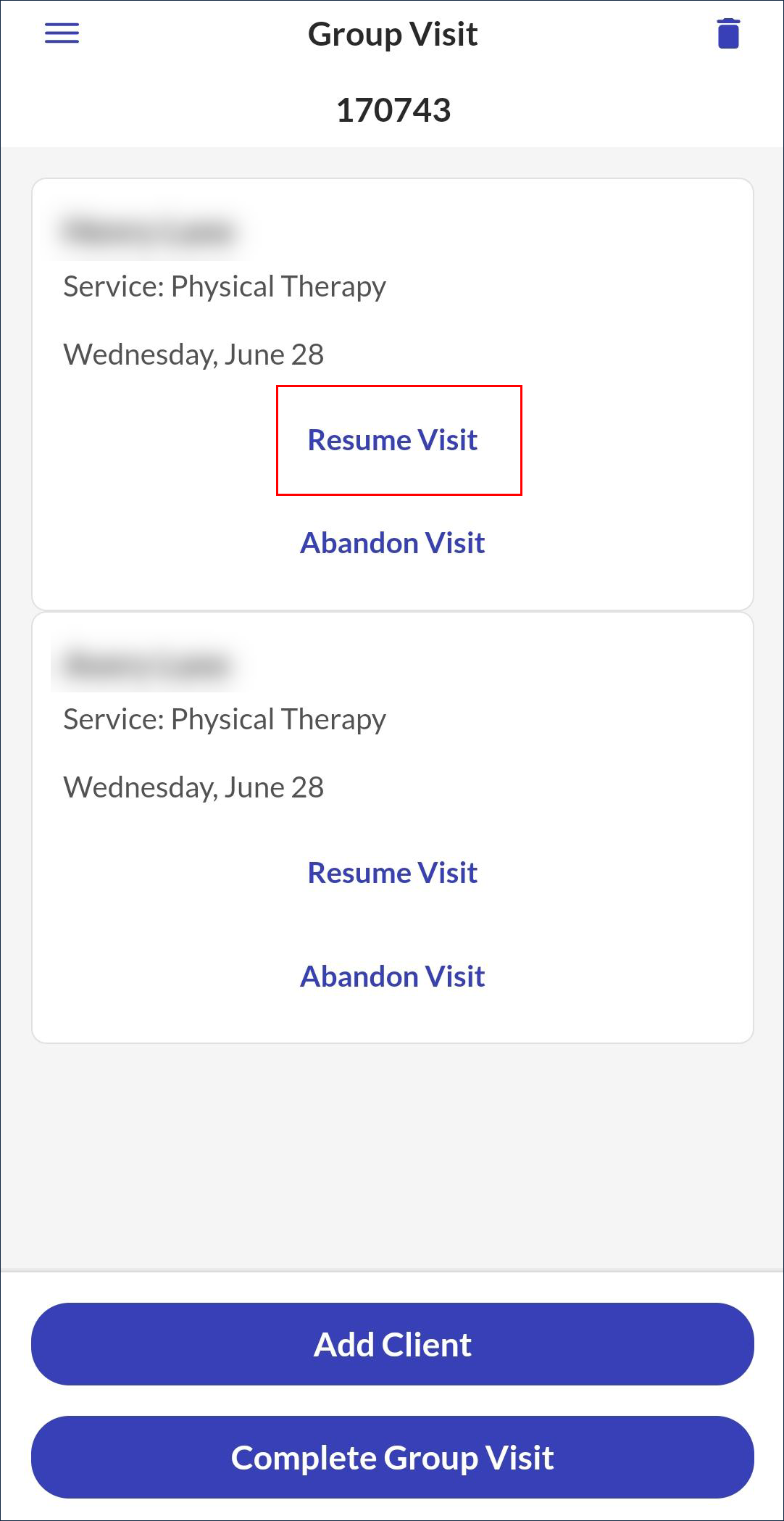
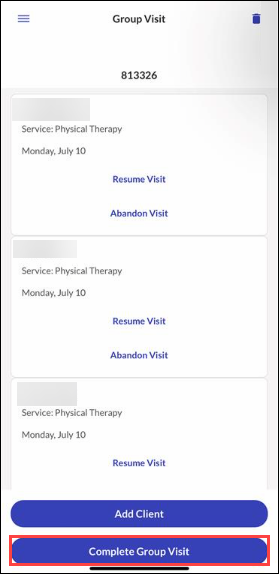
The Group Visit screen displays the group visit code and allows users to manage group visits. On this screen, you can add additional clients to the group visit, complete or abandon visits for individual clients and complete or abandon all visits they are attending as part of the group visit.
To complete an individual visit, tap the Complete Group Visit button and follow the standard procedure to complete a visit.
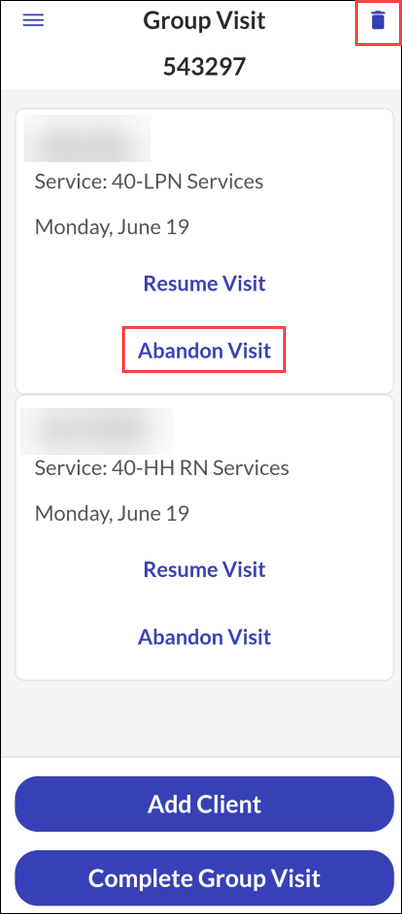
To abandon an individual visit, tap the Abandon Visit button and tap the Trash Can to abandon all visits in the group.
This is only possible if client confirmation is disabled.
-
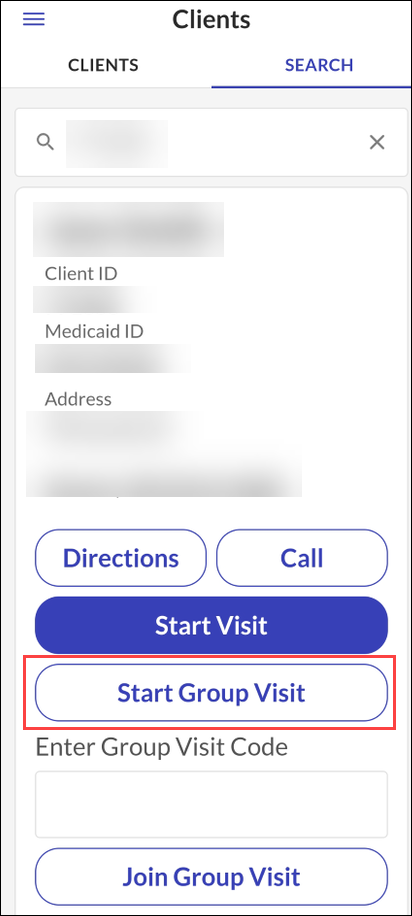
Go to the Search tab.
-
Tap Start Group Visit.
-
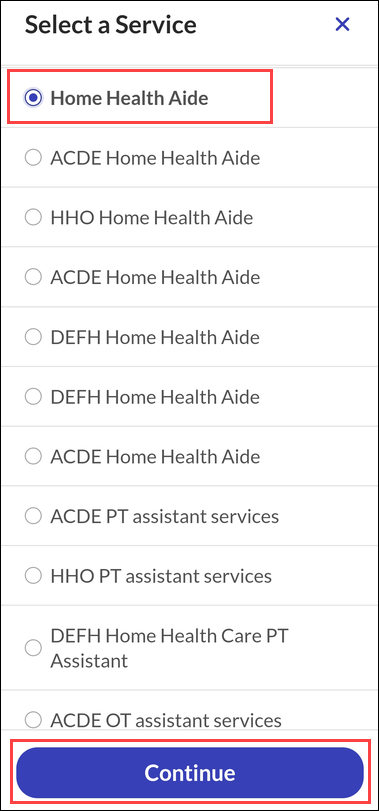
Select a Service.
-
Tap Continue.
-
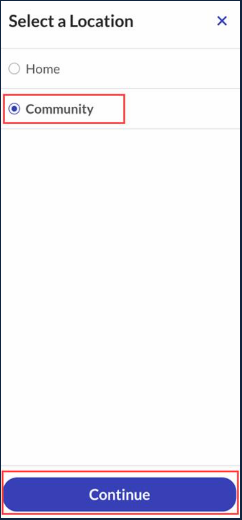
Select a Location.
-
Tap Continue.
-
Select YES to start a Group Visit.
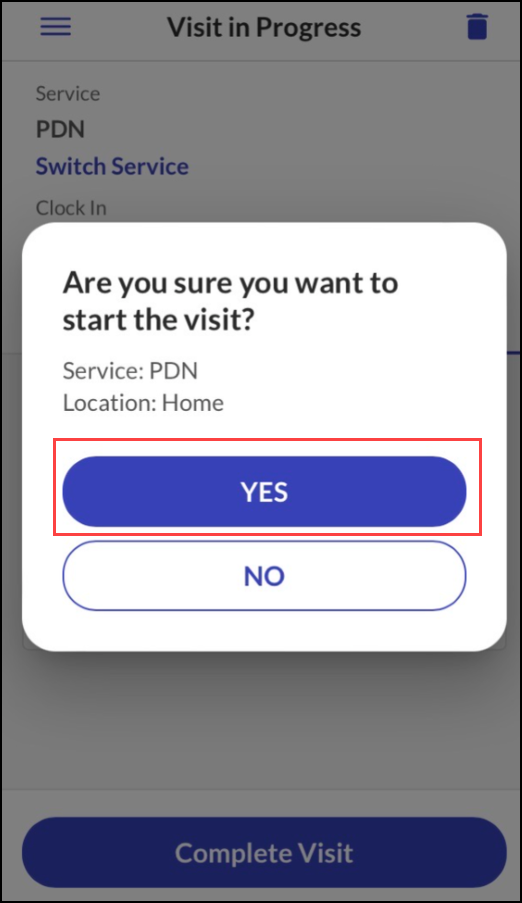
After starting a group visit, users can add additional clients to the group visit.
-
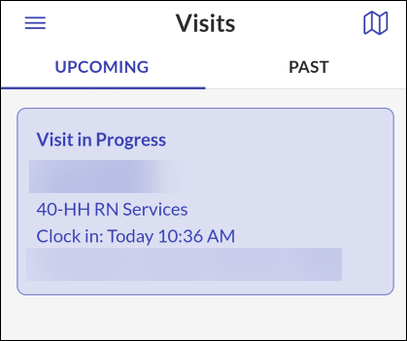
Go to the Upcoming tab on the Visits screen.
-
Tap on the Visit in progress.
-
Tap Add Client.
-
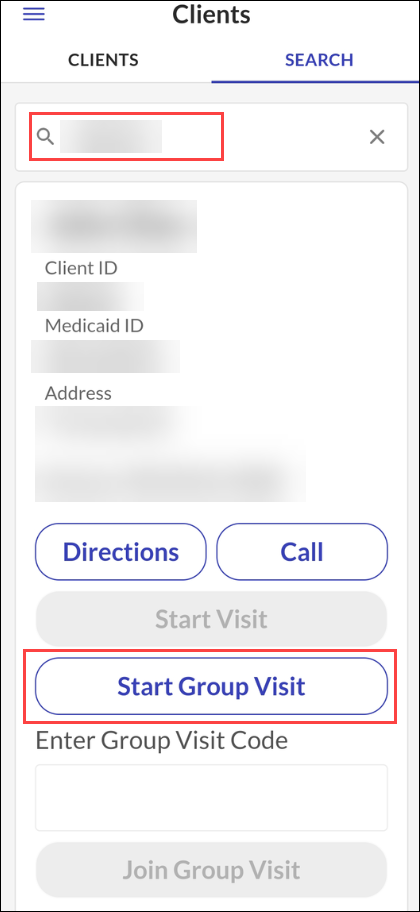
Search for a client or start an unknown visit.
-
Click Start Group Visit.
-
Select a Service.
-
Tap Continue.
-
Select a Location.
-
Tap Continue.
-
Select YES to start a Group Visit.
If another employee has a group Visit in Progress, additional employees can add clients to that group visit using a group visit code.
To add a client to a group visit started by another employee, search for a client and follow the instructions below:
-
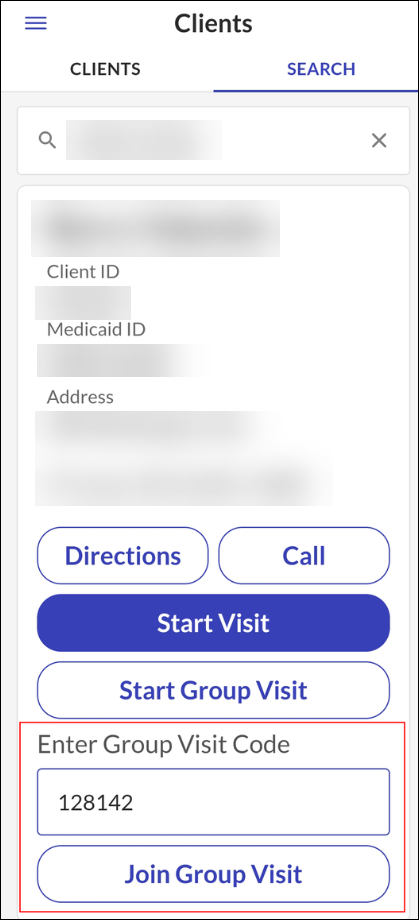
Search for a client or start an unknown visit.
-
Enter a Group Visit code.
-
Tap Join Group Visit.
Group visit codes are generated when a group visit is started and are required for joining an in-progress group visit. The group visit code displays at the top of the group visit screen.
-
Select a Service.
-
Tap Continue.
-
Select a Location.
-
Tap Continue.
-
Select Yes to start a Group Visit.
Employees can complete visits for individual clients in the group, but the group visit remains active until each employee has completed all visits for all clients associated with that group visit.
-
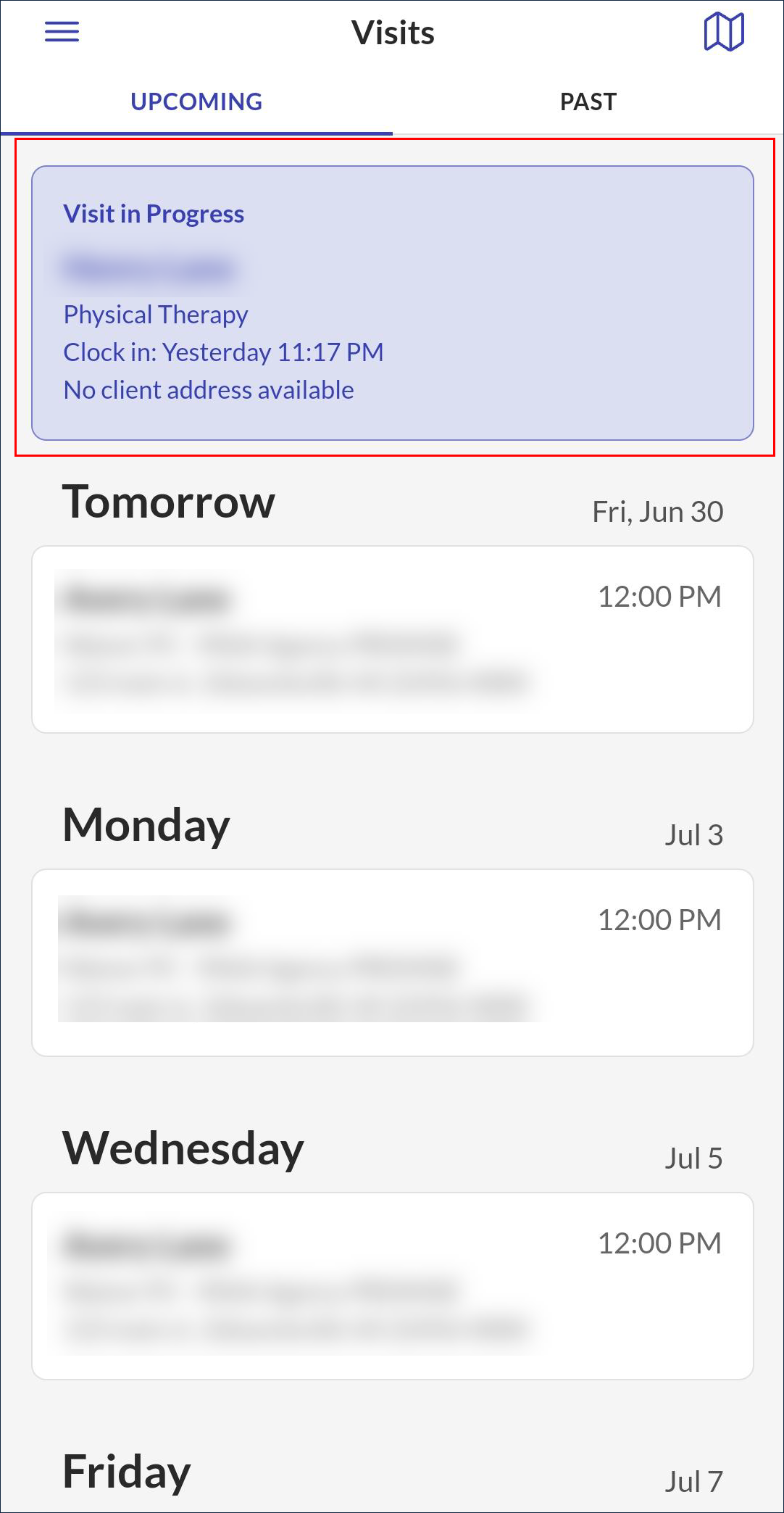
Go to the Upcoming tab on the Visits screen.
-
Tap on the Visit in Progress.
-
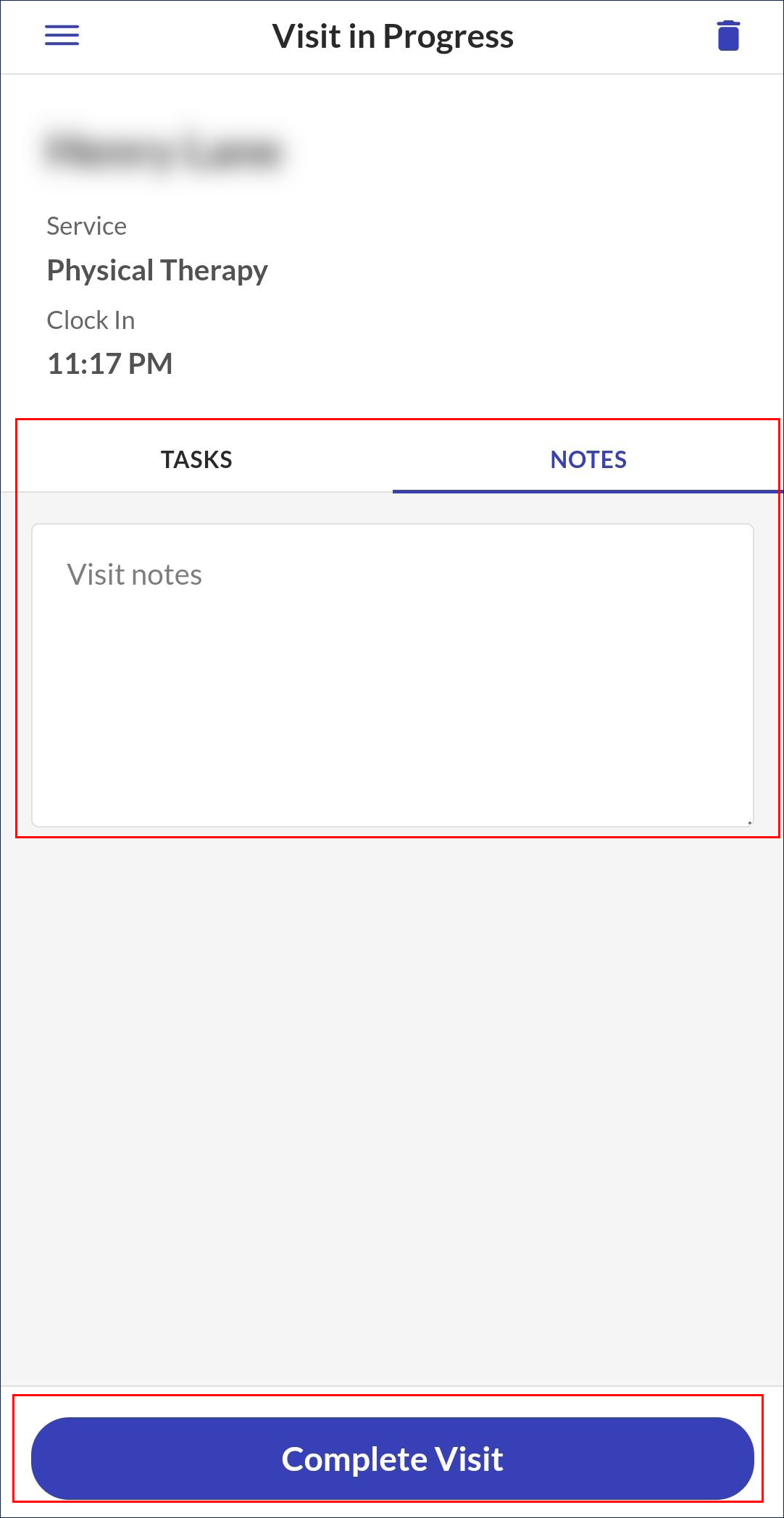
Tap Resume Visit.
-
Add any additional visit information, if needed.
-
Tap Complete Visit.
-
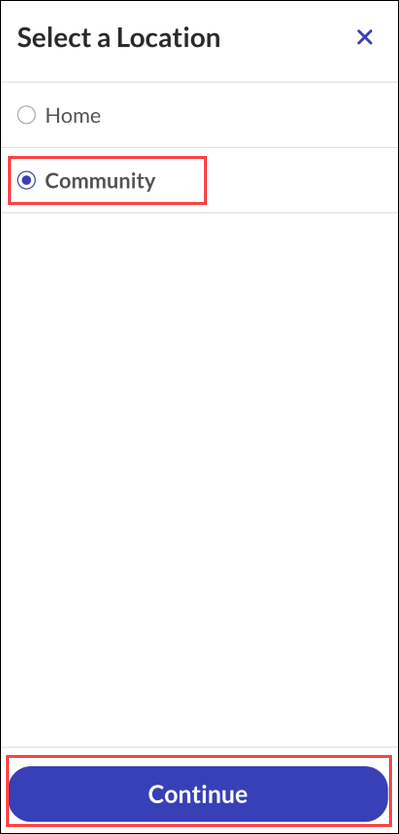
Select a Location.
-
Tap Continue.
-
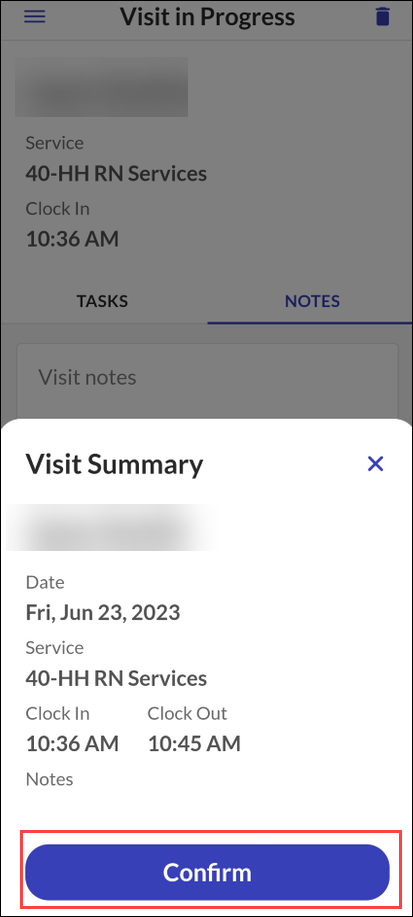
Tap Confirm.
-
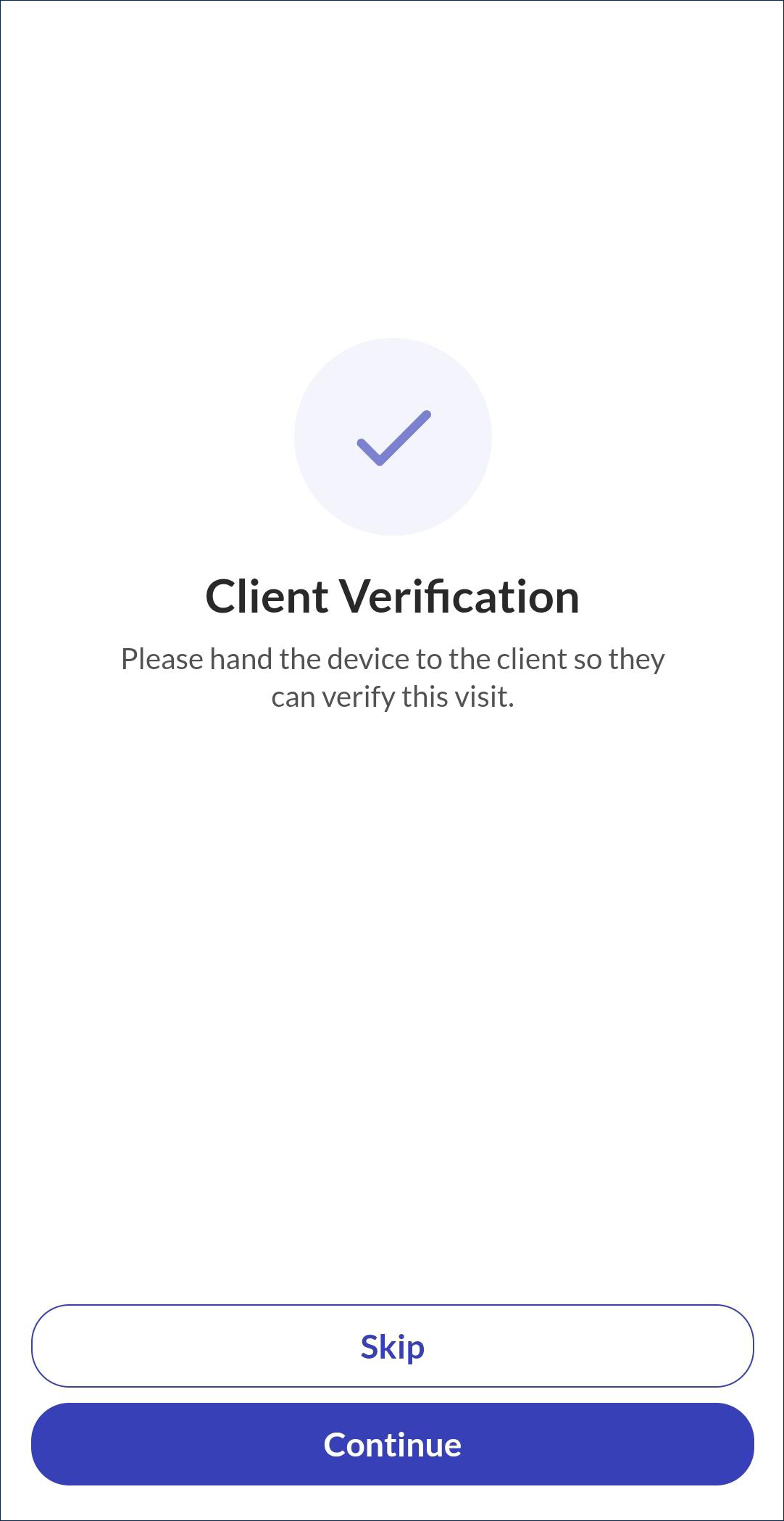
Pass the device to the client to begin Client Verification, if applicable.
You can complete a group visit for all clients in the group at once. The group visit remains active until all employees have completed all visits for clients in the group.
If client confirmation is enabled, you must complete the visit for each client in the group visit individually.
-
Go to the Upcoming tab on the Visits screen.
-
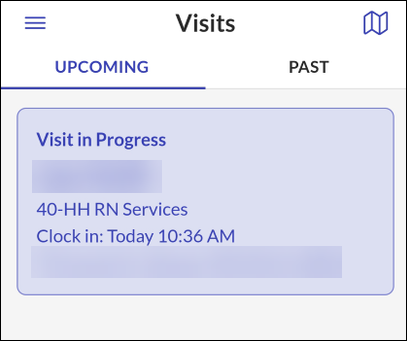
Tap on the Visit in Progress.
-
Tap Complete Group Visit.
-
Tap Yes.
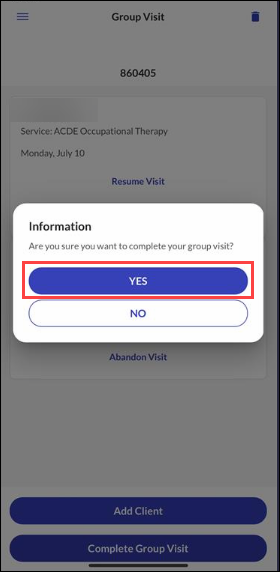
The Group Visit is Complete.