Sandata Find a Substitute for a Shift
Use the Find Substitute feature to find someone who is qualified, approved, and available to take a shift. This feature is only available if enabled in Options.
A staff member is eligible to fill the slot if, the person:
-
Is active
-
Is approved to work at the scheduling location
-
Is not excluded from working with any clients assigned to the shift
-
Does not have approved time off at any point during the shift
-
Is not already scheduled to work another shift that overlaps with the shift
Complete the following steps to find a substitute for your shift:
-
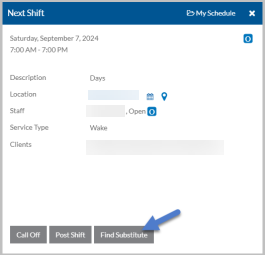
Select My Schedule from the menu or to find a substitute for your next shift, select the Find Substitute button on the Next Shift card on the Home screen.
-
If My Schedule is selected, the My Schedule screen opens. Continue on to Step 2, or
-
If Find is selected on the Next Shift card, go to Step 4.
-
-
Select the shift you want to find a substitute for from the grid.
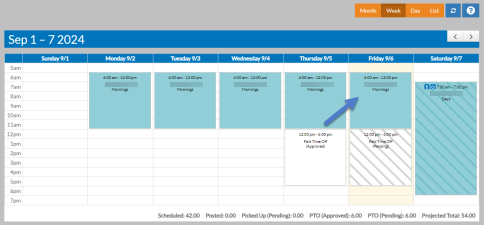
The shift opens in a pop-up.
-
Select the Find Substitute button.
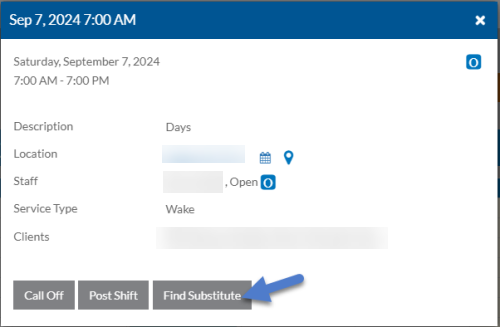
The Staff window opens.
-
Select the name of the person you want to send a message to asking them to fill your shift and select the Send Substitute Request button.
You can also select the email icon to automatically create an email addressed to the staff member’s email address, select the phone icon to call the phone number listed, or select the cell phone icon to create a text to them. If your coworker marked the Allow Staff To See This Contact Information checkbox in Contact Information cards under User Settings, their phone number and/or email address appears.
-
Select the Send button to send the message.
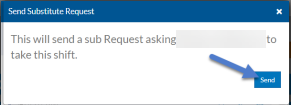
The recipient receives a message in the Message Center that includes a link to the shift where the request can be accepted or rejected.
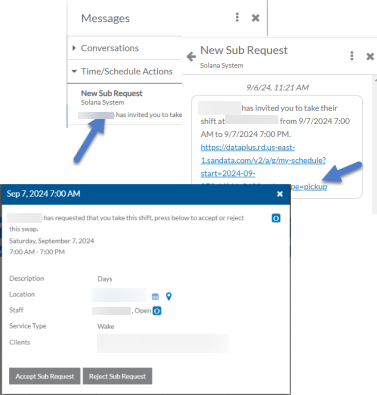
Make sure the shift is posted to the trade board so the shift can be taken. For more information, see the Post and Unpost Available Shifts and Pick Up Available Shifts topics.
If you want to cancel the substitute request, open the shift again and select Cancel Sub Request.