Employees Post and Unpost a Shift to Available Shifts
You can post a shift for another staff member to pick up, if it is within the allowable time frame, before your shift is scheduled (as set by your agency). If no one picks your posted shift up within the time frame designated by your agency, prior to your shift, it is automatically removed from the available shifts board.
Staff members are still scheduled and responsible for the shifts until another staff member picks up the shift and it is approved by a scheduling manager.
To post the scheduled shift to Available Shifts for another employee to pick up:
-
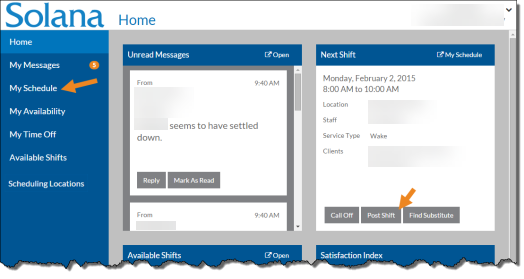
Select My Schedule from the menu, or if the shift you want to post is your next shift, select Post Shift on the Next Shift card on the Home screen.
-
If you selected My Schedule, the My Schedule screen opens. Continue on to Step 2.
-
If you selected Post Shift on the Next Shift card go to Step 4 instead.
-
-
Select the shift you want to post from the grid.
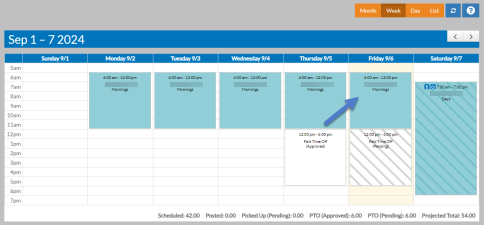
The shift opens in a pop-up.
-
Select the Post Shift button.
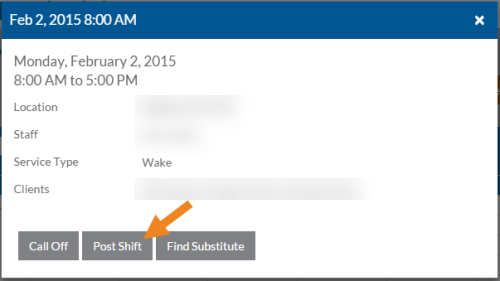
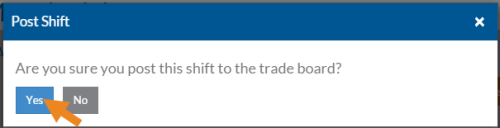
A confirmation message appears.
-
Select the Yes button.
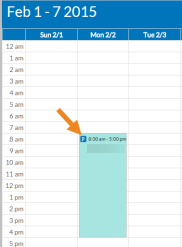
A P icon appears on the posted shift in your schedule view.
-
If Staff Notification Settings (under User Settings) are set up, you are notified when someone picks up your shift and the schedule manager approves it. Your staff manager is also notified when you post a shift.
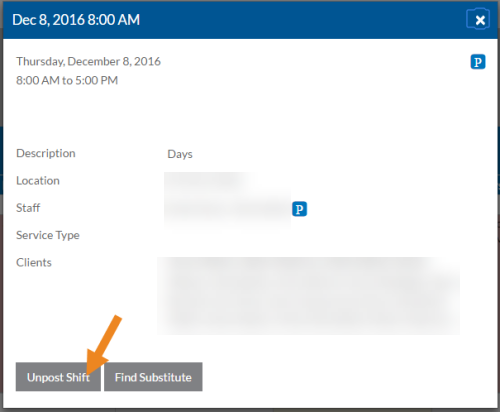
If a mistake is made or the shift is no longer wanted and the shift has not already been picked up by another employee, the shift can be removed from Available Shifts. To do so, open the Shift card as if posting and select the Unpost Shift button.