Pick Up Available Shifts
Go to Available Shifts to view and pick up additional shifts that are either open or that a coworker posted.
The list of available shifts are based on this criteria:
-
The shift is published and is either open or posted.
-
The staff member is approved to work at the location.
-
The staff member is not excluded from working with any clients assigned to the shift.
-
The staff member does not have approved time off at any point during the shift.
-
The staff member is not already scheduled to work another shift that overlaps with the shift.
-
Picking up the shift would not cause the staff member to go above the company's absolute maximum hours for the day or week.
-
The staff member has the necessary qualifications for the shift.
The available shifts then appear in the order that best match the following criteria and weighting.
| Criteria | Weight |
|---|---|
| Hours for this shift do not exceed the company's preferred maximum for the day | .05 |
| Hours for this shift do not exceed the company's preferred maximum for the week | .10 |
| Hours for this shift do not exceed the staff member's preferred maximum for the day | .05 |
| Hours for this shift do not exceed the staff member's preferred maximum for the week | .10 |
| The scheduling location is a manager's preferred scheduling location for you | .05 |
| The scheduling location is one of your preferred scheduling locations | .10 |
| Your availability allows for you to work this shift | .10 |
Complete the following steps to pick up a shift.
-
Select Available Shifts from the menu or Open on the Available Shifts card on the Home screen.
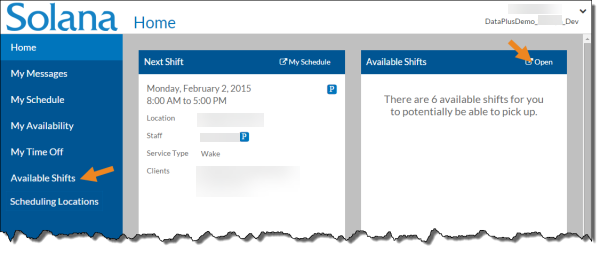
The Available Shifts screen opens.
-
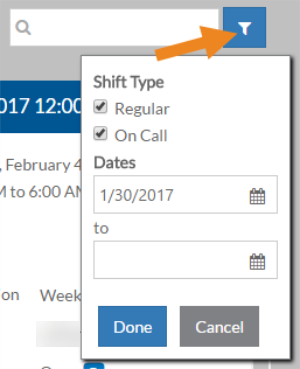
Select the filter icon to select the type of shift you want to pick up (Regular or On-Call) or specify a date range.
-
When finished select the Done button.
-
Use the Search field to find available shifts at a specific location, posted by a specific co-worker or with certain clients.
-
Select the Pick Up Shift button on the Shift card that you want to take.
The O icon indicates the shift is open, while the P icon indicates a co-worker posted the shift.
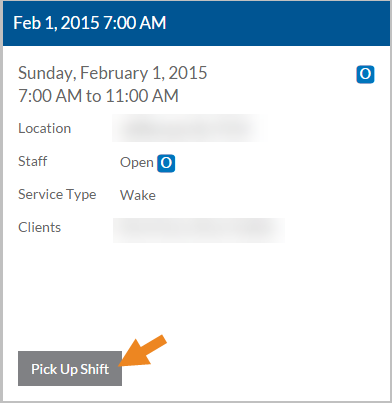
A confirmation message appears.
-
Select the Yes button.
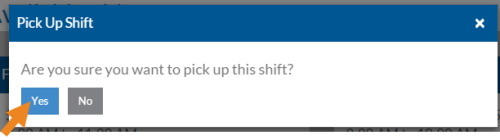
The shift disappears from the Available Shifts page. If required, the Schedule Manager may need to approve the change. It appears as a striped yellow box on the schedule until it has been approved. If a posted shift is taken, both the staff member and the poster are notified (if Staff Notification Settings are enabled under User Settings) once the Schedule Manager approves it. Only the staff member is notified if the Schedule Manager denies it.