Run and Modify Reports
DataPlus includes a library of standard reports for users to run quickly and easily. The reports that appear will be based on the modules your agencies have licensed.
You may see a report in your list that isn’t applicable to you. If you do not have security rights to see the data included in the report, it will be blank.
To run a report:
-
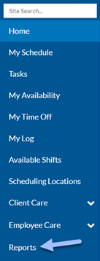
Select Reports in the menu panel:
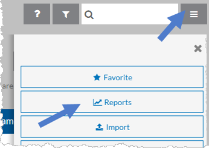
Or, if you are on an index screen, select the Options menu icon and then select Reports.
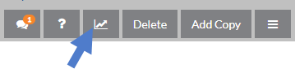
If you are on a detail screen, select the Reports icon.
-
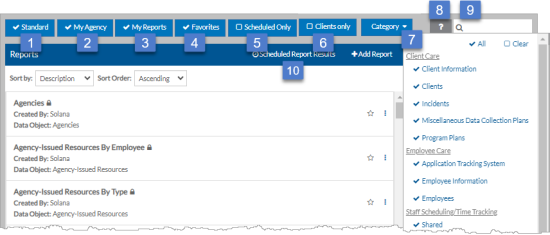
Set the toggle filters or use the search to find the existing report you want to run.
#
Button Action
1
Standard reports are ones that Sandata provides.
2 My Agency reports are ones that you or other users at your agency created. 3 My Reports are the reports that you created. 4 Favorites are the reports that you set as favorites. 5 Scheduled Only are reports that are scheduled to automatically run on a specified frequency. 6 XYZ Only reports are the reports related to the Index screen or Detail screen you were on when you opened reports. For example, if you were on Clients these will be Client Only reports. 7 Select the arrow next to Category to show and hide groups of reports based on the modules your agency licenses: Time Tracking, Staff Scheduling, Client Care, Employee Care, etc. 8 Click the Help icon to access links to the Learning Center and a related eLearning tutorial. 9 Search for a report based on the report name, tags, etc. 10 View the results of any reports that you have scheduled and have run. -
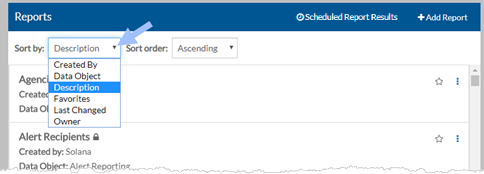
Select the Sort by list beneath the Reports title bar to change how you want to sort the list of reports.
-
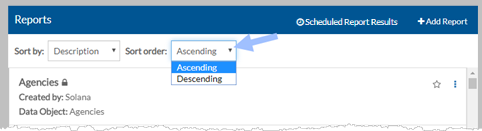
Select the Sort order list to sort the list of reports in either ascending or descending order.
-
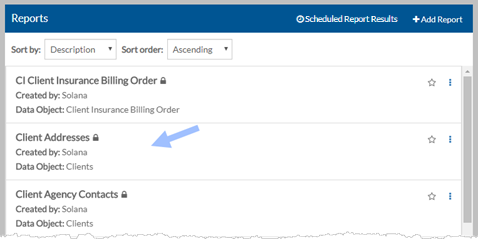
Click anywhere on the card of the report you want to run to open it.
-
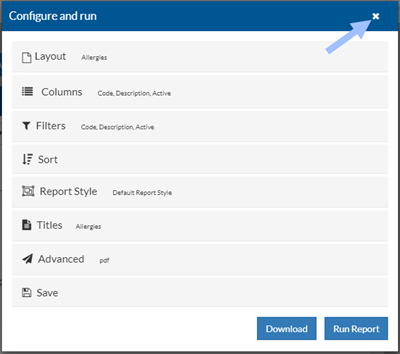
To change the layout the report is using:
-
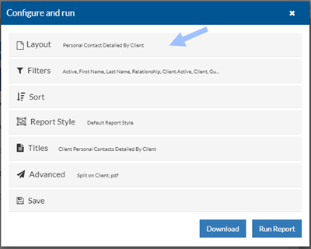
Select the Layout banner.
-
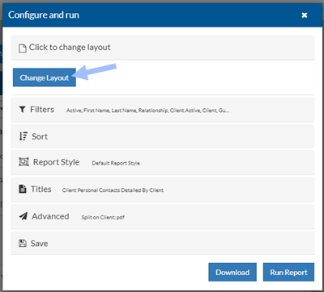
Click the Change Layout button.
-
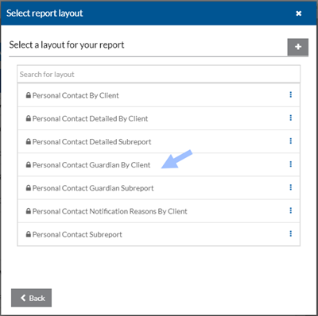
Select the new layout you want to use.
-
-
To modify the report layout:
-
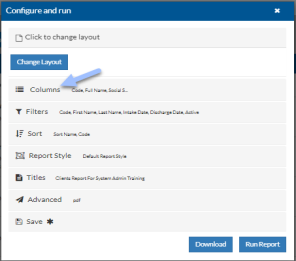
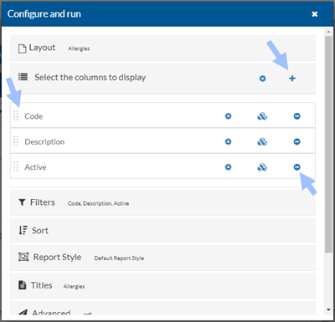
Select the columns banner.
-
From here you can add, remove and reorder the properties that appear in report layout. See Create a New Report for more information.
-
-
To set the report settings, if applicable:
-
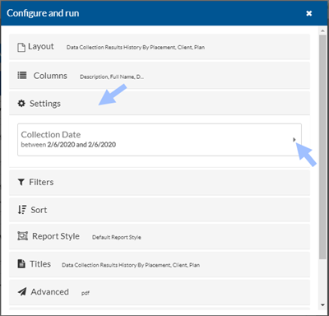
Select the arrow next to the setting to set it as you would a filter.
-
You will see an indicator if you are required to enter a setting to run the report. The Run Report button will be disabled until the setting is entered. See the next step for additional information on setting filters.
-
-
To set filters for the report:
-
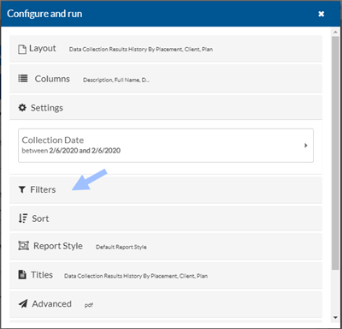
Select the Filters banner to open the filters section.
-
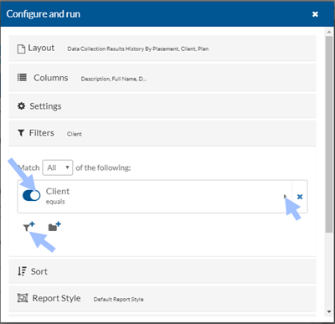
Set or add additional filters. See Basic Filters for more information on filtering.
-
-
To set the report Sort Order:
-
Select the Sort banner to view the sort section.
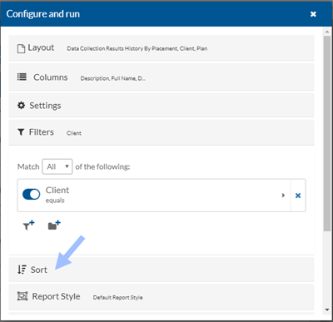
-
Select the + to set or change the sort settings.
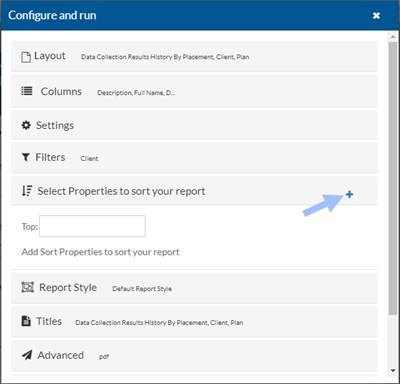
-
Select the properties you want to sort on and select the X when finished.
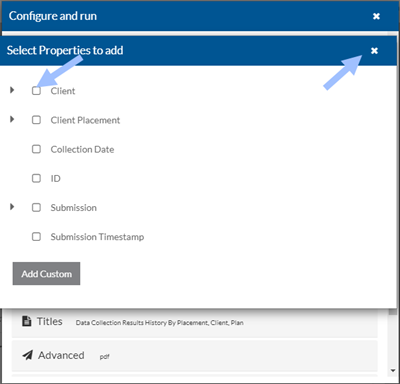
-
Rearrange the sort properties or change to sort in Descending vs Ascending order.
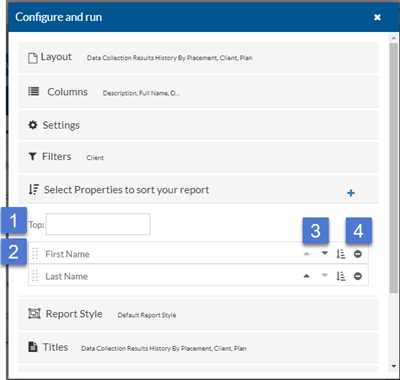
-
Enter a number in the Top box to limit the results to that number.
-
The properties appear in the order that you added them. Select the handle to drag and drop them in a different order.
-
Select the arrow icon to sort the report results in descending order. Select it again to sort in ascending order.
-
Select the Minus icon to remove the property from the sort.
-
-
-
To set subreport filters, if applicable:
-
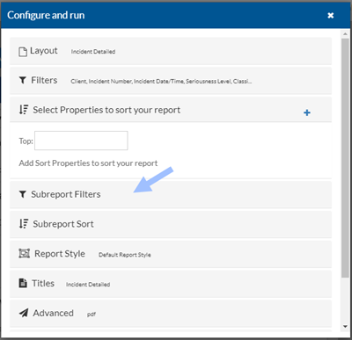
Select the Subreport Filters banner.
-
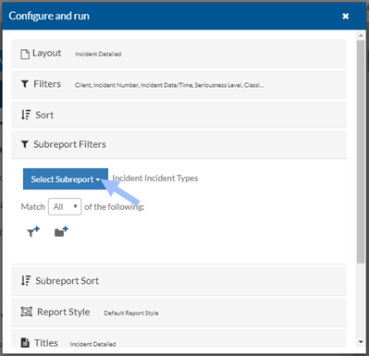
Click the Select Subreport button.
-
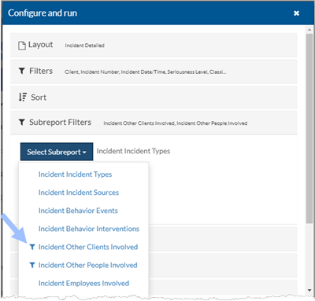
Select the subreport you want to set the filters for.
The filter icon next to the subreport indicates that there is already filters set for that subreport.
-
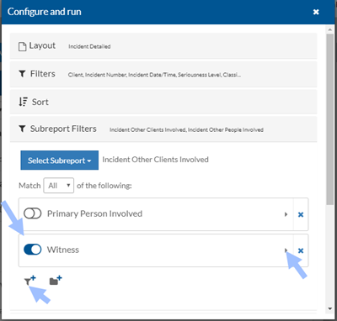
Set or add additional filters for the subreport. See Basic Filters for more information on filtering.
-
-
To set the subreport sort order, if applicable:
-
Select the Subreport Sort banner.
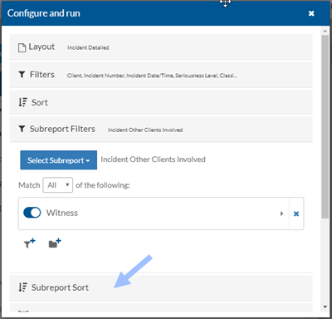
-
Click the Select Subreport button.
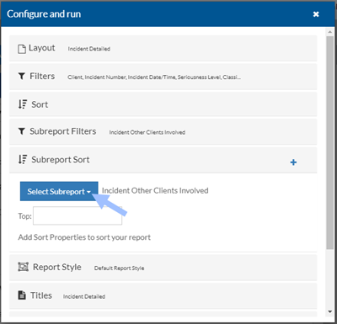
-
Select the subreport you want to set the sort order for. The sort icon next to the subreport indicates that there is already a sort order set for that subreport.
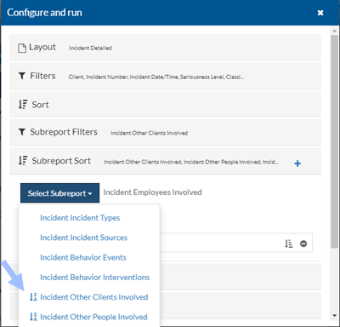
-
Select the + to add the properties to sort on just as you did for the main report.
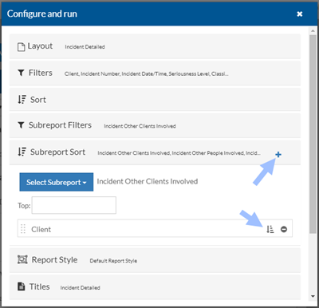
-
-
To set the style for the report:
-
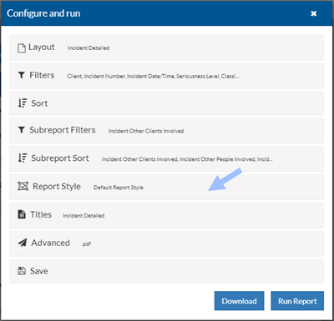
Select the Report Style banner.
-
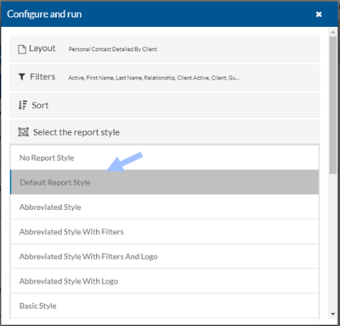
Select one of the following:
-
Default Report Style to use the one set in User Settings/Database Settings
- No Report Style to not use a style or select the specific style you want to use.
-
-
- To set the report titles:
Select the Titles banner to view titles.
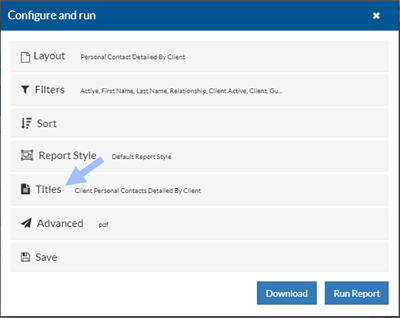
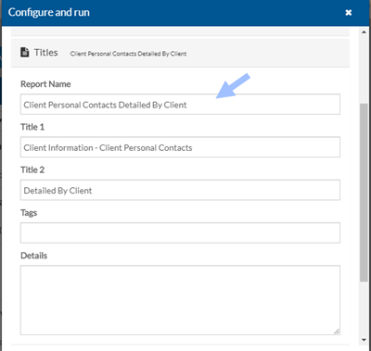
Enter the Report Name, Title 1 and 2, Tags, and any Details as desired.
These will appear in the report if included in the Style you chose. In addition, you can search for a report based on the tags set here if you save the report.
- To split the report, set the file type, or email the report:
Select the Advanced banner to view the delivery methods.
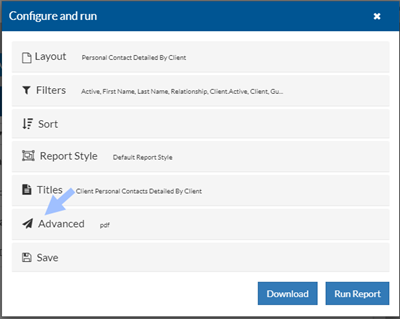
Set the split report information, file type, and email information for the report as needed.
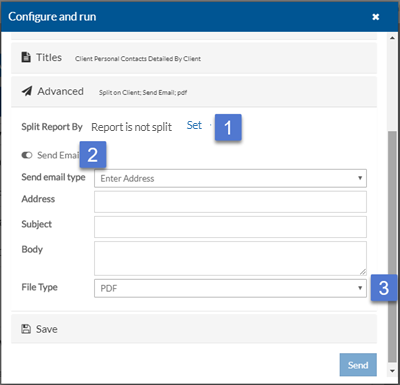
Split Report: Click Set to split the report into multiple files based on a selected data property. Use Change to update the split or Remove to delete it.
Send Email: When selected, the report is sent as an email attachment. You’ll enter the email type, address (if using Enter Address), subject, and message. If the report is split, each version is sent in a separate email.
File Type: Choose a format (PDF, Excel, Word, etc.); PDF is the default. If the report is split, files are downloaded as a .zip. If emailed, the report is attached in the selected format.
-
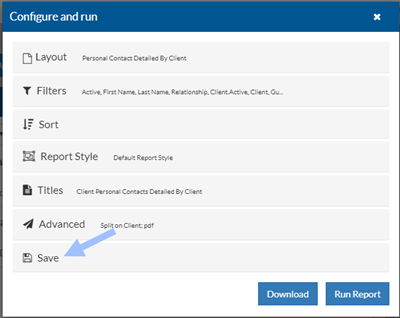
Select the Save banner.
-
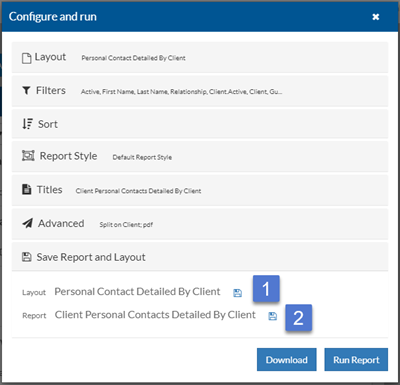
Save the report and report layout as needed.
-
Layout: If you’ve made changes or created a new layout, you can save it if you’re the owner or have change permissions. If not, use Save As and rename it.
-
Report: If you’ve made changes to the filters, sort, etc. or created a new report, you can save it if you’re the owner or have change permissions. If you’re not the owner, use Save As and rename the report.
-
-
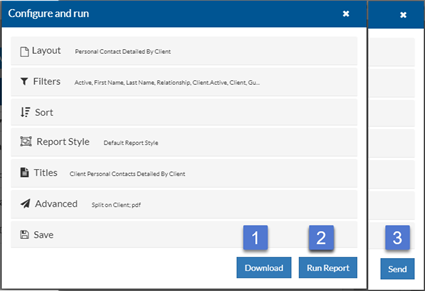
To download the report in the selected file format, click the Download button. You are prompted to select the directory/file name where you want to save the report.
-
If the File Type is set to PDF in the Advanced section, click the Run Report button to run the report to view it in a new web tab.
-
Click the Send button to send out the email(s) with the report.
-
Select the X to close the Configure and run window without running the report or when finished.