Reports Feature

To make a change to a previously scheduled report:
-
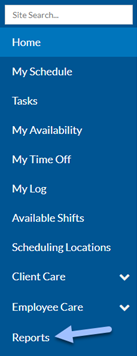
Select Reports in the menu panel.
-
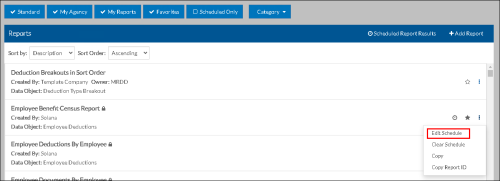
Use the filters to locate the report.
-
Select the Ellipsis next to the report and click Edit Schedule.
-
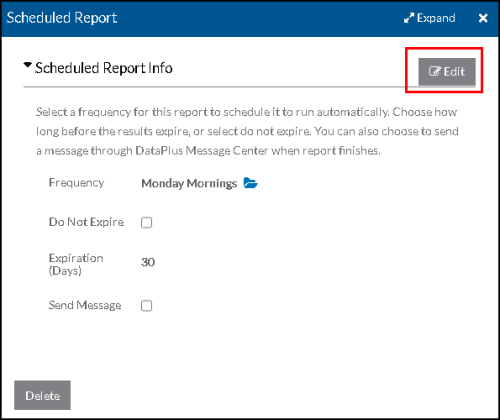
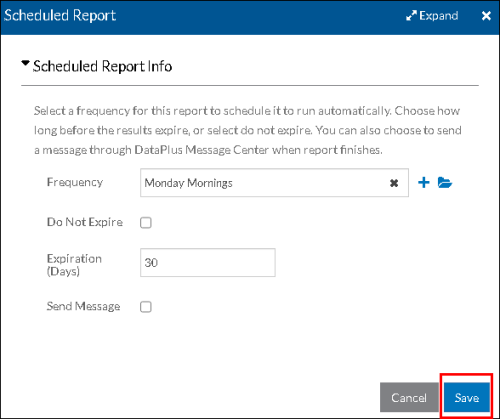
Click Edit or on any of the fields to edit the report's schedule.
-
Click Save.
If the standard reports doesn’t meet your needs, you can create your own.
To create a new report:
-
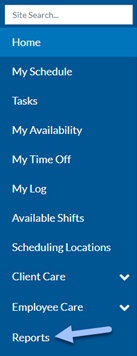
Select Reports in the menu panel.
-
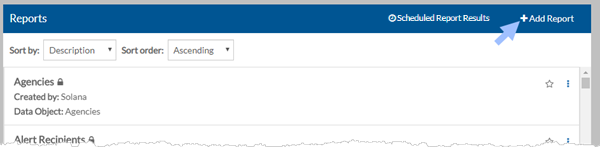
Select + Add Report.
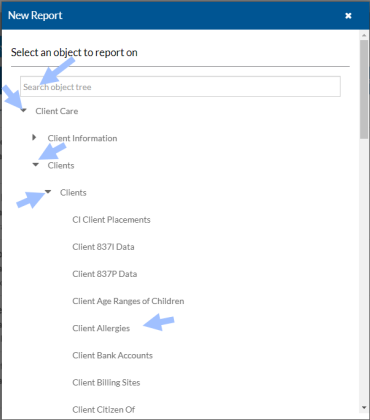
Select the object that you want to create a report for. You may need to clear the search box to find the object you want to report on.
-
Select an existing layout (which you can then modify if it is not locked) or select the + to create a new layout.
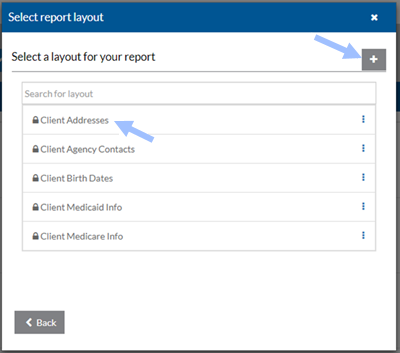
-
Select the + on the Select Columns to Display banner to add new columns to the report layout.
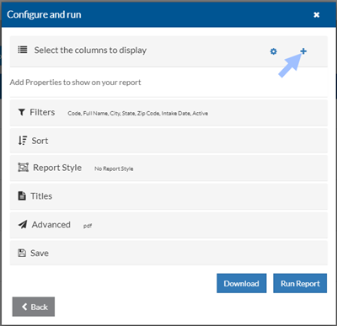
If you selected an existing layout and you do not see the Select Columns to Display section, either Solana created the layout, or you do not have permissions to change it, or it was created using the advanced layout editor in ProviderPro.
If it is not an advanced layout, you can create a copy of the layout first. You then can edit the columns. See Manage Saved Report Layouts for more information.
-
Select the fields you want to appear as columns, or select Add Custom to create a custom TSQL field.
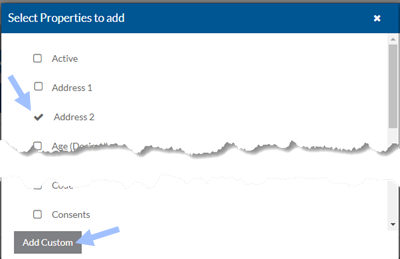
-
If you selected Add Custom, enter a name for the property and then select the properties to use in your TSQL statement. Select the Check Query link to validate your TSQL syntax and the X to save and close the window.
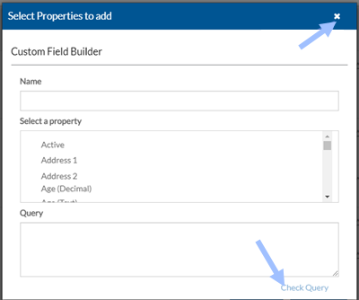
In order to create or modify a custom field, you must know the T-SQL query language. This is an unsupported feature available for those who are familiar with T-SQL and want to make use of it.
-
When finished adding columns, select the X to close the Select Properties to Add window.
-
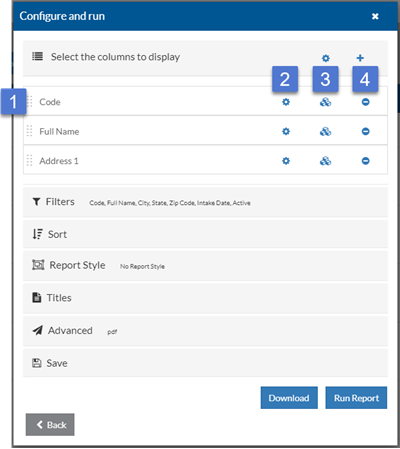
You can now reorder, remove or group data properties and columns:
-
The columns appear in the order that you added them. Select the handle next to a data property to drag and drop it in a different order.
-
Click the Gear icon next to the data property name to set column attributes. Go to step 9.
-
Click the Blocks icon to create a grouping.
-
Click the Minus icon to remove a data property as a column in the report layout.
-
Click the Gear icon on the Select the columns to display banner to set layout attributes. Go to step 10.
-
-
If you selected the gear to access the data property settings, you can change the headings, background color, etc. and then select the X when finished.
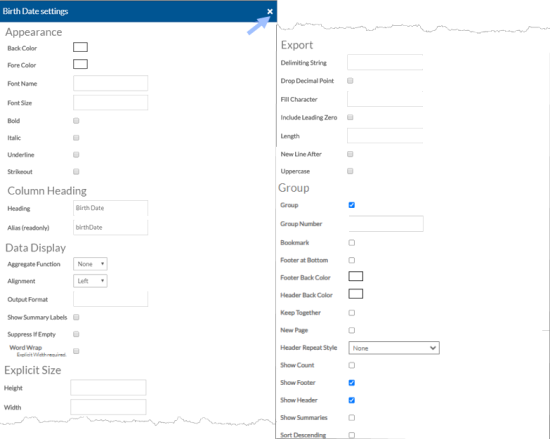
On this Card:
You will find these attributes:
Appearance
-
Back Color
-
Fore Color
-
Font Name
-
Font Size
-
Bold
-
Italic
-
Underline
-
Strikeout
Column Heading -
Heading: If exporting the report layout to CSV or Excel, the Column Headings are included if the layout is set to include them. The column headings are never included when exporting to a fixed file format.
-
Alias (read only)
Data Display -
Aggregate Function: The function type used to aggregate the value of this data property: Sum, Avg, Count, Min, Max, Var, etc.
-
Alignment: Left, Center, Right, Justify
-
Output Format: The mask string used to format the value of the data property.
-
Show Summary Labels
-
Suppress If Empty
-
Word Wrap - If selected, enter the explicit size below
Explicit Size -
Height
-
Width
Export -
Delimiting String: If exporting this report layout to a CSV (text) file, the character entered here will appear before and after the value. The default is a space.
-
Drop Decimal Point: If exporting this report layout to a CSV (text) or Fixed file format, the number will not include a decimal point if set to True. The default is False.
-
Fill Character: If exporting this report layout to a Fixed file format, the character entered will be used as the filler if the value is shorter than the set length. The default is space.
-
Include Leading Zero: If exporting this report layout to a CSV, Excel or Fixed file format and the value includes leading zeros, it will drop any zeros at the beginning of the value if set to True. The default is False.
-
Length: If exporting this report layout to a Fixed file format, this is the number of characters allowed.
-
New Line After: If exporting this report layout to a Fixed file or CSV format and set to True a new line is forced after outputting the data
-
Uppercase: If exporting this report layout to a Fixed file or CSV format, select True to force the data to all uppercase. Otherwise, leave False to show data in the case it was entered.
Group -
Group
-
Group Number
-
Bookmark
-
Footer at Bottom
-
Footer Back Color
-
Header Back Color
-
Keep Together
-
New Page
-
Header Repeat Style
-
Show Count
-
Show Footer
-
Show Header
-
Show Summaries
-
Sort Descending
-
-
If you selected the gear icon on the Select the columns to display banner, you can set layout settings.
From here you can set layout attributes:
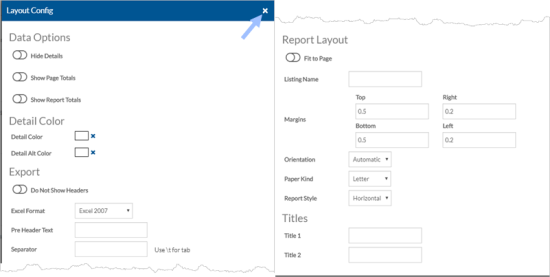
On this Card:
You will find these attributes:
Data Options
-
Hide Details
-
Show Page Totals
-
Show Report Totals
Detail Color -
Detail Color: If you want alternating rows to be in a different color, select the background color for the row.
-
If you want alternating rows to be in a different color, select the background color for the alternating row.
Export -
Do Not Show Headers: If exporting this report layout to a CSV (text) file format, the column headers will not appear in the file if set to True. The default is False.
-
Excel Format: If exporting this report layout to Microsoft Excel, the Excel format: Excel 2007 or Excel 97 to 2003.
-
Pre-Header Text: If exporting this report layout to Microsoft Excel and want to add information above the column headers. Separate rows with the tilde (~) and cells with the back slash (\).
-
Separator: If exporting this report layout to a CSV file format, this is the character used to separate the values. The default is comma (,). Use \t for a tab separator.
Report Layout -
Fit To Page
-
Listing Name: If exporting this report layout to Microsoft Excel, the name you want to use for the Worksheet. The default is "Listing."
-
Margins
-
Orientation:
-
Automatic - to let the Report Wizard determine the orientation. It will use portrait first and then automatically switch to landscape.
-
Landscape - to layout the report horizontally.
-
Portrait - to layout the report vertically.
-
-
Paper Kind
-
Report Style:
-
Horizontal - to have the data properties appear across the top of the page.
-
Vertical - to have the data properties go down the side of the page.
-
Titles -
Title 1: This title will appear in the report if Layout Title 1 is included in the report style selected for the report.
-
Title 2: This title will appear in the report if Layout Title 2 is included in the report style selected for the report.
See Run and Modify Reports for information on setting filters, sort, titles and advanced (delivery methods).
-
-
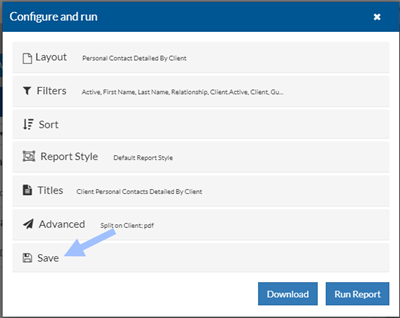
Select the Save banner to save your report layout.
-
Save the report and report layout as needed.
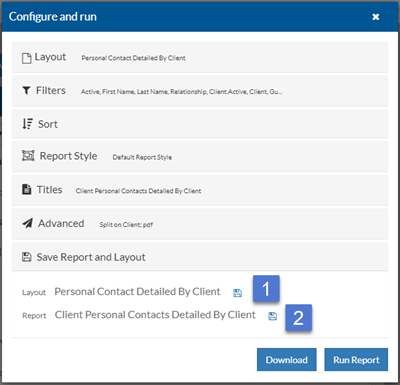
- Layout: If you’ve made changes or created a new layout, you can save it if you’re the owner or have change permissions. If not, use Save As and rename it.
-
Report: If you’ve made changes to the filters, sort, etc. or created a new report, you can save it if you’re the owner or have change permissions. If you’re not the owner, use Save As and rename the report.
You can set any report to be a favorite and use the toggle filters to only show favorited reports to find them faster.
To favorite a report:
-
Select Reports in the menu panel.
-
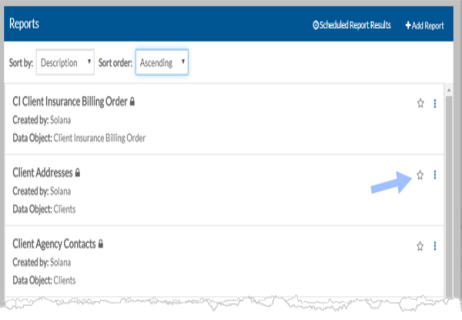
Select the star outline icon next to the report.
-
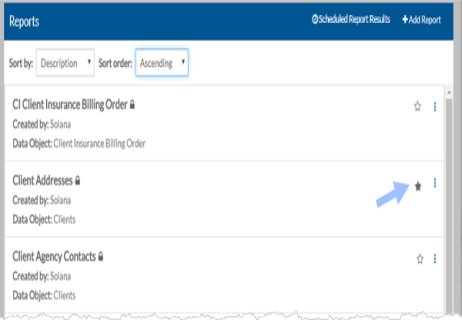
Select the filled star icon to remove a report from favorites.
To manage saved reports:
-
Select Reports in the menu panel.
-
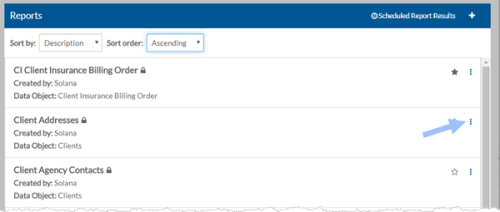
Click the Ellipsis next to the report.
-
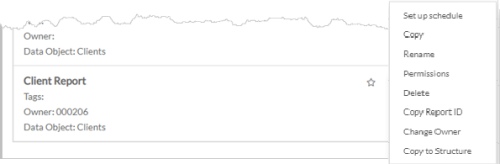
Depending on your security permissions, you can:
-
Set up schedule: Set the report to run automatically on a set frequency. See Schedule a Report.
-
Copy: Copy the report. This option is always available for any report.
-
Rename: Rename the report if it is not a Standard report (Lock icon next to its name), you are the owner of the report, or have Change/Delete permissions to the report.
-
Permissions: Change Permissions of the report if you are the owner of the report. You can set the permissions so other cannot view or edit it.
-
Delete: Delete the report if it is not a Standard report (Lock icon next to its name), you are the owner of the report, or have Change/Delete permissions to the report.
-
Copy Report ID: Copy the ID number of the report. This is useful for developers.
-
Change Owner: If you have Change Ownership permissions you can change the owner of the report to another user.
-
Copy to Structure: If your agency licenses multiple databases you can copy the report to the structure database so it can be copied to the other databases. You must copy the layout to structure first. Once the layout and report are both copied to structure the report will be available in the other databases after they are updated.
-
To schedule a report:
-
Select Reports in the menu panel.
-
Use the filters to locate the report.
-
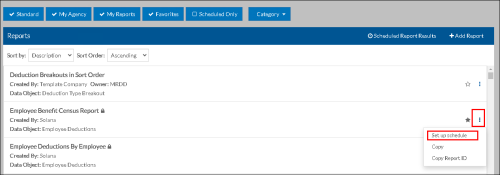
Select the Ellipsis next to the report and click Set up schedule.
-
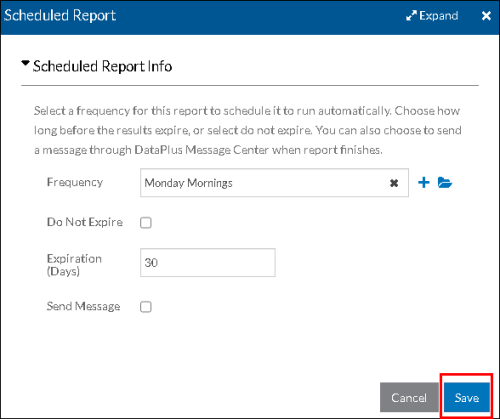
Use the fields to create the schedule for the report.
-
Frequency: When and how often the report will be run.
-
Do Not Expire: Select this checkbox to schedule the report to run indefinitely.
-
Expiration (Days): The report will no longer be scheduled after this many days.
-
Send Message: Select this checkbox to be notified when the report is run.
-
-
Click Save.
To view the results of a scheduled report:
-
Select Reports in the menu panel.
-
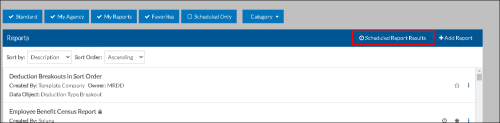
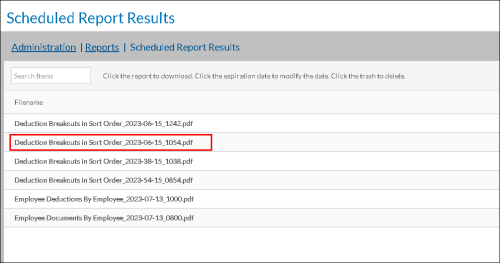
Click Scheduled Report Results.
-
Click the report results to be viewed.
-
The report opens in your browser and can be downloaded as a PDF.