Basic Filters
When using the basic filter mode, all the filters that are toggled on must match in order to be included in the results. In the Basic mode, you cannot change the operator, filter on children/child properties or create report groups. To use these advanced filter features, see Advanced Filters and Advanced Filter Groups.
To use Basic Filters:
-
Open the Filters tray.
-
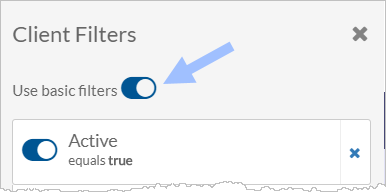
Toggle Use basic filters on.
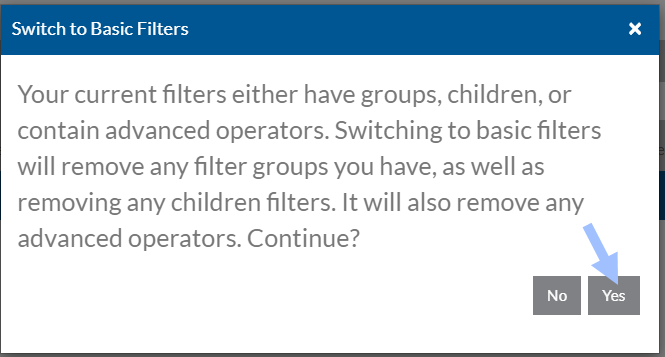
If the toggle was off , you will see a warning message that any advanced filter features in use is lost. Click Yes to continue.
-
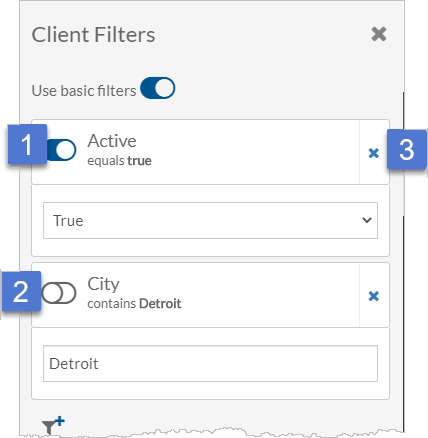
The filter is turned on when toggle is on the right (1). The filter is turned off when switch is on the left (2).
Click the X to remove the filter completely (3).
-
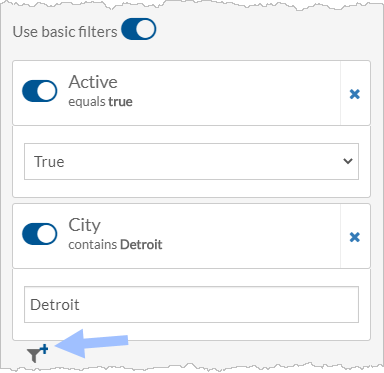
Click the Filter + icon to add another property as a filter.
-
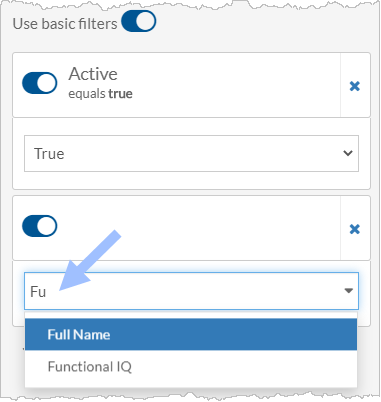
Select the property to filter on. If the property doesn't appear in the drop down, start typing its name.
-
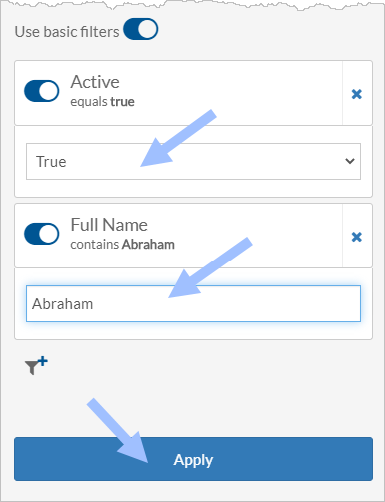
Enter the value you want the results to match and click Apply.
-
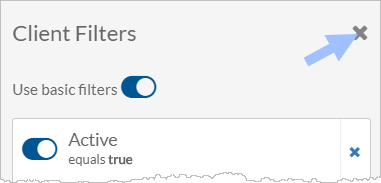
Click the X in the upper right corner to close the Filters tray.
Other Resources
Advanced Filters