Create New DCW/Employee Record
Use the following steps to add a new employee to the system:
-
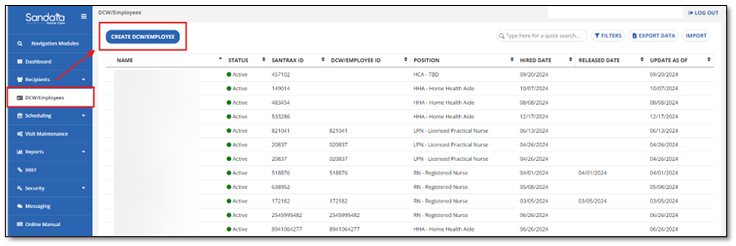
Navigate to the DCW/Employees module.
-
Select CREATE DCW/EMPLOYEE to open the NEW DCW/EMPLOYEE screen.
-
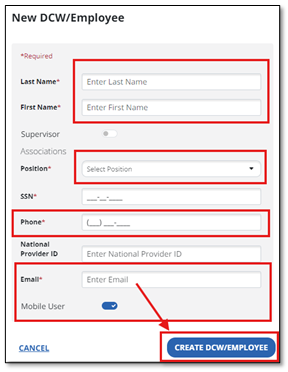
Enter the DCW/Employee’s data. Fields with a red asterisk (*) are required. Add mobile device access for the DCW/Employee by toggling on mobile user. Select CREATE DCW/EMPLOYEE when done.
-
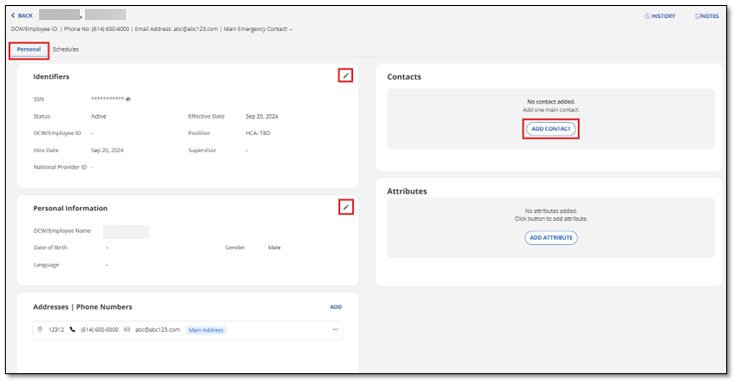
Add or Edit Employee Information: There are two tabs located at the top of the page — the Personal tab and the Schedules tab. You are automatically brought to the Personal tab to complete or edit any employee information. Use the Edit icon to add or edit identifier and personal information.
-
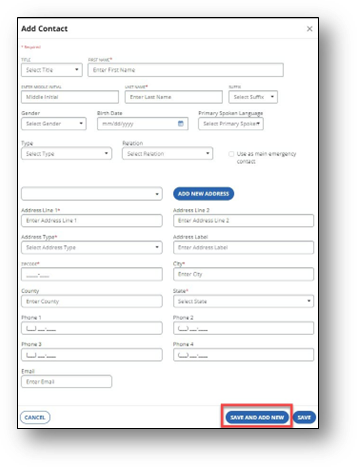
Adding a Contact: Select ADD CONTACT and fill in all required fields. When complete, select SAVE. To Save and add another contact, select SAVE AND ADD NEW. Make sure you add an email address for those employees that need access to the Sandata Mobile Connect App.
Supporting Resources