Bulk Upload Employees/DCW
Agency and Independent providers can upload a batch of DCW/Employee records at one time, instead of entering each record individually:
-
Select DCW/Employee from the navigation panel.
-
Select Import.
-
Select Download Template.
-
Open the template in Microsoft Excel. The template has four sheets at the bottom of the file.

When completing the template, it is important to enter the same value across the sheets. For example, the FIRST NAME on the Employees sheet must match the FIRST NAME on the Employees_Addresses sheet.
Employees Sheet
-
DO NOT ENTER the Employee ID in column A.
-
Enter the following fields:
Column Field Description B FIRST_NAME The DCW or Employee first name. C LAST_NAME The DCW or Employee last name. D EMPLOYEE_AGENCY_ID Enter a value. This value will update when the import is complete. E EMPLOYEE_POSITION_ID To assign the role of caregiver, enter cgv.
To assign the role of office staff, enter ofc.
To assign the role of Registered Nurse, enter rn.
To assign the role of Licensed Practical Nurse, enter lpn.
M GENDER Enter male, female, or unknown. P If the DCW or Employee is a supervisor, enter true.
If the DCW or Employee is not a supervisor, enter false.
-
Verify the items entered are correct.
Employees Addresses Sheet
-
DO NOT ENTER the EMPLOYEE_ID or the ADDRESS_ID in columns A and B.
-
Enter the following fields (The IS_MOBILE_USER field is required despite not being marked with an asterisk):
Column Field Description C FIRST_NAME The DCW or Employee first name. This value must match the FIRST_NAME on other employee sheets. D LAST_NAME The DCW or Employee last name. This value must match the LAST_NAME on other employee sheets. E EMPLOYEE_AGENCY_ID Enter the same value used on the Employees sheet. F ADDRESS_LINE_1 The DCW or Employee's street number and street name. H TYPE If this is a business address, enter business.
If this is a home address, enter home.
If this is not a home or business address, enter other.
J ZIPCODE The five-digit zip code K CITY The city M STATE The full state name – do not use an abbreviation N PHONE_1 The ten-digit phone number, without the country code R IS_MOBILE_USER Enter True if this Employee should have access to the Mobile App. False if not. S EMAIL The email address the DCW or Employee will use for Sandata Mobile Connect T IS_ACTIVE To import the DCW or Employee as active, enter true.
To import the DCW or Employee as inactive, enter false.
U IS_CURRENT Enter true. -
Verify the items entered are correct.
Employees Contacts Sheet
-
DO NOT ENTER the EMPLOYEE_ID or the CONTACT_ID in columns A and B.
-
Enter the following fields:
Column Field Description C EMPLOYEE_FIRST_NAME The DCW or Employee first name. This value must match the FIRST_NAME on other employee sheets. D EMPLOYEE_LAST_NAME The DCW or Employee last name. This value must match the LAST_NAME on other employee sheets. E EMPLOYEE_AGENCY_ID Enter the same value used on the Employees sheet. F CONTACT_FIRST_NAME The first name of the DCW or Employee contact. This value must match the FIRST NAME on the other contact sheets. This is not the Recipient. G CONTACT_LAST_NAME The last name of the DCW or Employee contact. This value must match the LAST NAME on the other contact sheets. This is not the Recipient. -
Verify the items entered are correct.
Contacts Addresses Sheet
-
DO NOT ENTER the EMPLOYEE_ID, the CONTACT_ID or the ADDRESS_ID in columns A, B and C.
-
Enter the following fields:
Column Field Description D EMPLOYEE_FIRST_NAME The DCW or Employee first name. This value must match the FIRST_NAME on other employee sheets. E EMPLOYEE_LAST_NAME The DCW or Employee last name This value must match the LAST_NAME on other employee sheets. F EMPLOYEE_AGENCY_ID Enter the same value used on the Employees sheet. G CONTACT_FIRST_NAME The first name of the DCW or Employee contact. This value must match the FIRST_NAME on the other contact sheets. This is not the Recipient. H CONTACT_LAST_NAME The last name of the DCW or Employee contact. This value must match the LAST_NAME on the other contact sheets. This is not the Recipient. I ADDRESS_LINE_1 The contact street number and street name K ADDRESS_TYPE If this is a business address, enter business.
If this is a home address, enter home.
If this is not a home or business address, enter other.
M ZIPCODE The five-digit zip code N CITY The city P STATE The two-letter state abbreviation Q PHONE_1 The ten-digit phone number, without the country code V IS_ACTIVE Enter true. W IS_CURRENT Enter true. -
Verify the items entered are correct.
-
-
Save the Excel file.
-
Select DCW/Employee from the navigation panel.
-
Select Import.
-
Enter the Import Name.
-
Select Choose File.
-
Upload your completed template.
-
Select the Save items if all items are error-free checkbox..
-
Select the Create records if not found and return error if found radio button.
-
Select IMPORT.
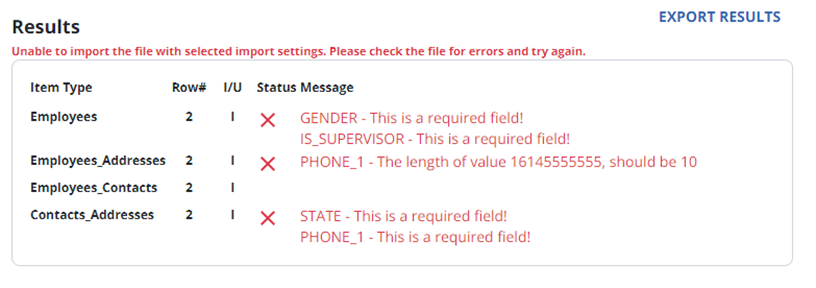
If the file cannot be imported, a text box appears with the items that need to be fixed. Make edits in the original template, then import again.
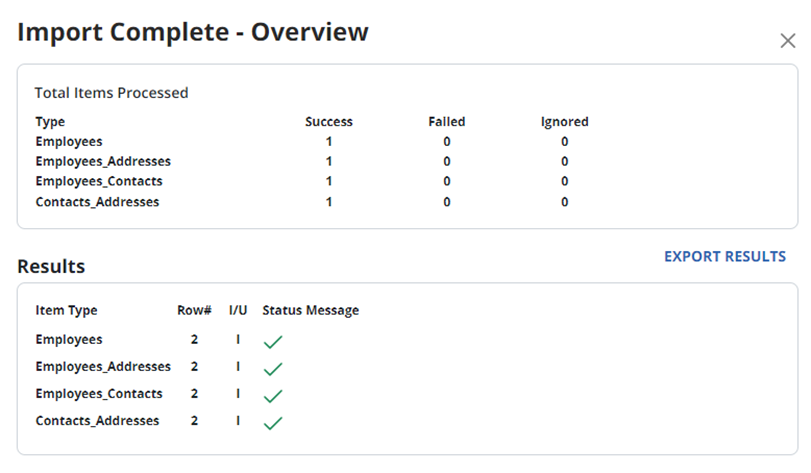
If the file can be imported, a success message displays with summary details.
-
Close the import popup by clicking the x in the upper right-hand corner. The DCW or Employee record appears in the list of active records within the module.

Supporting Resources