Add New Recipient Program
You can add a new program for a recipient which will then require adding in service(s) and authorization(s) and make the Recipient’s new program active. Refer to each dropdown below to view the specific sections needed:
-
Adding a New Recipient Program
-
Making a Recipient Program Active
-
Adding a Service
-
Adding an Authorization
All steps start with the following 2 actions:
-
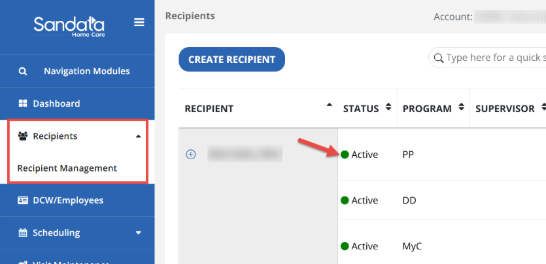
Access the Recipient record by navigating to Recipient>Recipient Management and selecting the Recipient record you need to end-date.
-
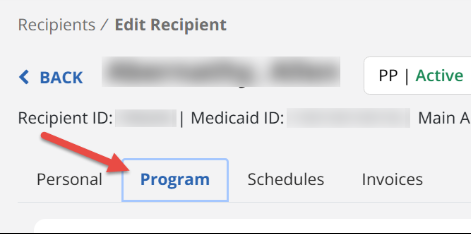
Navigate to the Program tab of the Recipient’s profile.
Add a New Recipient Program
To add a new recipient program:
-
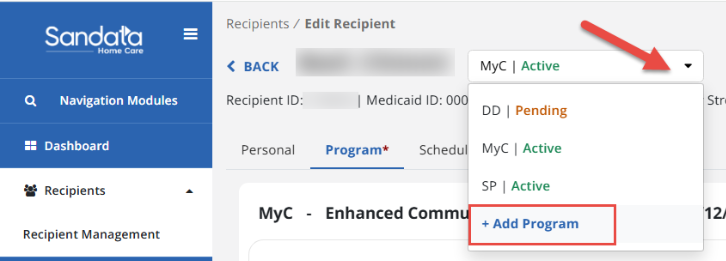
In your Recipient’s profile, select the program drop down on the upper left-hand side and select.
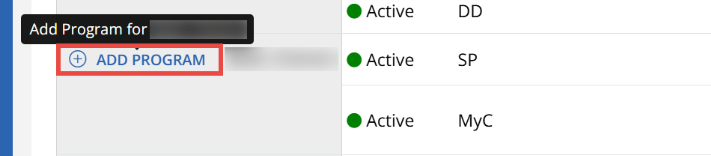
You can also access the Add Program option from the Recipient Management page.
-
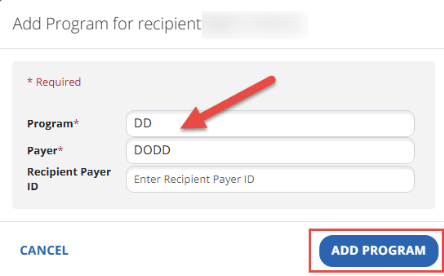
Select the new program and Payer for your Recipient and select the Add Program button.
-
This will open to the Recipient's new profile under the newly created program.
Make a Recipient Program Active
To add make a Recipient program active:
-
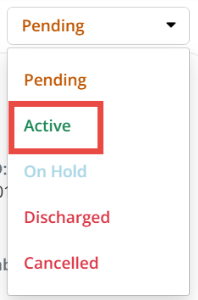
Select the status dropdown and select Active from the list.
-
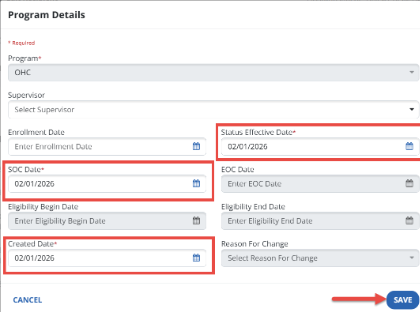
Next, complete the Status Effective Date, SOC Date, and the Created Date fields to reflect the date that service began being rendered for this recipient then select the Save button.
Service entries can only begin on or after the status effective date.
Add a Service
To add a service:
-
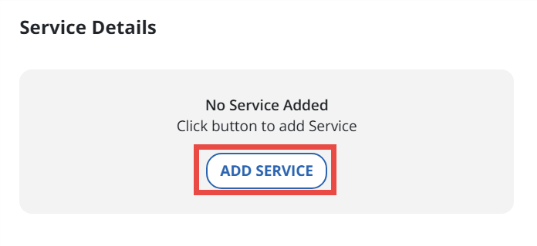
Scroll down to the Service Details section of the Recipient’s profile and select the Add Service button.
-
Select the service your recipient receives and enter the date the service will begin into the start date field.
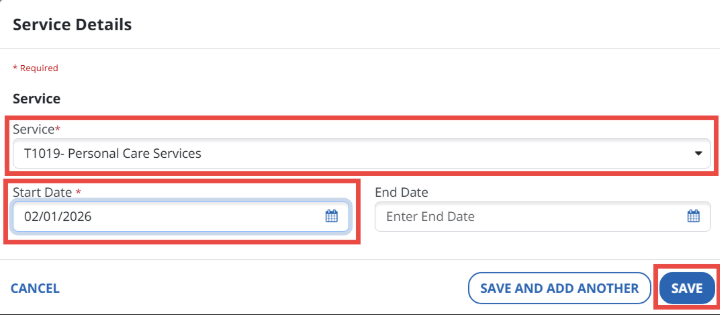
You do not need to enter an end-date for services until they are no longer rendered.
Add an Authorization
To add an authorization:
-
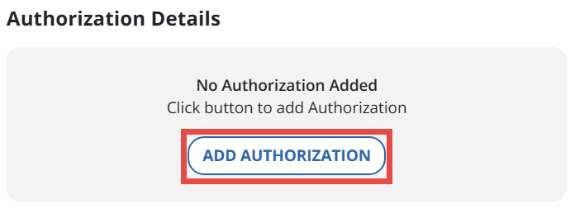
Scroll down to the Authorization Details section and select the Add Authorization button.
-
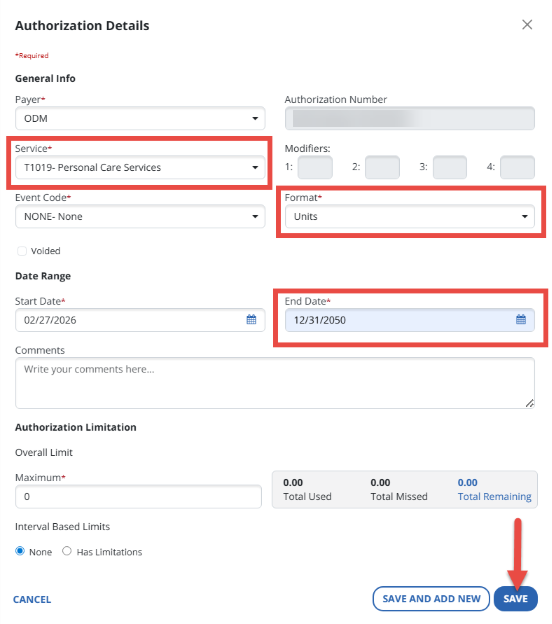
Select the Service; if your Recipient receives more than one this will not auto fill and you will need to select it from the dropdown. Select the authorization format; if using the optional scheduling feature, the format must match what is entered into the schedule). Next, select an end date; this can be any date the Provider chooses, it is recommended to set this date 20 years in the future. Then select Save button.
To End-Date a Recipient Program in EVV, please review the End-Date a Recipient Program topic.