Set Up Employees in ProviderPro
You need to set up each employee that needs access to Time Tracking and Staff Scheduling in ProviderPro.
To set up employees to sync to DataPlus:
-
Log in to your ProviderPro live database.
-
Go to Employee Management > Employees.
-
Enter the code or description of the employee in the Toolbar Lookup and press Enter.
-
Select the Active check box. If the employee enters time in Time Tracking, make sure the employee has a Default Cost Center. You can also sync over the SSN (for Electronic Visit Verfication) and the Work Status (for information purposes in Staff Scheduling assign/reassign shift slots wizard).
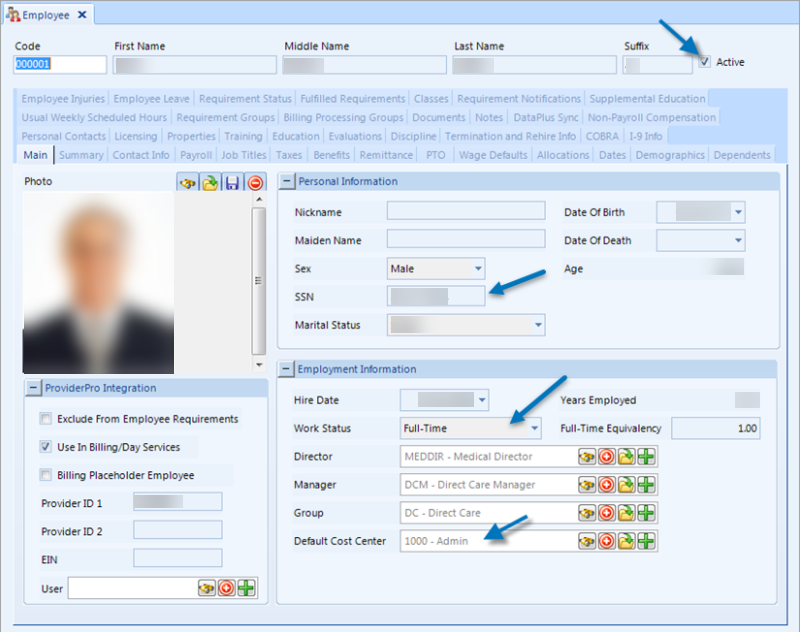
The employee does not sync to DataPlus if Active is not selected. The employee's default cost center automatically selected for the employee when they access Time Tracking if the cost center is not set to default to blank.
-
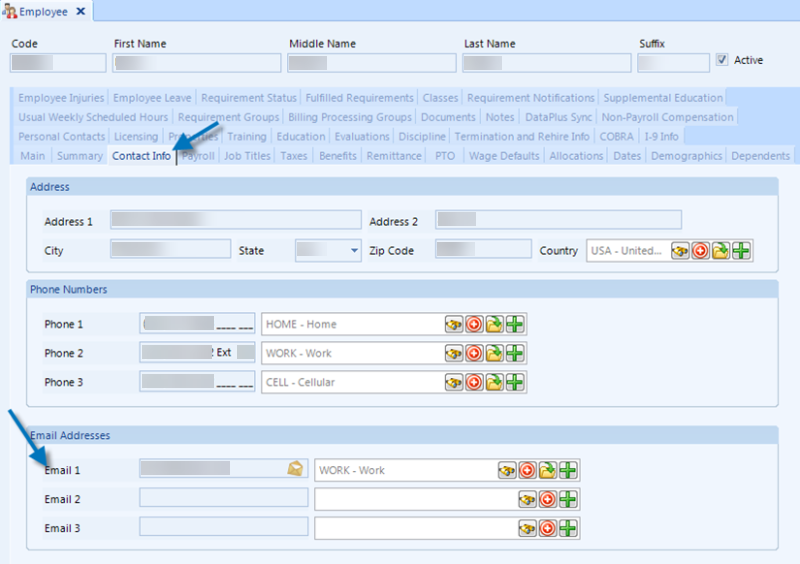
Click the Contact Info tab.
-
Make sure the employee has a unique, valid email address in Email 1, Email 2 or Email 3. Remember which field the Email Address is in. This email address will become the employee's user name when using the full login. This can be a real working email account (like a company supplied email address or a personal email address) or could be a consistently formatted fake email address like firstname.lastname@youragency.org.
-
Skip this step if the employee is not entering time without clients or non-worked time in Time Tracking.
Click the Job Titles tab. Make sure the employee has at least one Active job title that is also marked Primary.
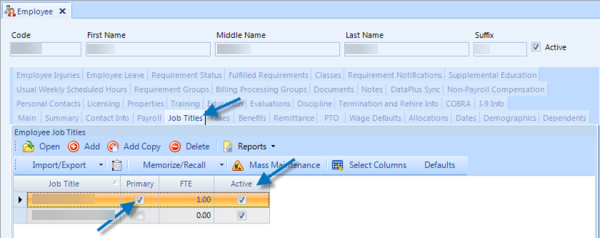
The employee's Active job titles appears as Tasks in Time Tracking for this staff. The one marked Primary is automatically selected for the employee when they access Time Tracking.
-
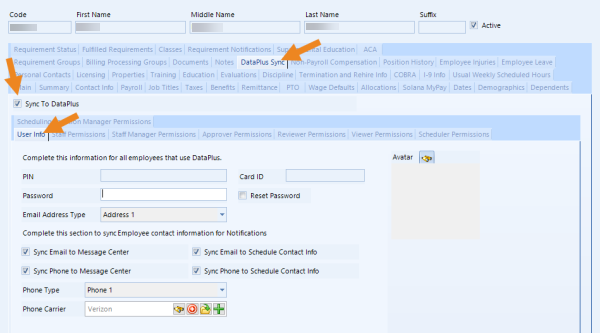
Click the DataPlus Sync tab. Select the Sync To DataPlus check box if the employee is accessing Time Clock, Service Log, Staff Portal, Staff Scheduling and/or Time Tracking either as a staff and/or as a manager.
-
Complete the following information on the User Info tab:
Field
How to Fill Out
PIN
Leave this blank if you are using the employee's Code and last four digits of their SSN as the PIN. Otherwise, enter a unique PIN for the employee. The PIN gives staff quick login access to Time Clock, Service Log or Time Tracking to record activities.
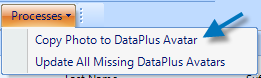
Card ID If the employee will use a swipe card to access Time Clock or Time Tracking, enter the card ID. Password If you do not sync the password from the employee's Code or last four of their Social Security Number, enter a unique password for this employee. The password is used with the full login, but is required even if the employee mainly uses the quick PIN. We recommend setting a strong password (combination of letters, numbers, punctuation). The employee can change it to something else within Staff Scheduling/Time Tracking. Time Clock and/or Service Log only employees cannot change their own passwords. Reset Password Select this check box if this employee has already synced to Staff Scheduling or Time Tracking once and you need to force a new password. Email Address Type Select Address 1, Address 2, or Address 3 to designate which email address on the Contact Info tab to sync and use for their login email address. Sync Email to Message Center Select this check box to sync the email address designated in the Email Address Type as a destination in the Message Center. Sync Email to Schedule Contact Info Select this check box to sync the email address designated in the Email Address Type to use when viewing contact information in Staff Scheduling when using the Find Substitute or Assign/Reassign Staff features. Sync Phone to Message Center Select this check box to sync the phone number designated in the Phone Type as a destination in the Message Center. Sync Phone to Schedule Contact Info Select this check box to sync the phone number designated in the Phone Type to use when viewing contact information in Staff Scheduling when using the Find Substitute or Assign/Reassign Staff features. Phone Type Select Phone 1, Phone 2, or Phone 3 to designate which phone number on the Contact Info tab to sync. Phone Carrier If the phone number designated in Phone Type is a mobile number that can receive text messages, select the associated carrier to sync over. Avatar This is the photo or avatar that will appear in DataPlus for the employee. You can copy the photo from the Main tab to use as the Avatar if desired. To do so, from the Processes menu select either Copy Photo DataPlus Avatar (for selected employee) or Update All Missing DataPlus Avatars (for all employees).
-
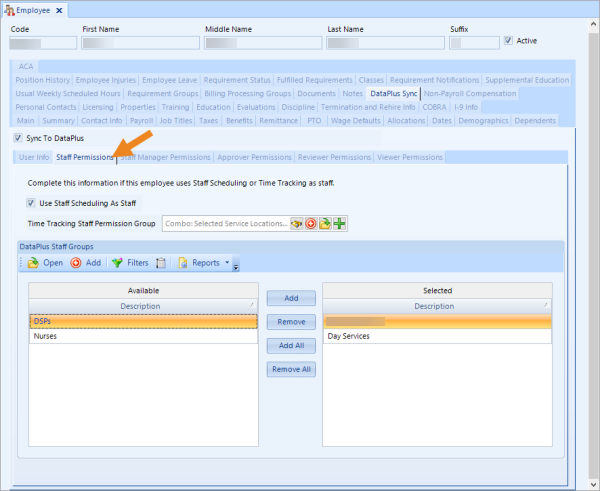
If the staff uses Time Tracking or Staff Scheduling as staff, select the Staff Permissions tab and complete the following information:
-
Use Staff Scheduling As Staff: Select if this employee will be using Staff Scheduling as a staff.
-
Time Tracking Staff Permission Group: The permission group for Time Tracking for this employee's staff-related permissions in Time Tracking. The list of Staff Permission Groups themselves do not sync from ProviderPro. However, the description must match those of the Staff Permission Groups set up in Time Tracking.
-
-
Select the Staff Group(s) in the Available column of theDataPlus Staff Groups many-to-many and click Add to move the Staff Group(s) this employee should be part of to the Selected column.
The Staff Managers associated with the same Staff Group will be responsible for managing the staff and approving time off requests. The Approve Log, Review Log and View Log Managers associated with the same Staff Group will be responsible for approving, reviewing a viewing this staff's Time Tracking transactions.
-
If the staff manages other Time Tracking or Staff Scheduling staff, select the Staff Manager Permissions tab and change the Staff Manager for list to either All or Selected.
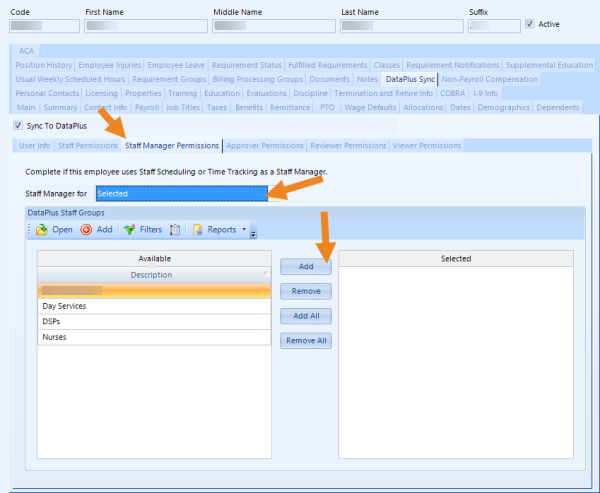
If you set Staff Manager for to Selected, then select the Staff Group(s) in the Available column of the DataPlus Staff Groups many-to-many and click Add to move the Staff Group(s) this employee should manage to the Selected column. This employee will be responsible for managing the staff and approving time off requests for the staff associated with the selected Staff Groups.
-
If the staff approves Time Tracking transactions for other staff, then select the Approver Permissions tab and change the Staff Log Approver for list to either All or Selected.
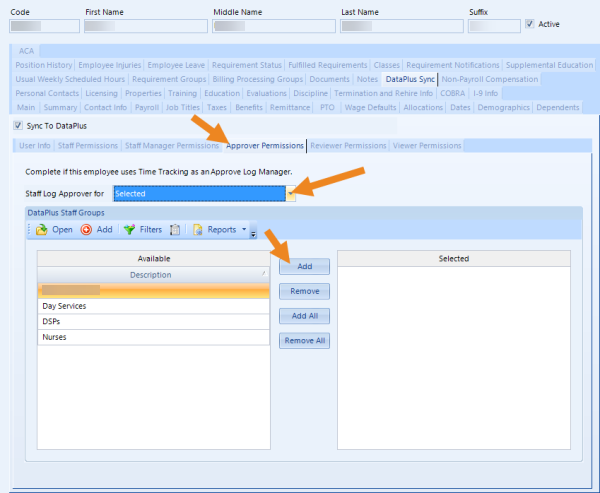
If you set Staff Log Approver for to Selected, then select the Staff Group(s) in the Available column of the DataPlus Staff Groups many-to-many and click Add to move the Staff Group(s) this employee should approve transaction for to the Selected column.
This employee will be responsible for approving Time Tracking transactions for the staff associated with the selected Staff Groups.
-
If the staff reviews Time Tracking transactions for other staff, select the Reviewer Permissions tab and change the Staff Log Reviewer for list to either All or Selected.
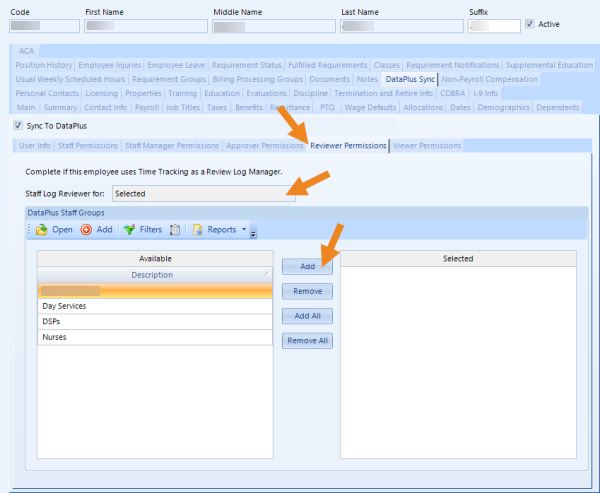
If you set Staff Log Reviewer for to Selected, then select the Staff Group(s) in the Available column of the DataPlus Staff Groups many-to-many and click Add to move the Staff Group(s) this employee should review transactions for to the Selected column.
This employee will be responsible for reviewing Time Tracking transactions for the staff associated with the selected Staff Groups.
-
If the staff views transactions for other staff, select the Viewer Permissions tab and change the Staff Log Viewer for list to either All or Selected.
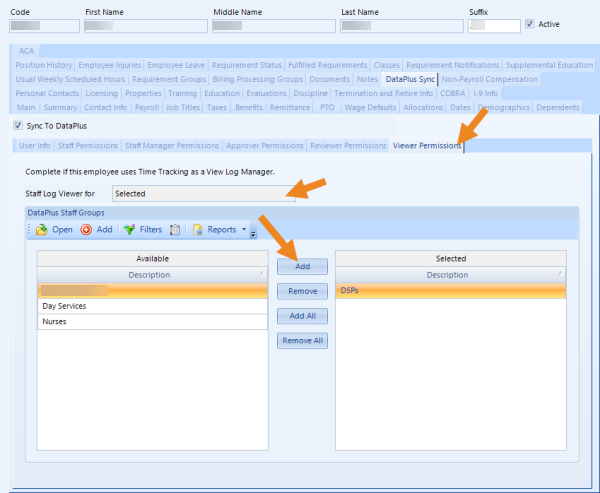
If you set Staff Log Viewer for to Selected, then select the Staff Group(s) in the Available column of the DataPlus Staff Groups many-to-many and click Add to move the Staff Group(s) this employee should view transactions for to the Selected column.
This employee will be responsible for viewing Time Tracking transactions for the staff associated with the selected Staff Groups.
-
When finished, click Save on the toolbar to save the employee. The employees automatically sync to DataPlus overnight, or you can Request a DataPlus Sync to force a sync.