Employees Basic-Position Tracking
If you have only licensed Client Care or you have licensed Employee Care and have decided not to use Employment Tracking, you need to use Basic Position Tracking to fill and vacate positions in the Position tree and track the employee's position history.
Agencies that have licensed Employee Care, need to enable either Employment Tracking or Basic Position Tracking. You cannot use both at the same time.
To use Basic Position Tracking you need to set up:
-
Position and Placement Options
-
Employee Groups
-
Position Types and Shifts
-
Global Location Groups
-
Global Locations
Once you have the setup complete, you can then:
-
Fill Positions
-
Transfer Positions
-
Vacate Positions
If you have only licensed Client Care or you have licensed Employee Care and have decided not to use Employment Tracking, you need to enable Basic Position Tracking in Position and Placement Options.
To setup Basic Position Tracking,
-
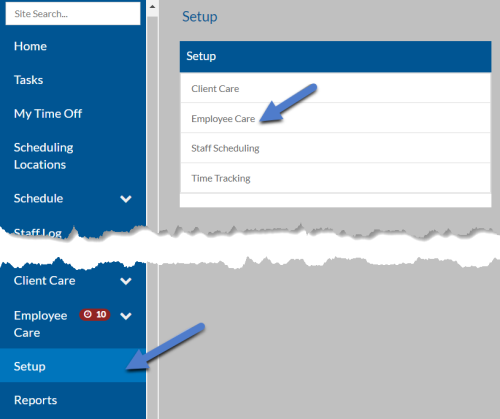
Choose Setup in the menu pane and then select Employee Care.
-
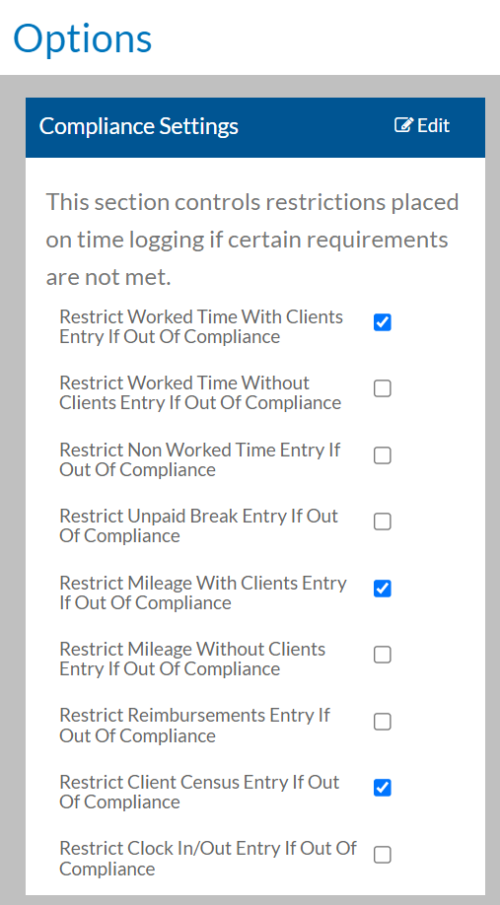
Scroll down to the Position Management card and select Options.
-
Select these options on the Basic Position Tracking Settings card:
You cannot have the settings on the Employee Tracking Settings and the Basic Position Tracking Settings cards both turned on at the same time. If you have already turned on the Employee Tracking Settings, you Cannot switch back to the Basic Position Tracking Settings.
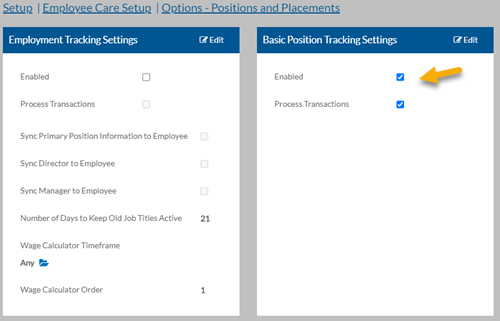
Enabled Select to use the Fill, Transfer, Vacate options in the Position. You will also need to set up security permissions to access these options. Process Transactions Select to process the transactions that will appear in the Position History card of the employee. -
Select Save.