Employees Positions

When filling positions, ensure that:
-
The Active and Use Position Management check boxes of the employee are marked.
-
The correct job titles are assigned to the position type for the position to be filled.
-
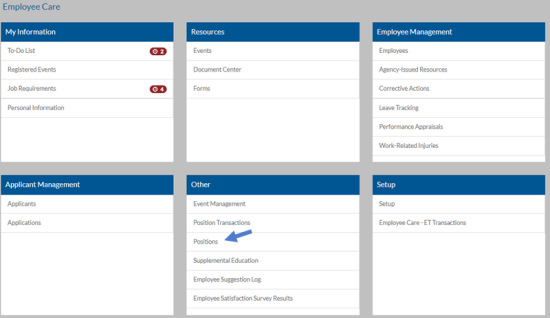
Select Employee Care from the menu and then select Positions from the Main card.
-
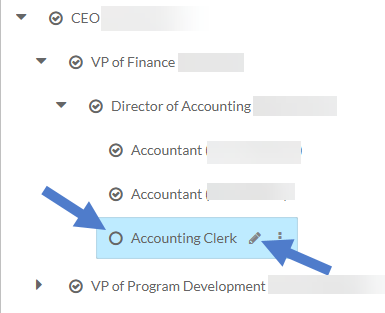
Select the arrow next to a position to view the positions beneath it.

-
Select Edit icon next to the open position you want to fill.
-
Select Fill Position.

-
Complete the following information:
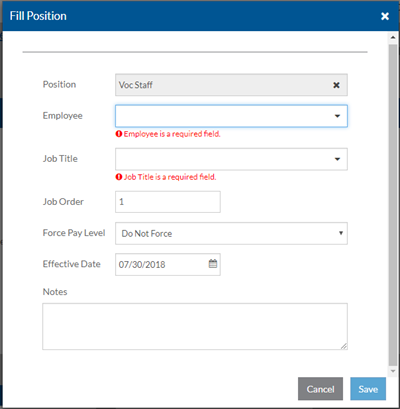
Employee: Make sure the employee is marked Active and has the Use In Position Control check box marked.
Job Title: The job title is one of the job titles associated with the position type for this position.
Effective Date
Job Order: The job order for the employee's job title above. If it is set to "1", then it is the employee's primary job title.
Force Pay Level: If ProviderPro Payroll is also licensed and this employee should always be paid for this position/job title at a specific rate, select the correct pay rate (1-8). Otherwise, leave it set to Do Not Force. If a Pay Rate is selected, a new Wage Calculator Action is created for this employee/job title.
Notes
-
When finished, entering the information, select Save.
A new Position Transaction is created. On the effective date a process runs on the server and may take a few minutes to complete. Once the process has finished, the employee's name appears in parenthesis next to the filled position. The Status Current information is populated in the position. Otherwise, the Pending Employee information is populated instead. The Pending Employee information is moved to Current on the effective date.
-
Select Employee Management from the menu and then select Position Transactionsfrom the Additional card.
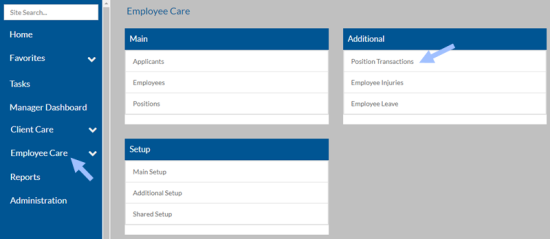
From here you can view the completed and pending position transactions.
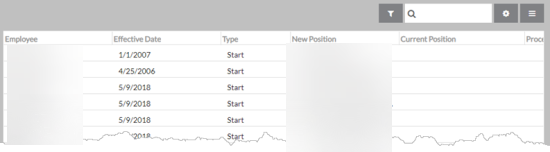
-
Set the filters to include the effective date of the position you just filled.
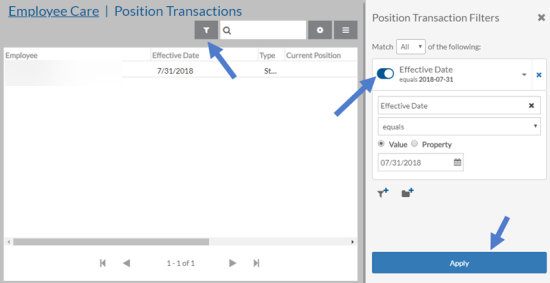
-
Select the Position Transaction to view additional information.

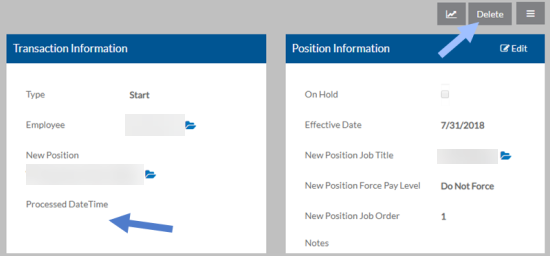
The Position Transaction opens. The information cannot be modified. However, if the Processed Date/Time is blank, you can delete the Position Transaction to cancel filling the position.
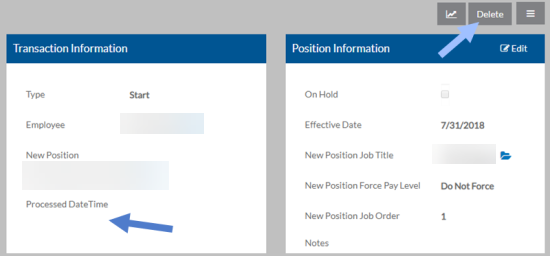
You can run the Active Employees Not in Position Management to see if there are any employees that haven't been assigned to a position.
When transferring positions, ensure that:
-
The Active and Use Position Control check boxes of the employee are marked.
-
The correct job titles are assigned to the position type for the position to be filled.
An employee can transfer from one position to another position in one step.
-
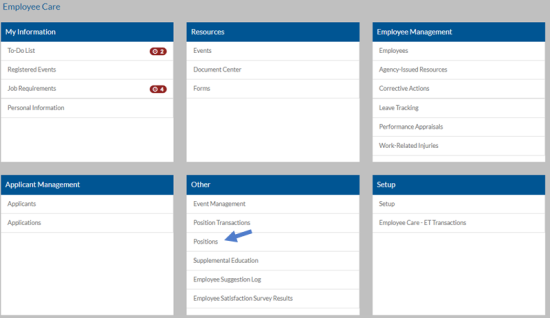
Select Employee Care from the menu and then select Positions from the Main card.
-
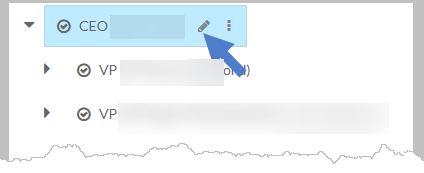
Select the arrow next to a position to view the positions beneath it.

-
Select Edit icon next to the filled position you want to transfer the employee from.
-
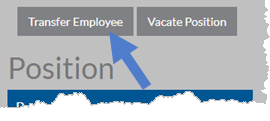
Select Transfer Employee.
-
Complete the following information:
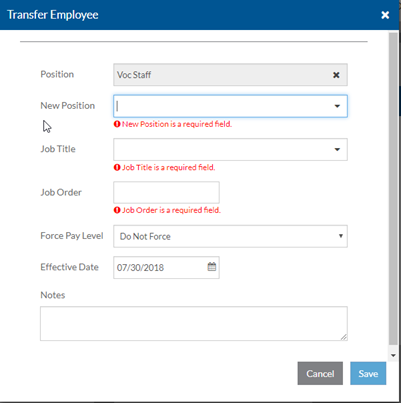
New Position
Job Title: The job title is one of the job titles associated with the position type for the new position.
Job Order: The job order for the employee's job title above. If this is the employee's primary job title, leave this set to 1. Otherwise, change it to a 2. An employee can only have one primary position/job title.
Force Pay Level: If this employee should always be paid for the new position/job title at a specific rate, select the correct pay rate (1-8). Otherwise, leave it set to Do Not Force. If a Pay Rate is selected, a new Wage Calculator Action is created for this employee/job title.
Effective Date
Notes
-
When finished, entering the information, select Save.
Two new Position Transactions are created (one to leave the old position and another to begin the new position). On the effective date a process runs on the server and may take a few minutes to complete. Once processed, the employee's name appears in parenthesis next to the new position and no longer appears next to the old one. The Current information is populated/updated if the sync process has completed. Otherwise, the Pending Employee information is populated in the new position and the Pending Vacancy information is populated in the old position instead. The Pending Employee information moves to Current in the new position and the Current information clears in the old position on the effective date.
-
Select Employee Care from the menu and then select Position Transactions from the Additional card.
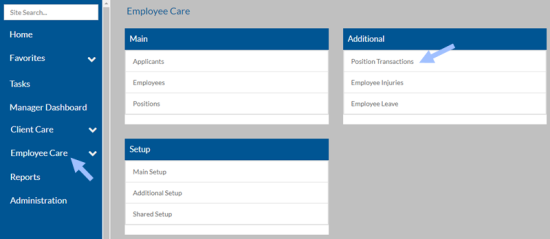
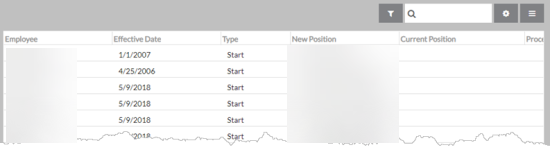
From here you can view the completed and pending position transactions.
-
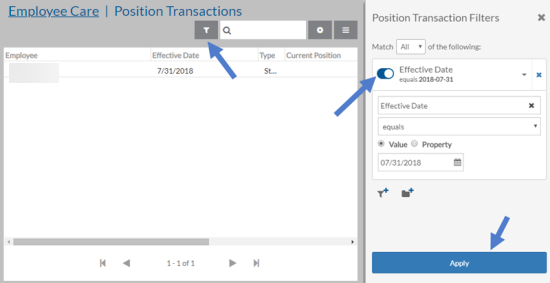
Set the filters to include the effective date of the position you just transferred the employee to.
-
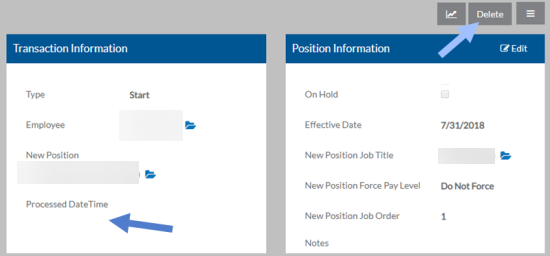
Select the Position Transaction to view additional information.

The Position Transaction opens. The information cannot be modified. However, if the Processed Date/Time is blank, you can delete the Position Transaction to cancel the position transfer.
To vacate a filled position:
-
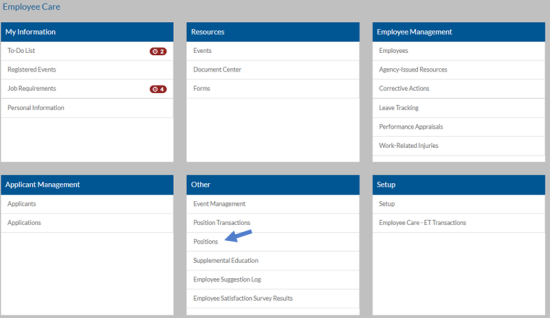
Select Employee Care from the menu and then select Positions from the Main card.
-
Select the arrow next to a position to view the positions beneath it.

-
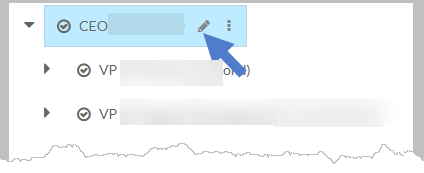
Select Edit icon next to the open position you want to vacate.
-
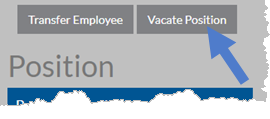
Select Vacate Position.
-
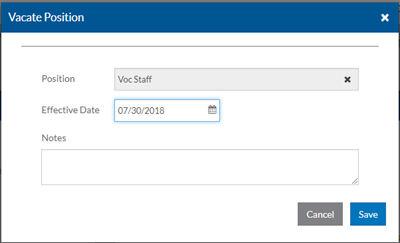
Complete the following information:
-
Effective Date
-
Notes
-
-
When finished, entering the information, select Save.
Once the process has finished, the employee's name no longer appears in parenthesis next to the position. The Current information is blank if the process has completed. Otherwise, the Pending Vacancy information is populated instead. The Current information is cleared on the effective date. The position is now open.
-
Select Employee Care from the menu and then select Position Transactionsfrom the Additional card.
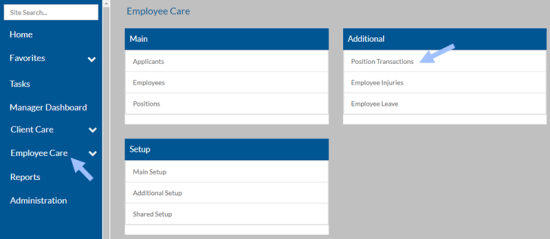
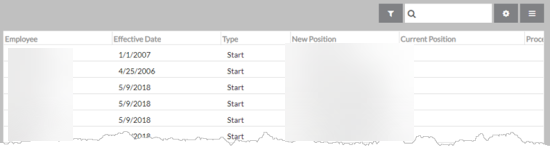
From here you can view the completed and pending position transactions.
-
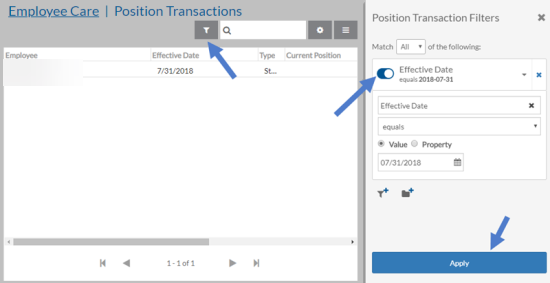
Set the filters to include the effective date of the position you just vacated.
-
Select the Position Transaction to view additional information.

The Position Transaction opens. The information cannot be modified. However, if the Processed Date/Time is blank, you can delete the Position Transaction to cancel vacating the position.