Set and Clear Database Defaults
To make data entry quicker when adding a new record, you can prefill the value of a field with the most common value so that you don’t have to enter the same value over and over. Users have the ability to set their own default values.
Users with the correct security permissions have the ability to set database default values. If a database default value is set, that value will appear as the default when anyone in the database adds a new record, unless the user also has a user default set for that field or the field is set to force the database default in System Configuration (in which case it will be read only).
To set up or clear a database default:
-
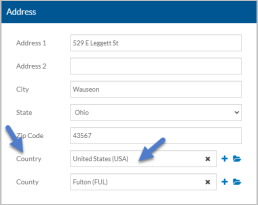
Enter the default value into the field you want to set the database default for and click on the caption.
-
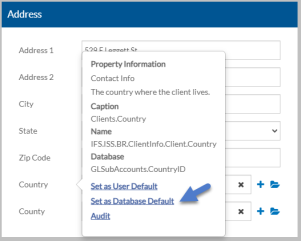
Select Set As Database Default.
-
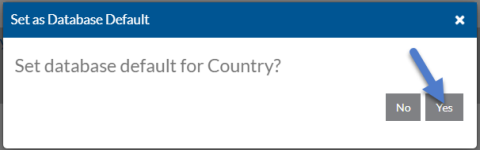
Click Yes to confirm you want to set the value as the user default.
-
Click on the caption of the field you just set the database default for again.
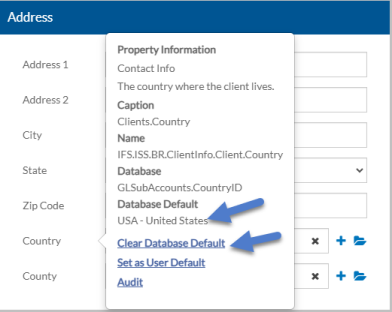
The value is set as the Database Default for the field. If you were to add a new record, that value would prefill and could be changed if desired and the field is not set to Force Database Default in System Configuration.
-
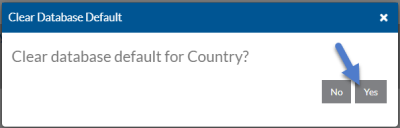
If you no longer want the value as the database default, select Clear Database Default and then select Yes in the confirmation window.