Add Records

The multiple add feature allows you to select multiple values for certain data properties, such as dates and lookups, and create a new record for each of those values. If you select multiple data properties to have multiple values, when you click Save, a new record will be created for each combination. This is especially useful when adding multiple transactions for the same group of clients, employees, etc.
To add multiple records:
-
Click the + on the top left corner of the screen.

-
Click on the data property you want to set multiple values for and select Multiple.
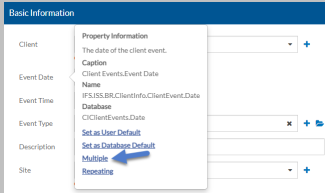
-
Click the items button to select the values.
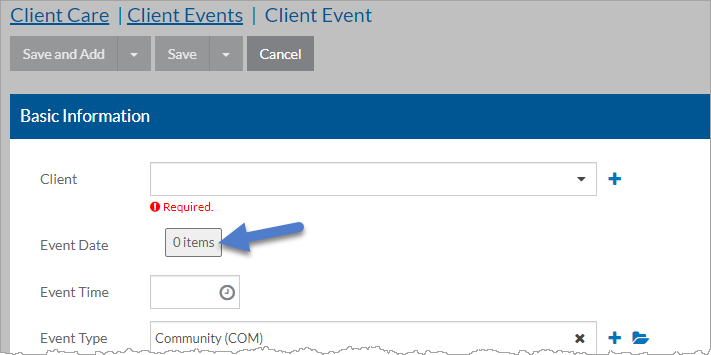
The Select items window opens.
-
Select or enter the values and click Save.
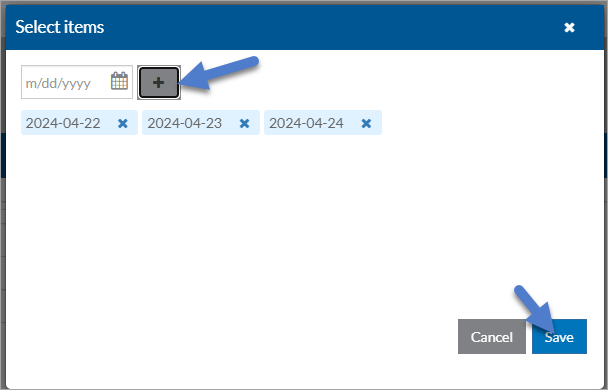
The window closes and the number of values selected appears on the items button.
-
Select Save. A confirmation message appears showing the number of new records that were added to the database.

The system returns you to the Index screen.

If you have the proper security permissions, you can add a new record or copy an existing one to use as a starting point. In addition, you can create multiple records that are similar at the same time.
When adding a record you must enter information in the various data properties, making sure to complete all required ones. Once you enter valid information the invalid indicators will clear. If you try to save a record without entering valid data in all required data properties you will see the Value is Required message and will not be able to continue until it has a valid value in it.
To add a new record:
-
Click the + in the top left corner of the screen.

A blank screen opens ready to complete. Any user default or database default values set automatically appear.
-
Complete the information, making sure to enter values in all required data properties.
-
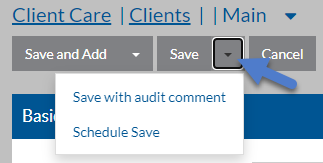
When finished, click either Save or the arrow next to it and select one of the following:
-
Save: The record is saved to the database and the screen remains open.
-
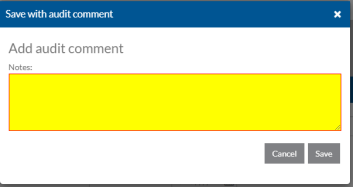
Save with audit comment: A window opens to enter comments about the new record that is stored in the audit log, the record is saved to the database and the screen remains open.
-
Schedule Save: The record is saved to the database at a future date. For more information, see Schedule Save.
-
Save & Add: The record is saved to the database and a new blank form opens so that you can add another new record.
If you click on the caption of a field and select Repeating, the value from the previous record appears as the value in the new form. If you change the value in the new record and select Save & Add, the new value appears in the next record.
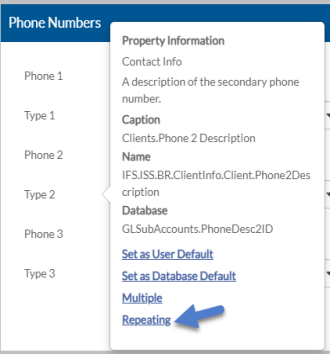
Any user default or database default values set automatically appear in the blank screen.
-