Import Information
Use the Import Wizard to quickly create and update data from a Microsoft Excel workbook (1997-2003 (.xls) or 2007/2010 (.xlsx) format).
Before you begin make sure you either create an import template or export the data you want to modify.
When adding and modifying data in Microsoft Excel, keep these tips in mind:
-
When importing data, if the Code or ID already exists, the wizard will update the existing information with the values included in the import file, even if the value is blank, and will leave the remaining values unchanged. You cannot change the Code or Description of an existing record. The import will create a new record instead.
-
Make sure you have entered all required values in order to save new records. If you are importing to a setup list, make sure you include the Code and Description.
-
If you want to import a new value for one record, but keep the existing value for another record, enter ** IGNORE ** in the cell as the value for the one you don’t want to change. If you leave the cell blank it will overwrite the existing value with blank. If all records should have the value of a particular column remain unchanged, simply delete that column from the worksheet before importing instead of putting ** IGNORE ** in every cell.
-
Make sure Codes are in the proper format with no spaces or special characters. Codes can only include uppercase letters and numbers. If Auto-Increment is turned on, remove the code column from the file and it will be assigned automatically.
-
Do not include a column in the file for a property if you want the Import Wizard to use the user or database default when it creates a new record. If the record already exists, the value will remain unchanged. For example: If the client has a user default of OH for the State and the file does not include a column for the State, all new records created from the file will have OH set as the State.
-
Enter TRUE or FALSE as the value for check boxes. T and F, Yes and No, Y and N will also work. This is not case-sensitive.
-
Mouse over the column header to view a list of valid values for defined lists.
-
When entering account numbers, phone numbers or social security numbers, do not include the formatting. For example, do not include the () or – in the numbers as they will not import correctly.
-
If you want to import child records, enter the ID of the parent or main record in the first column of the first tab in the cell of the xxxID, xxx being the name of the item you are importing (Client ID, Invoice ID, Spend ID, etc.)
-
You must close the Microsoft Excel file before importing it.
To import:
-
Open the index screen or navigate to the grid on the detail screen where you want to import data.
-
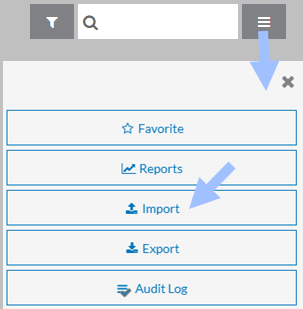
Select the Options icon and then select Import.
-
Drag and drop the Microsoft Excel file you want to import, or select Browse to browse for the file and click Import.
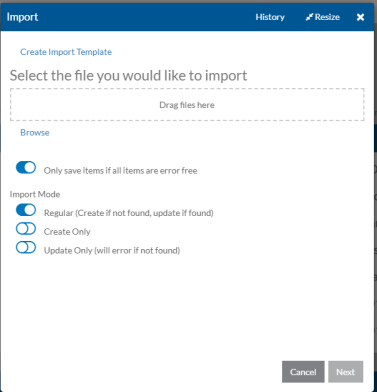
Select Create Import Template to create an Excel Workbook in the correct format for an import.
-
Toggle off Only save items if all items are error free if you want the import to update any records it finds and add any new ones it can, even if other rows in the file have errors. Otherwise, if there are any errors found, the wizard will not import anything.
-
Select the import mode you prefer and select Next:
-
Regular: Creates a new entry if an existing record isn’t found and updates the record if it is found.
-
Create Only: Creates new records only and ignores any existing records.
-
Update Only: Updates existing records only. An error will occur if an existing record can’t be found.
-
-
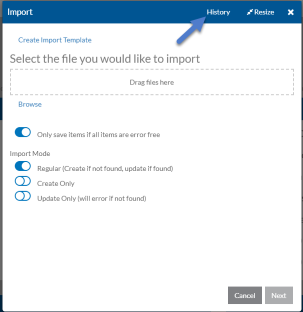
You do not have to remain on the import page while the file is importing. If you navigate away, you can reopen the import window and select History to view the status.
-
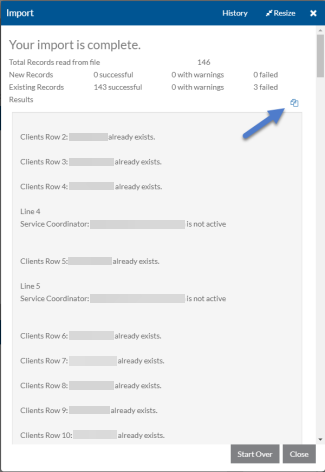
When the file has finished importing, the number of new and updated records, the number of warnings and the number that failed display. If there were any warnings or errors, they are listed as well. If Only save items if all items are error free was selected, none of the records were imported.
Select the copy icon to copy the warnings and errors to the clipboard and then paste them to another application to work through them and update the Excel file before trying again.