Export Information
Export your data to a Microsoft Excel workbook. You can then make any changes to the Excel file and import the changes back into the database.
To export records:
-
Open the main Index screen of the data you want to export.
-
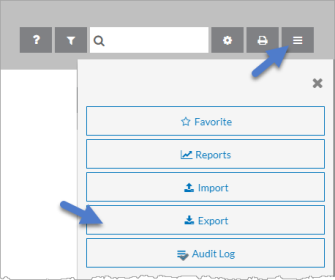
Select the Options icon and then select Export.
-
Select Create New Configuration or select a previously saved configuration.
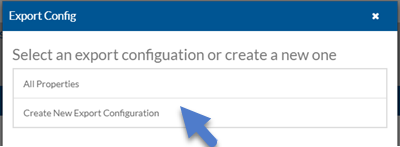
If an export file was created previously, you can reuse its saved settings (including properties, filters, file name, and location). Choosing Create New Configuration lets you define new settings, which you can save at the end of the wizard.
-
Select the properties you want to include in the export file and click Next.
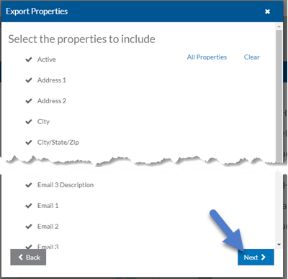
Properties become column headers in the export file. Columns appear alphabetically (for most lists) or follow the data-entry form order (for transactions). If the data includes “child” items and you choose to export them, they’ll appear on separate tabs.
If you plan to re-import the file, do not change the column header names or tab names—this will cause the import to fail. Column order does not matter.
-
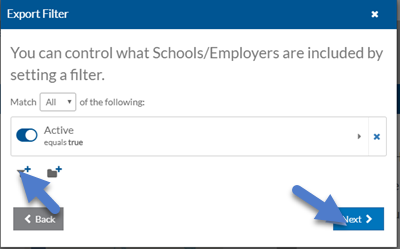
Set the filters to select the records you want to include in the export file and click Next.
-
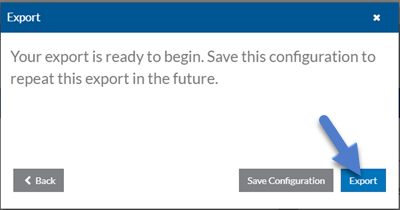
Select Export to create the export file or Save Configuration to save your settings to use again.
-
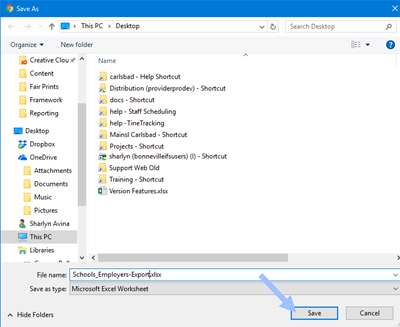
If you selected Export, enter a name for the Excel file and select Save.
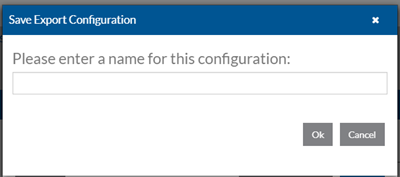
If you selected Save Configuration, enter a descriptive name for the settings and select OK.
-
Select Close to exit the export wizard.