Advanced Client Filters

In advanced filter mode, you can choose whether all enabled filters must match, or at least one enabled filter must match, for an item to appear in the results. You can also change the operator, filter on children/child properties or create report groups.
To use advances filters:
-
Open the Filters tray.
-
Toggle Use basic filters off.
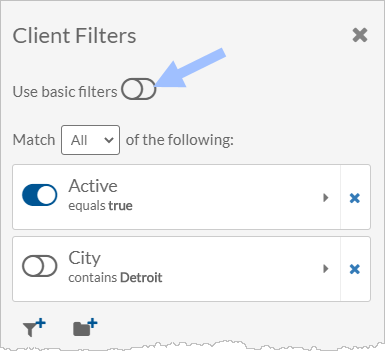
-
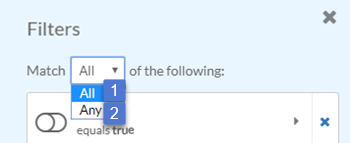
Set whether the results must meet (1) all filter conditions or (2) at least one of the filter conditions:
-
If set to All, the results must match all the filter conditions.
-
If set to Any, the results must match at least one of the filter conditions.
-
-
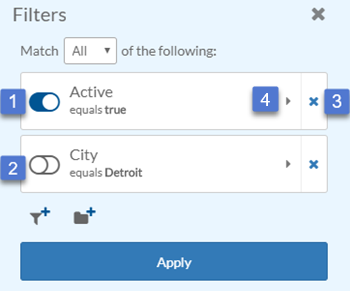
Turn existing filters on, off or delete them completely:
-
The filter is turned on when toggle is on the right (1). The filter is turned off when switch is on the left (2).
-
Click the X to remove the filter completely (3).
-
Click the arrow (4) to view or close a filter's settings.
-
-
To add a new property as a filter, click the Filter + icon.
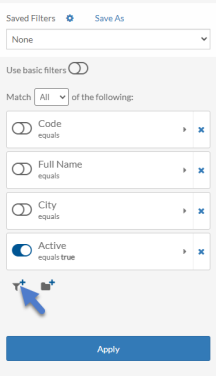
Select the property to filter on. If the property doesn't appear in the drop down, start typing its name.
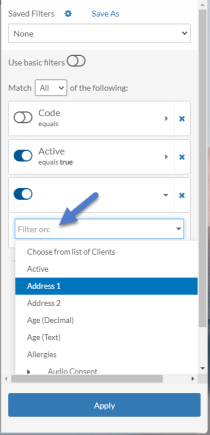
-
Set the operator.
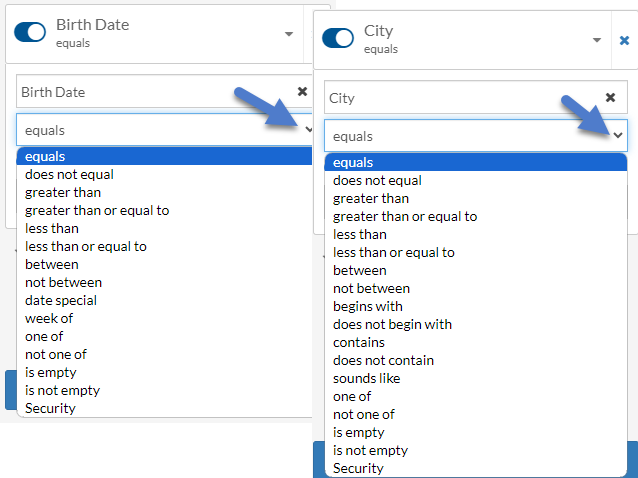
The list of operators changes depending on the type of property you select.
-
Text properties have additional operators that you can select from such as begins with, does not begin with, contains and does not contain.
-
Date properties have a special operator called date special that lets you pick calculated value for the date such as Today, Last Week, Next Month, etc.
-
The is empty operator is useful if you are looking for records where no one has entered a value.
-
The Security operator lets you find records where a user does or does not have read or change security to the property.
-
-
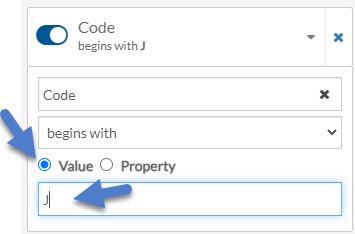
If the operator requires one, enter the value that you want to use to compare:
-
Select the Value radio button.
-
Enter the value you want to compare the results with.
OR
-
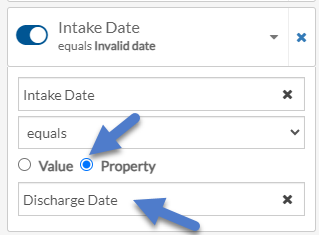
Select the Property radio button.
-
Select the property that you want to compare the value of.
-
-
When finished, click Apply.
You can use filter groups to create a more complex query.
To create a group of filters:
-
Open the Filters tray.
-
Toggle Use Basic Filters off.
-
Select the Folder + icon.
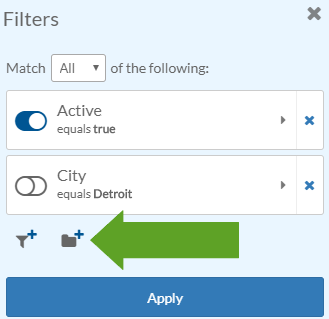
-
Click the arrow to open the Group filter box.
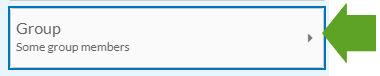
-
Click the Filter + icon to add a normal or child filter, or the Folder + icon to add another filter group.
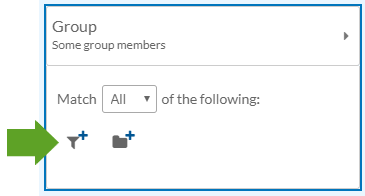
-
The Match All or Any setting only applies to the filters within the Group.
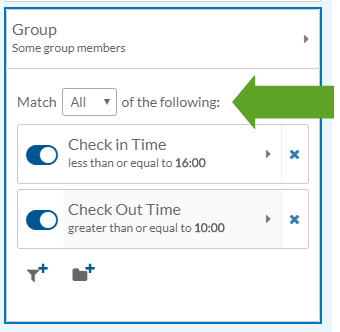
You can filter your results based on a child table. For example, you can bring back all the people with at least one contact, or all the people with at least one contact marked Emergency.
To filter based on a child table:
-
Open the Filters tray.
-
Toggle Use basic filters off.
-
Click the Filter + icon.
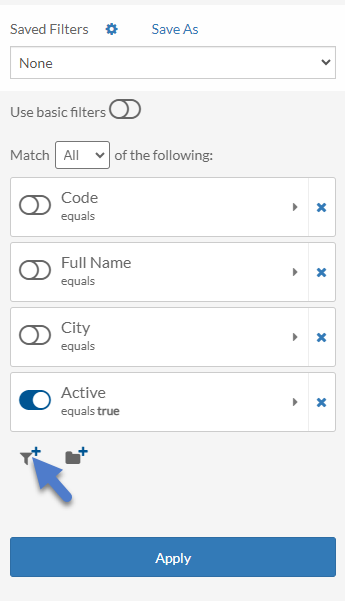
-
Select the child table to filter on. If the child doesn't appear in the drop down, start typing its name.
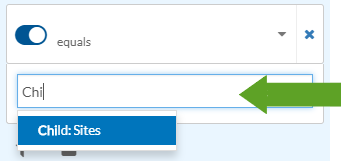
-
Select the operator and a value. By default it is set to Greater Than 0.
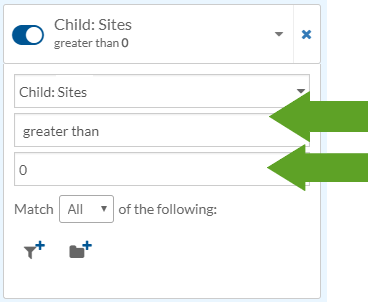
-
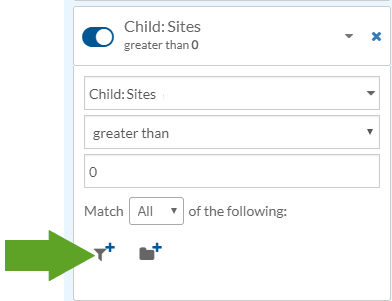
Click the Filter + icon to add property of child table to filter on, or the Folder + icon to add a filter group to the child table filter. For more information, see Advanced Filter Groups.
Other Resources