Sandata Getting Started

Introducing the new Sandata EVV Enhanced user interface (UI) -- a simplified, modernized design built with the homecare agency user experience at the forefront. This page provides overall info about the new UI and where to go for self-service training resources.

About the New User Interface
With the new experience, users can enjoy:
-
Enhanced User Experience: A more intuitive and seamless user interface
-
Faster Performance: Quicker response times and improved reliability
-
In-App Experiences: Exciting new tools to bring you information at your fingertips
Getting Started with the New UI
-
View a previously recorded walkthrough of the new user interface. Questions and answers from previous town halls are also available to review.
-
Watch for emails and banners in the EVV portal.
Self-Enrollment for HHAeXchange University Courses
Propel your team forward by learning more about Sandata EVV Enhanced.
Agency Administrators receive access to the required Sandata EVV Security & Admin course after registering in the Provider Portal - you've likely already done this if you're currently using the system.
All other agency users can prepare to use the system by taking self-paced, engaging courses in HHAeXchange University. Follow the link for your state to get instant access to:
-
Client Management
-
Visit Capture
-
Employee Management
-
Visit Maintenance
-
Schedule Management
-
Using Reports
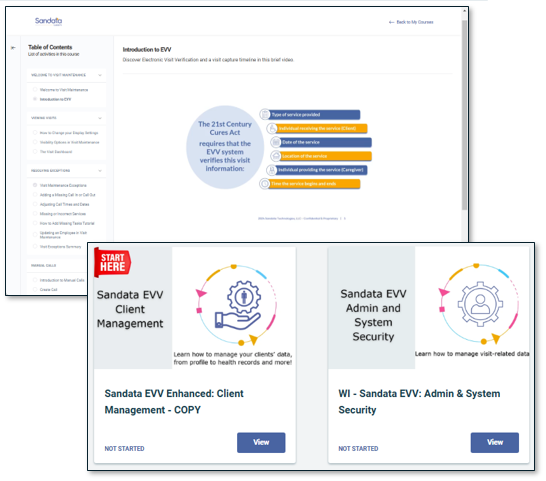
Use your state-specific link below to self-enroll into the courses. Select Sign Up in the form. Take the courses that apply to your role to explore the new UI. Or, if you're a new user, you can take all courses as a great start to the EVV system.
| Arkansas | Delaware | Maine |
| Arizona | District of Columbia | Nevada |
| Colorado | Hawaii | North Carolina |
| Connecticut | Indiana | Pennsylvania |
| Wisconsin |
In-Portal New Feature Tours
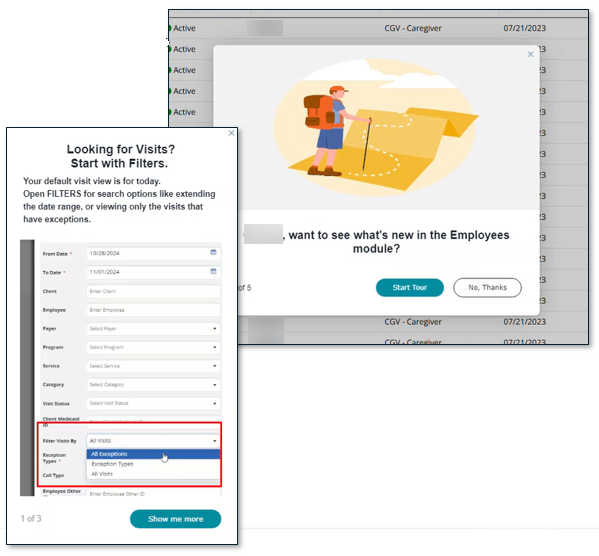
View the new and popular features of Sandata EVV Enhanced through in-portal guided tours! Each of the following modules offer a quick pop-up tour: the Dashboard, Client Management, Employee Management, Schedule Management, Visit Maintenance, and Using Reports.
In-Portal Knowledge Center
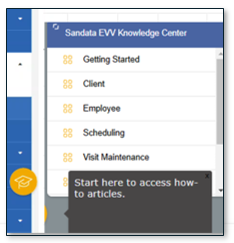
Use the Sandata EVV Knowledge Center to find the help you need in a few clicks, bringing you directly to the right resources.
Sandata On-Demand EVV Enhanced Help
Visit our EVV Enhanced Product Help pages for step-by-step instructions on common tasks in EVV.
Sandata EVV New UI Crosswalk Guide
This New User Interface guide highlights high-level changes of the new UI and provides an overview for what you can expect to see, module by module, when logging in to the new UI when your program migrates.
Welcome to Sandata Electronic Visit Verification (EVV), a powerful system designed to help healthcare Providers and Agencies manage Client and Employee data, as well as track and manage visits. Whether you're a Caregiver, Administrator, or a Staff Member involved in home and community-based healthcare services, this guide helps you get started with the basics of using Sandata EVV.
Log into Sandata EVV
-
Access the login page: Open your web browser (Google Chrome, Microsoft Edge, or Mozilla Firefox) and go to the Sandata EVV login page: https://evv-ui.sandata.com. Programs that use a single sign on should not use this link.
-
Enter your agency number.
-
Enter your email address and password. Remember that the password is case-sensitive.
-
Select the Login button to access your Sandata EVV account.
-
Use the Forgot Password button to reset a forgotten password. Next, a temporary password is sent through email.
View Client Data
Once you're logged in, you can access and manage client data using the following steps:
-
Use the side menu bar to go to the Client Management module.
-
Next, your Clients load, or you can use filters to search for a specific Client.
-
Select the Client line to view detailed Client information, including personal and program details, health records, and schedules.
View Employee Data
Administrators can manage employee data in EVV using the steps below.
-
Use the side menu bar to go to the Employee Management module. The employee list loads.
-
Use the filters to find a specific employee by name or employee ID.
-
Select an employee's name to access their profile, which contains contact information, schedules, and more.
Schedule Visits
The easy-to-use Scheduling features allow for managing Client visits efficiently. From the Scheduling feature, visits can be scheduled one at a time. You can also create recurring schedules for a client. Adding the employee to the schedule is easy. Reschedule or swap out an employee in just a few clicks!
View and Manage Visits
Sandata EVV allows for tracking and managing Client visits efficiently, making sure that services are delivered as planned. Complete the following steps to view and manage visits.
-
Go to the Visit Maintenancefeature to view visit-related information. With real time data, you can see when Caregivers clock in and out for visits using the Sandata Mobile Connect app.
-
With quick filters, select a visit to see its details, including the Client, assigned Caregiver, and visit date and times, along with options to see services and tasks performed.
-
To make changes or edit visits, such as adding a missed out-call or task, select that visit.
The in-portal EVV Knowledge Center is available for all users seeking step-by-step help with Sandata EVV.
By becoming familiar with Sandata EVV's features, you'll be well on your way to efficiently managing Client and employee data and effectively tracking and managing Client visits within the system. This helps ensure that home and community-based healthcare services are delivered accurately and in compliance with regulations.
Users may access the eTRAC portal with the link sent to the email on file with the state. This email is generated after an agency completes the required training on the Learning Management Software (LMS).
-
Select the link sent to the registered email address.
-
Enter your Medicaid ID to verify the provider.
-
Select the Verify button.
-
Select the Download button for a one-time download PDF version of welcome kit documents.
Download a copy of the EVV Enhanced New User Interface (UI) Guide by selecting the PDF link here.
Some programs use multifactor authentication, or MFA. MFA requires an additional step to log in to Sandata EVV or Sandata Aggregator, by using a code from an authenticator app or from an email. Download the Multifactor Authentication with MFA Reset PDF to learn more.
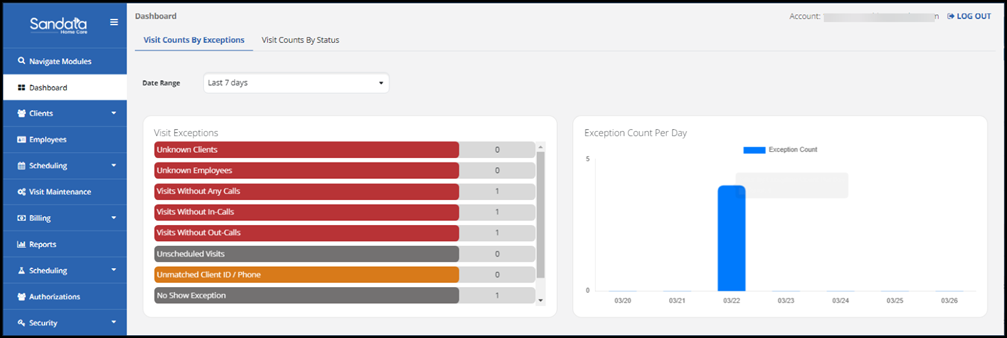
The Dashboard displays visit information on a set of tiles which are updated in near-real time. When logging in to Sandata EVV, the Dashboard displays. The Dashboard is informational and provides guidance on the exceptions you need to fix for the Visit Maintenance feature.
On the landing Dashboard, the counts of visit exceptions and visit counts by status are easy to view.
Visit Exceptions
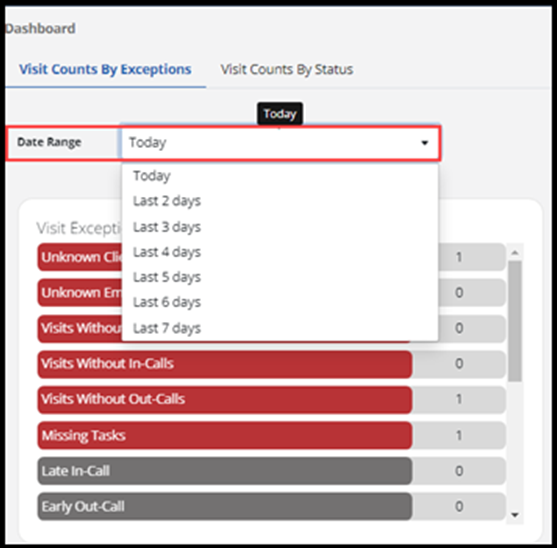
On the Visit Exceptions tile you see a list of visit exceptions and the number of exceptions for each type. The default date range is Today. Use the drop-down menu to view up to the last 7 days.
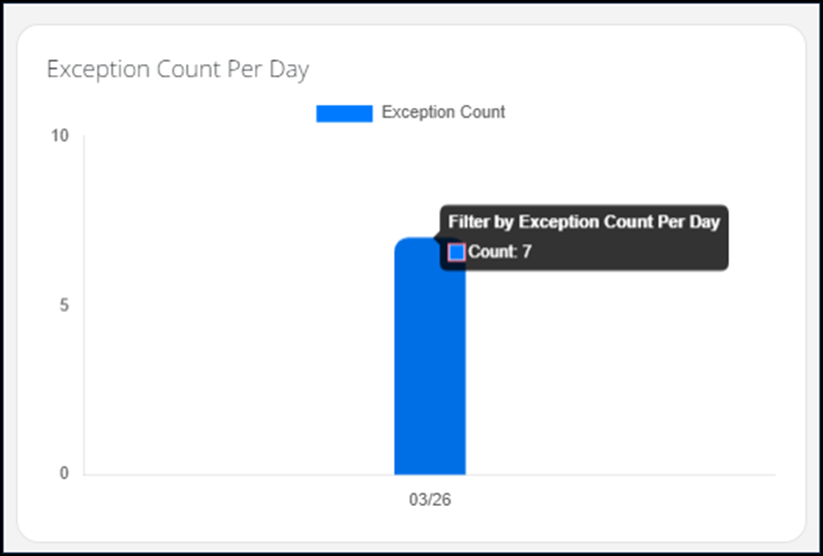
The number of exceptions by day display in the next tile. Hover over the bars to see the count. This is informational only.
As the different types of exceptions are selected on the exceptions tile, the exception chart adapts to your selection.
Visit Counts by Status
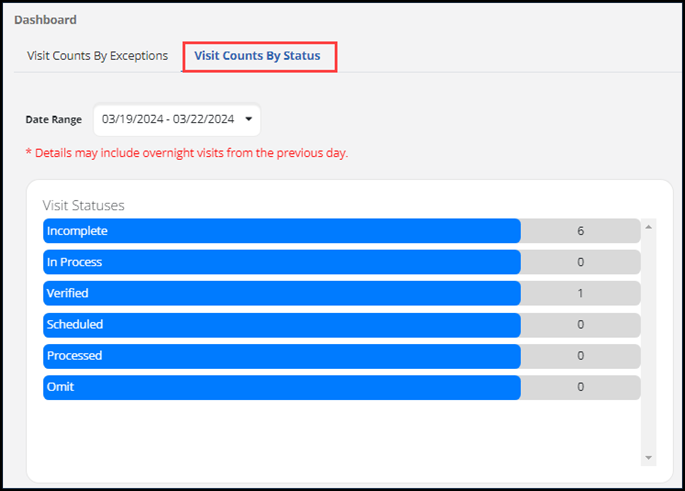
The dashboard has another tab, Visit Counts By Status. Choose a date or date range for a quick view of visits and their status for that time frame. In this example, there are six incomplete visits, which means those visits have exceptions that need attention, in the Visit Maintenance feature.
See the ADA Support page for information on the Americans with Disabilities Act (ADA).
Records automatically load in most of the EVV modules. Some modules include a quick search field in the upper right corner of the screen. Quick Search allows for quickly searching records by name, without opening the filters. Complete the following steps to use Quick Search.

-
Select the Quick Search field.
-
Begin typing the text you’re searching for, for example, a first or last name.
-
The results are updated to show matching records.
Some Sandata EVV features have an EXPORT DATA button. This button is an alternative to running a report. After applying any needed filters, use the EXPORT DATA button to quickly export search results such as Client, Employee, or visit maintenance information to a downloadable file. To export data:
-
Select the EXPORT DATA button.
-
Select the format to use for the export. The exported file downloads to your browser.
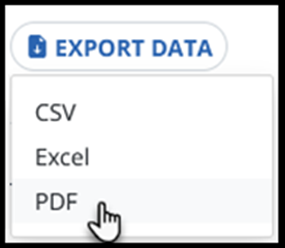
The formats available for export vary by feature, and may include CSV, Excel, and Adobe Acrobat (PDF).
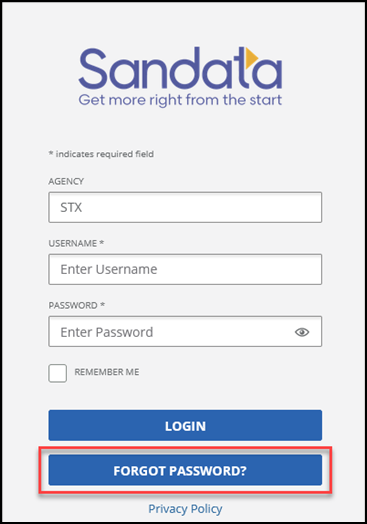
To reset a forgotten password, request a temporary password to use to log in and create a new permanent password.
-
From the login page, select the FORGOT PASSWORD? button.
-
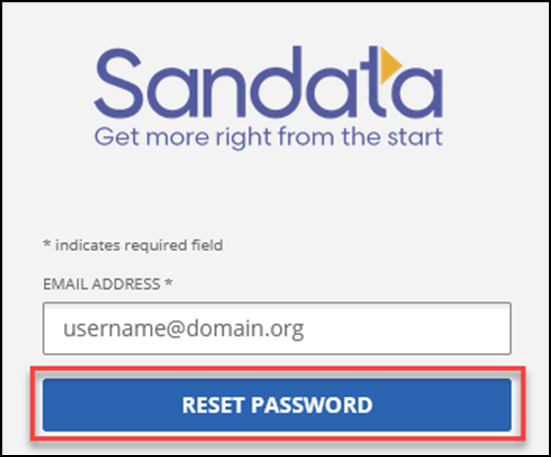
Enter an email address, then use the RESET PASSWORD button to have a temporary password sent through email.
-
Use the new temporary password to log in and create a new password.
After receiving your login credentials, you can use them to access the appropriate Sandata Portal.
Login credentials include your email address and password.
There are three types of Sandata Portals, and they handle email addresses differently:
-
Sandata EVV Portal: Portal Users (including Caregivers) can use the same email address to log into multiple Sandata EVV accounts.
-
Sandata Aggregator Portal: Portal Users must use a unique email address for each Sandata Aggregator account.
| Portal Type | Email Usage |
| Sandata EVV Portal Users/Caregivers | Same email address can be used across all Sandata EVV accounts |
| Sandata Mobile Connect Users | Same email address can be used across all Sandata Mobile Connect accounts |
| Sandata Aggregator Portal Users | One unique email address required for each Aggregator account |