Sandata Enhanced Admin & System Security
Welcome to Sandata EVV. In this topic, we guide you through the necessary skills for effective system management.
If a user's email changes, the Administrator should delete the current user profile and create a new one using the new updated email. For example: If your program uses Single Sign-On, your Sandata email and your email for the state program login must be the same.

This powerful Electronic Visit Verification (EVV) system is designed to help healthcare providers and agencies manage client and employee data, track and manage visits, and submit claims for billing.
Review this selection of topics to help you get started with the basics of usingSandata EVV.
User accounts are used to log in to the EVV system. Each account has individual settings, roles, and privileges that you can use to grant users access to the system. You can use the Manage Users feature to view, edit, and create user accounts.
If a user's email changes, the Administrator should delete the current user profile and create a new one using the new updated email. For example: if your program uses Single Sign-On, your Sandata email and email for the state program login must be the same.
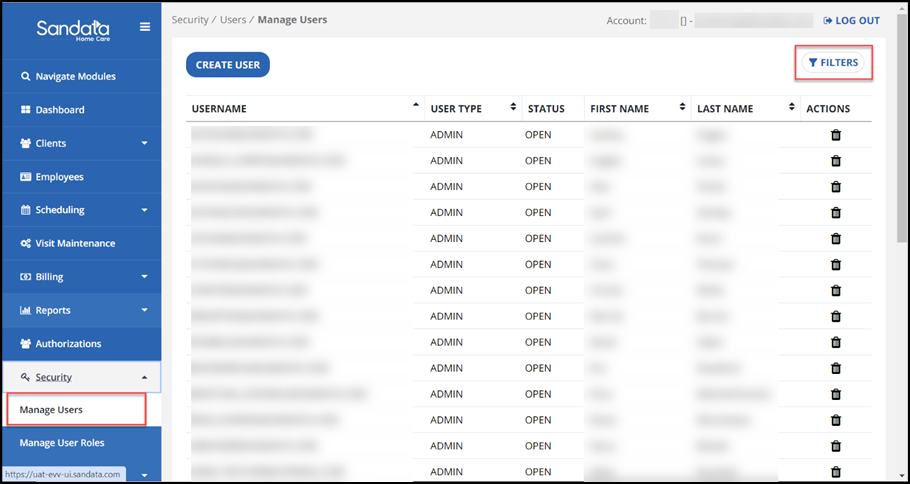
To access the Manage Users feature, select Security, then Manage Users.
Create a New User
To grant access to the system to a new employee, a new user must be created.
To avoid creating duplicate users, the best practice is to search for users before creating new users.
To create a new user:
-
Go to the Manage Users page under Security > Manage Users.
-
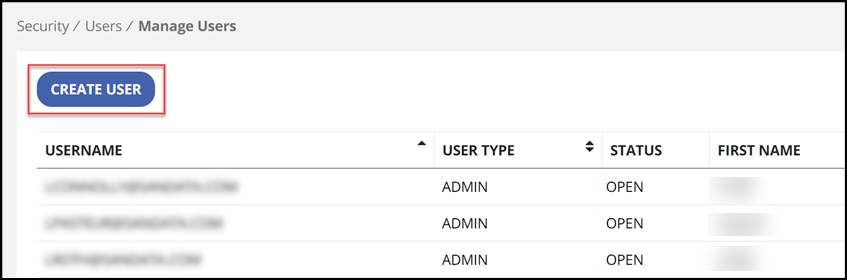
Select the CREATE USER button.
-
Enter the new user’s email address in the Username/Email field and confirm the email address in the Username/Email Confirmation field.
-
Enter the user’s first and last name.
-
Complete the user’s profile with the appropriate roles, privileges, clients, employees and supervisors as needed.
-
Use the CREATE USER button to save the new user profile.
Search for Users
After opening the Manage Users feature, a list of all users displays. Each user’s username, last name, first name, and last name are listed. To search for a user:
-
Go to the Manage Users page under Security > Manage Users.
-
Select the Filters button to enter search criteria.
-
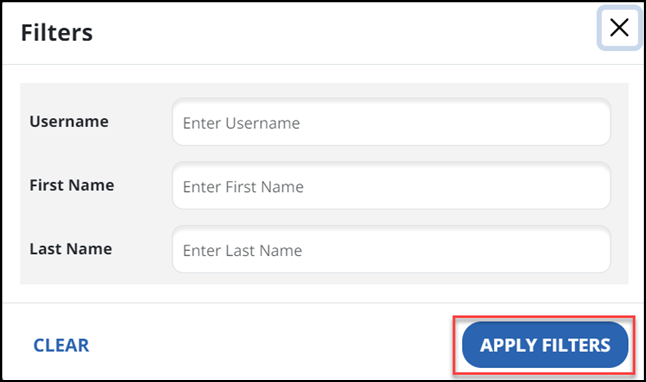
Next, apply any needed filters including username, last name, or first name. Use the CLEAR button if you need to remove all filters, otherwise use the APPLY FILTERS button to search for the matching users.
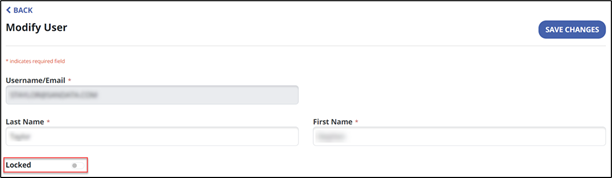
When you add a user, their account defaults to unlocked.
You can manually lock an account if the user is unavailable for an extended period of time. Accounts can also be locked by the system after too many unsuccessful log in attempts.
To lock or unlock an account, use the Locked toggle switch to the appropriate position.
Those with System Administration permissions have access to managing User Roles. A set of defined User roles is preloaded in the system, such as Security Administrator and Coordinator, where a group of system privileges are combined into a single, assignable role. When you assign a user to a User Role, that staff member is given all the privileges assigned to that role.
When you make edits to a User Role, this affects all users assigned to that role. You can also create a new User Role and assign only specific privileges to that role.
-
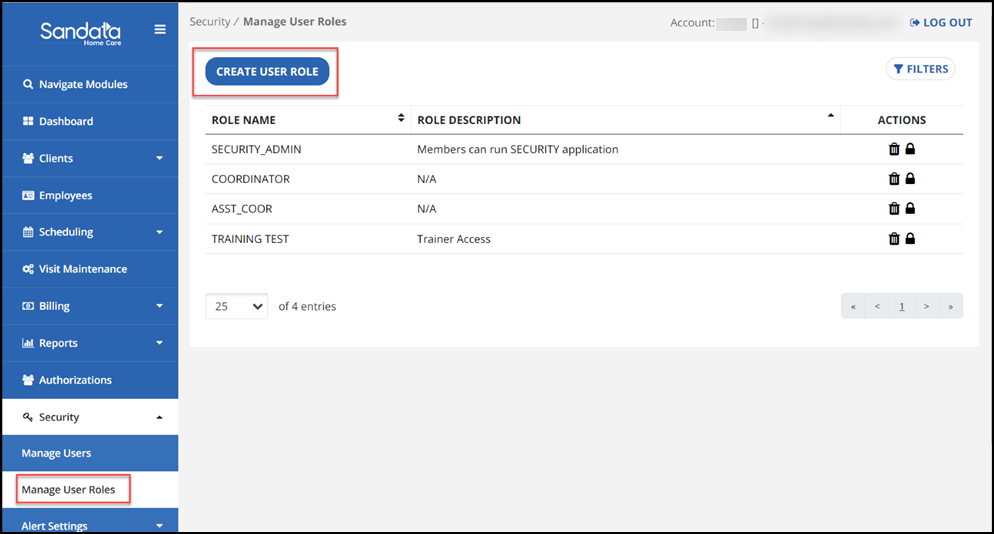
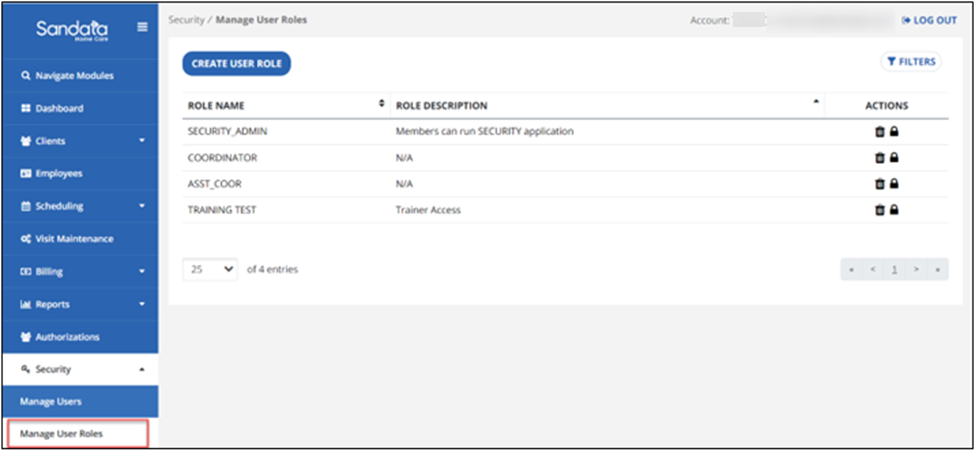
Go to the Manage User Roles page under Security > Manage User Roles.
-
Create a user role by selecting the CREATE USER ROLE button.
-
Enter the Role Name.
-
Enter the Role Description. This is an important way to define the role. For example, a Role called Reporter may be someone that runs reports and has access to the reporting module but may not have access to the Scheduling module.

-
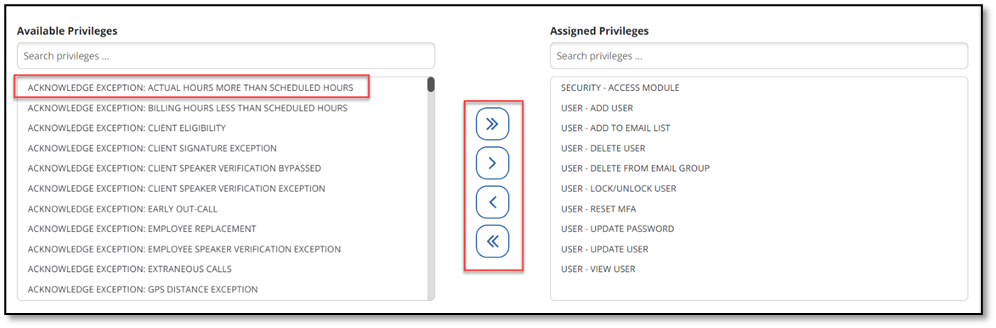
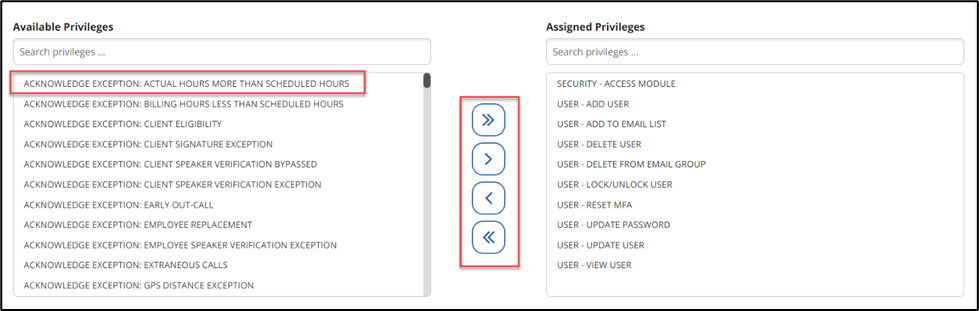
Select a privilege and use the assignment buttons to move privileges between the Available Privileges and Assigned Privileges sections. Available Privileges are all privileges available that can be assigned. Assigned Privileges represent all privileges currently assigned to this user.
To add or remove privileges, select from either column, then use the arrow buttons to move the role between the Available Privileges and Assigned Privileges columns. If needed, you can assign multiple privileges to a user.
-
Select the Save Changes button when done.
You can use the Manage User Roles screen to edit existing user roles that you have created.
-
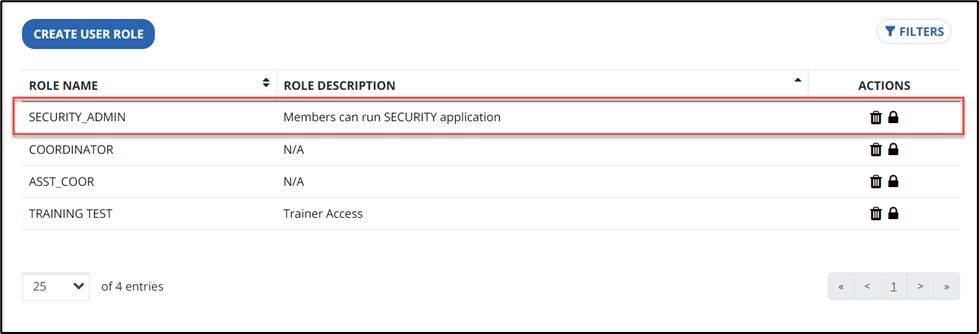
In the Manage Users window, select the role name you need to edit.
-
Change the system privileges for the role by moving them between the Available Privileges field and the Assigned Privileges field.
-
Select the Save Changesbutton when done.
If you created a User Role that you no longer need, you can delete it.
-
Go to the Manage User Roles page.
-
Select the Delete icon.

-
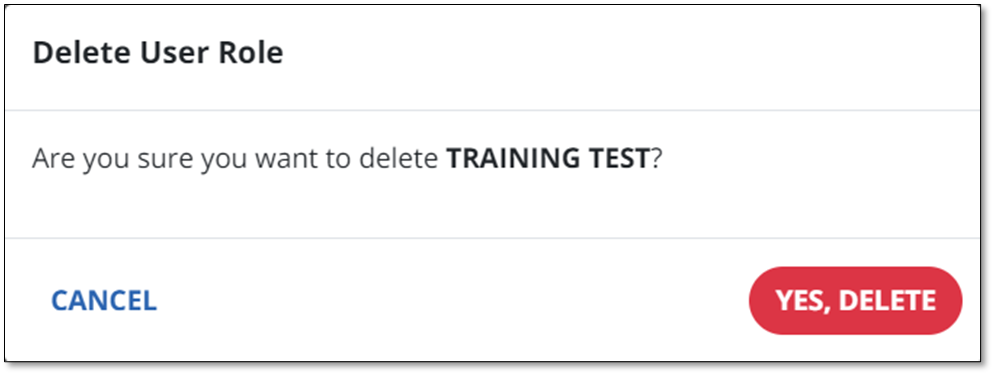
In the pop-up window, choose Yes, Delete. This removes the user role you added. To discard changes, select the Cancel button.
Watch this video to learn how to add employees to Sandata EVV, and to provide access to the Sandata Mobile Connect app.
Users with the proper permissions can reset a user’s password by sending them a reset password email.
-
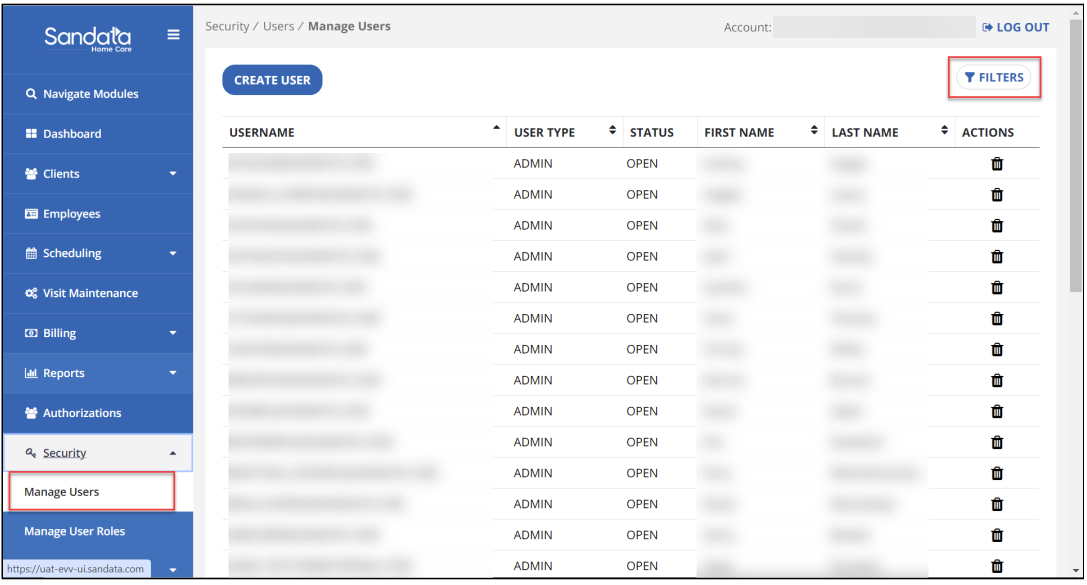
Go to Security > Manage Users.
-
Click Filters to search for the user.
-
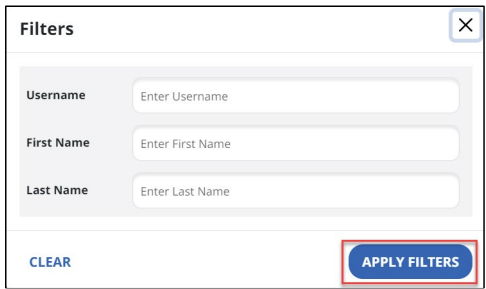
Enter the name or username and click Apply Filters. Select Clear to remove any filters.
-
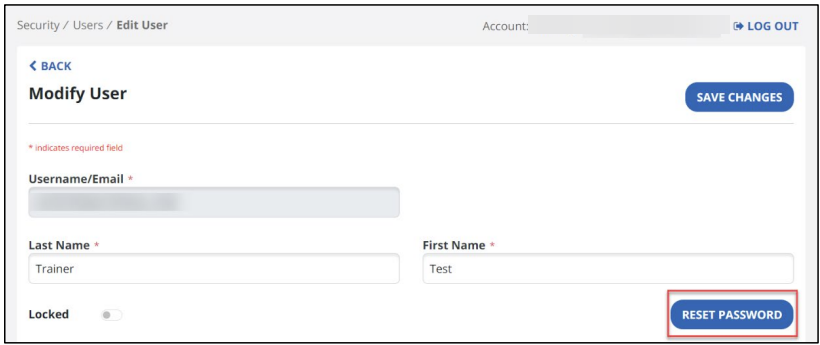
Select the user by clicking on the row. On the Edit User screen, select RESET PASSWORD.
-
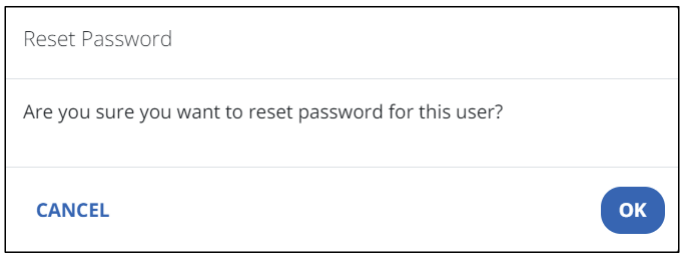
A confirmation box appears to confirm the password reset. Click OK. Select Cancel to remove any changes.
A temporary password is emailed to the user. The temporary password expires if it is not used to log into the system within a set period of time. When logging into the system using a temporary password, the user is prompted to create a new permanent password.
Users with the proper permissions can use the Change Password link to reset the password used to log in.
To change your password:
-
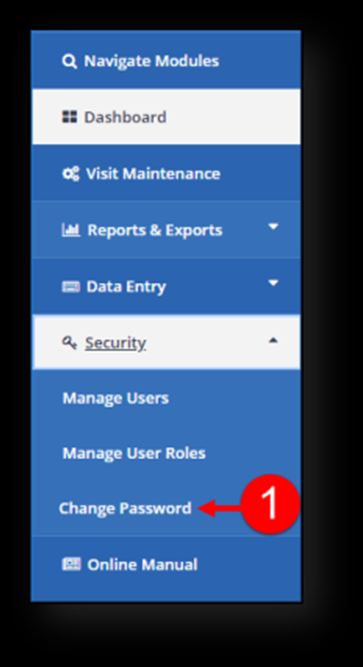
Go to the Change Password page under Security > Change Password.
-
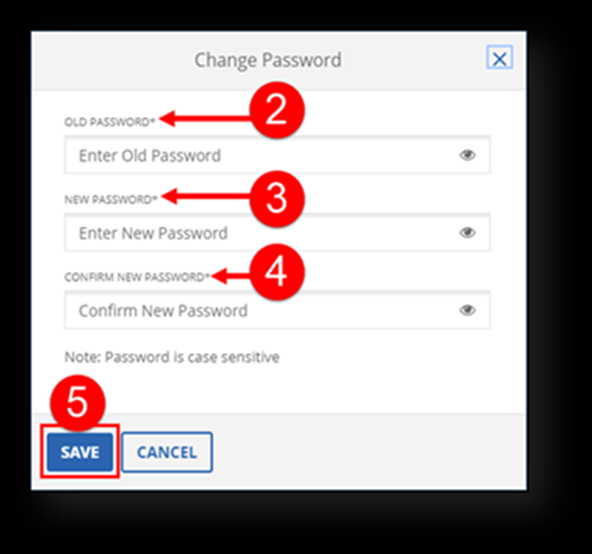
Enter your current password in the OLD PASSWORD field.
-
Enter a new password in the NEW PASSWORD field.
-
Re-enter the new password in the CONFIRM PASSWORD field.
-
Select the SAVE button. A notification displays at the top of the page.
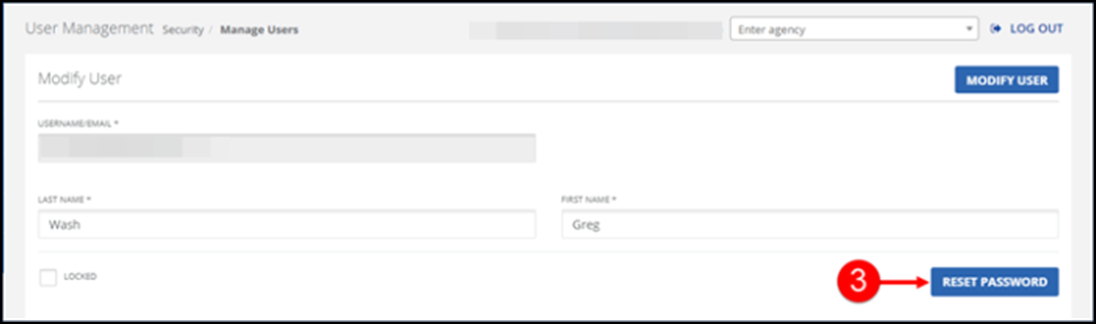
Users with the proper permissions can send a reset password email for another user. To reset a user's password:
-
Go to the Modify User window under Security > Manage Users > search for a user.
-
Select the Edit icon (
 ) for the user.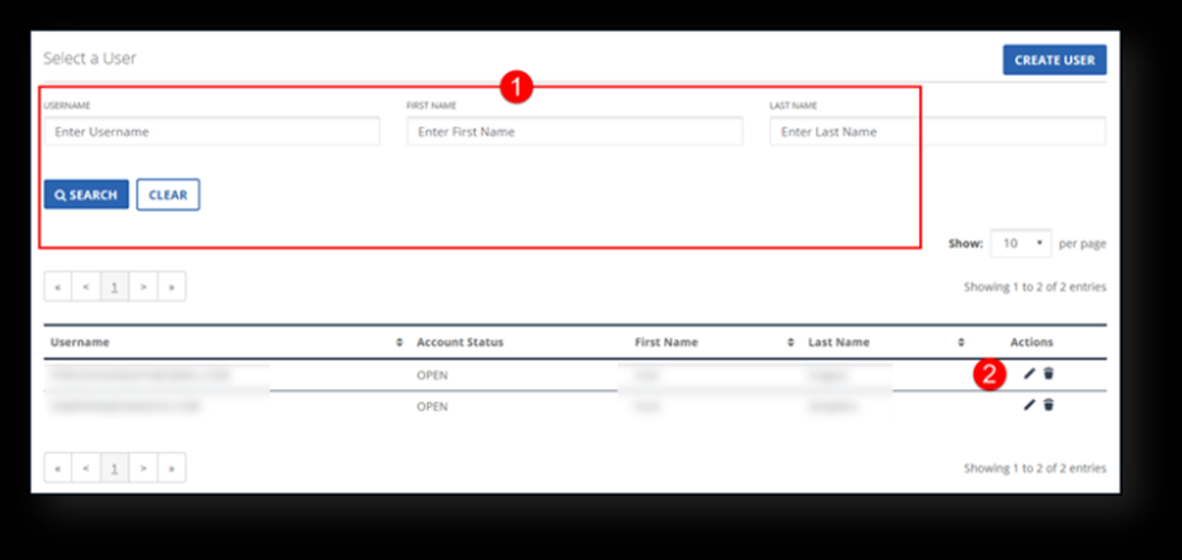
-
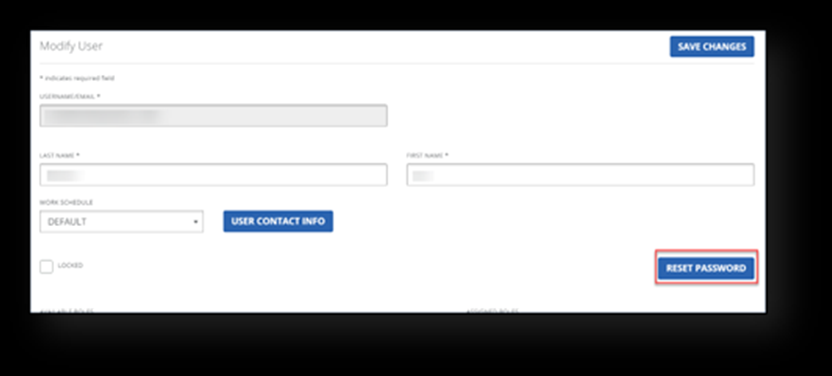
On the Modify User window, select the Reset Password button and follow the prompts. An email with a temporary password will be sent to the user.
User IDs are based on email addresses and a single email address has the same password across Sandata EVV and Sandata Aggregator. Changing the password for an email address changes it across all accounts.
Select the Reset Password button.
A temporary password is emailed to the user. The temporary password expires if it is not used to log into the system within a set period. When logging into the system using a temporary password, users are prompted to create a new permanent password.