Adding a Note to a Visit
The Notes tab in Visit Maintenance allows you to add multiple notes to a visit record. Notes are permanent records and cannot be edited or deleted after they are saved.
Review the note carefully before selecting Save. Once saved, a note cannot be edited or deleted.
Add a Note
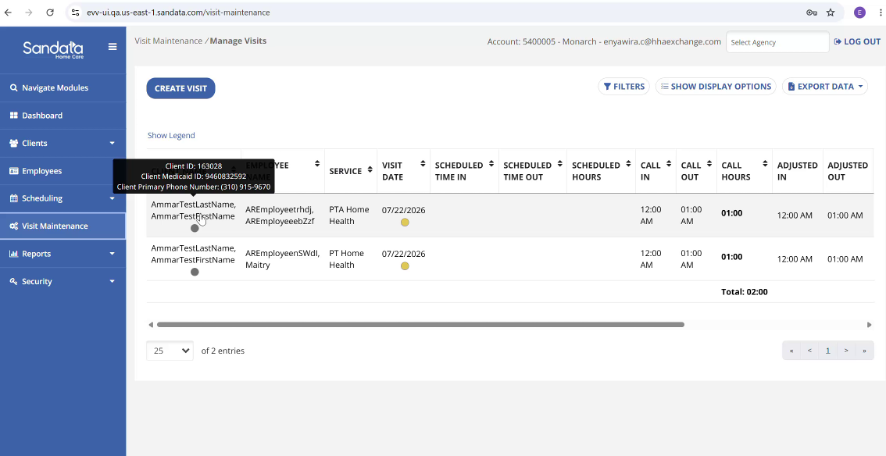
1. From Visit Maintenance, enter the appropriate search parameters.
2. Select Search.
3. From the search results, select the client/visit you want to update.
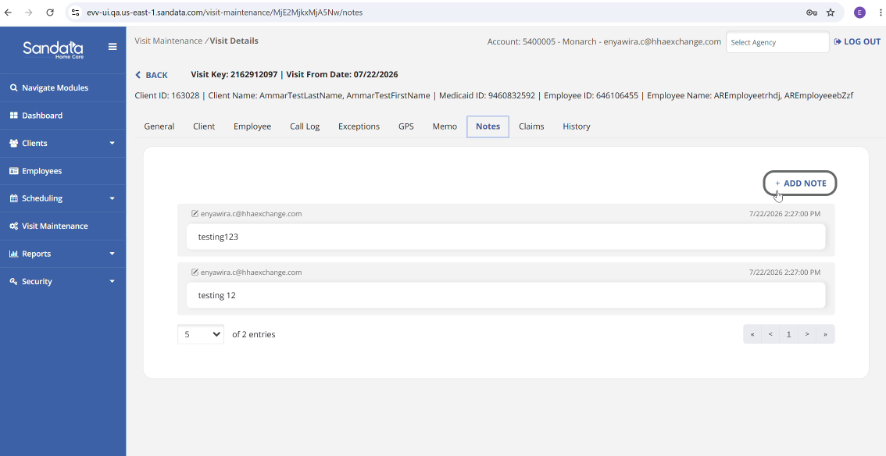
4. In the Visit Detail screen, select the Notes tab.
5. Select Add a Note.
6. Enter the note.
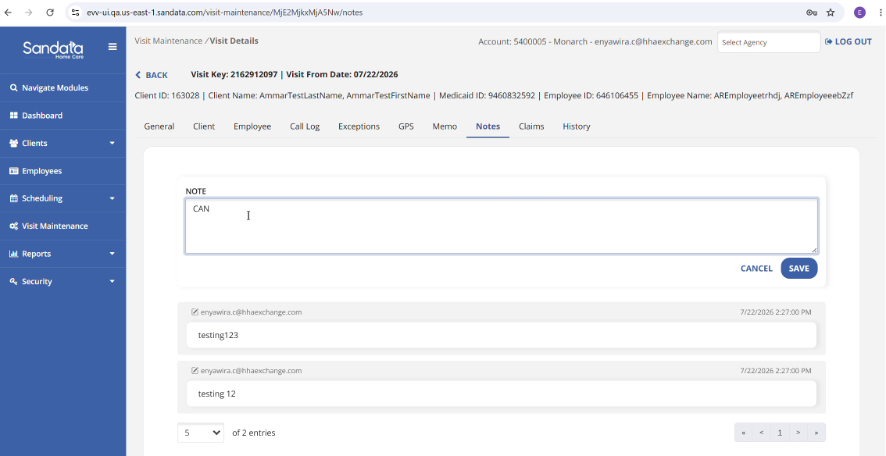
7. Review the note carefully to make sure the information is correct.
Once the note is saved, it cannot be edited or deleted.
8. Select Save.
The note is added to the visit record.
View Existing Notes
To view notes previously added to a visit:
1. Open the Visit Detail screen for the visit.
2. Select the Notes tab.
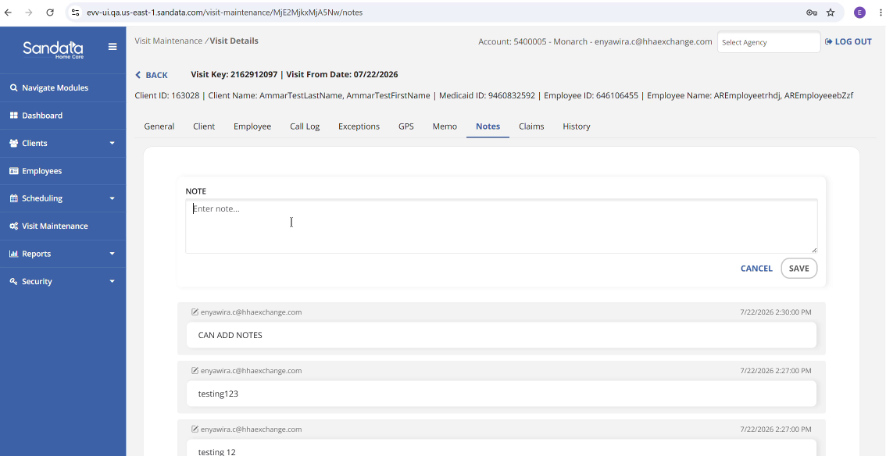
Each note displays the note text, the name of the user who added it, and the timestamp in the agency's time zone.
The Notes feature is different from the existing Memo field. A memo can be changed, while notes create a permanent audit trail.
Related: You can also view notes associated with a visit in Visit Review in Sandata Aggregator. Notes are view-only in Sandata Aggregator.