Sandata Aggregator Visit Review

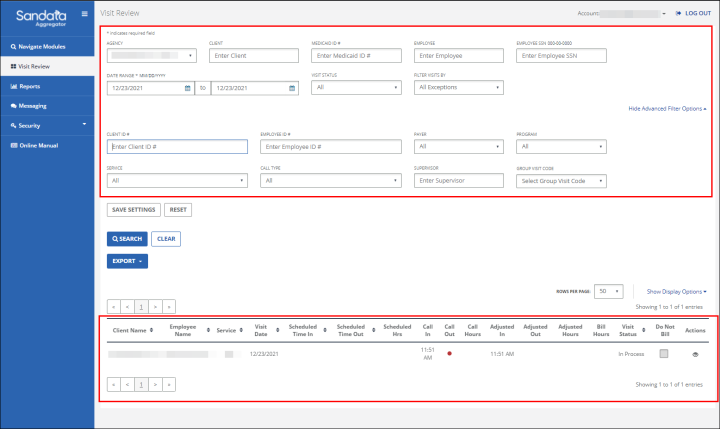
Use the Visit Review screen to search for visits. The filters on this screen allow users to limit the search results to include only visits matching the search criteria. This allows users to quickly find visits that require attention. The default results shown on this screen only include visits with exceptions.
| Field | Description |
|---|---|
| AGENCY |
Use this field to limit the result by a single agency. Note: Users can only see agencies they are working with. |
|
CALL TYPE |
Use this multi-select field to limit the results to visits with the selected special call type(s) (MVV and Manual). |
|
CLIENT |
Use this field to limit the results by client name (format: last name, first name) or client ID. When a partial value is entered the report will display results that begin with the entered value. |
| CLIENT ID | Use this field to limit the results by the client's ID number. |
|
DATE RANGE |
Use these fields to select the date range, all visits that occurred within the selected date range display in the search results. Searching by date or using the date range always returns results based on the date the visit began. |
|
DEPARTMENT |
Use this field to limit the results to the visits associated with the employee’s department. |
|
EMPLOYEE |
Use this field to limit the results by employee name (format: last name, first name). When a partial value is entered the report displays results that begin with the entered value. |
| EMPLOYEE ID | Use this field to limit the results by employee ID number. |
| EMPLOYEE SSN | Use this field to limit the results by the employee’s Social Security Number. |
|
EXCEPTION TYPE |
Use this multi-select field to limit the results to visits with the selected exceptions. The exceptions in this drop-down are each set up with an effective date range. Exceptions not in effect during the selected visit date are not included in the drop down. |
|
EXPORT |
Exports the results in the results grid to a CSV or Excel format. |
|
FILTER VISITS BY |
By default, this field is set to All Exceptions, which displays all visits with exceptions. In order to include visits without exceptions, select All Visits. Select Exception Type to limit the results to only visits with the selected exception(s). Example: Unknown Client visits. |
|
GROUP VISIT CODE |
Use this field to limit the results by the selected group visit code. Group Visit Codes are a unique six digit code associated with Group Visit functionality and allows user to search for all visits that are part of the same group. Group Visit Codes are unique for the given start date. |
| MEDICAID ID# | Used to limit the results by the client’s Medicaid ID. |
|
PAYER |
Use this drop-down field to limit the results to a single payer. All options in this drop-down are set up with an effective date range. Options not in effect as of the visit date are not included in this list. |
|
PROGRAM |
Use this field to limit results by the selected program. All options in this drop-down are set up with an effective date range. Options not in effect as of the visit date are not included in this list. |
|
RESET |
Clears saved filter settings. |
|
Results List |
This section displays a grid of visits that match the selected search criteria. |
|
SAVE SETTINGS |
Use this button to save selected search filters and results list configuration, for the computer and browser used. Any fields requiring a text entry are not saved. For example, Client. |
|
Show/Hide Advanced Filter Options |
Displays additional fields, including the ability to save or reset filter selections. |
|
Show/Hide Display Options |
Use this link to display additional column options for the results list. |
|
SERVICE |
Use this field to limit the results by the selected service. All options in this drop-down are set up with an effective date range. Options not in effect as of the visit date are not included in this list. |
|
SUPERVISOR |
Use this field to limit the results to the visits associated with the selected supervisor. |
|
VISIT STATUS |
Use this drop-down field to limit the result by visit status.
|
To learn more about the fields or columns for this process, use the following links:
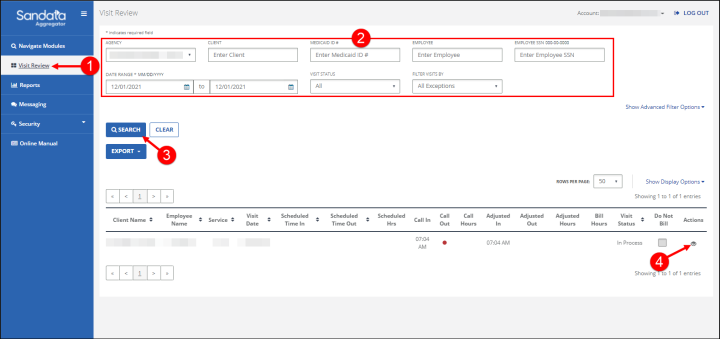
1. Go to the Visit Review screen.
2. Enter the search criteria.
3. Click Search.
4. Click the Edit icon to view the Visit Detail screen.