Register Staff Members for a Class
Once a class has been created, staff members must be added to the class through the Class Roster screen. For information on how to create or edit classes, see Manage Classes.
-
Navigate to the Class Roster screen via Main Menu > Staff > Training > Class Roster.
-
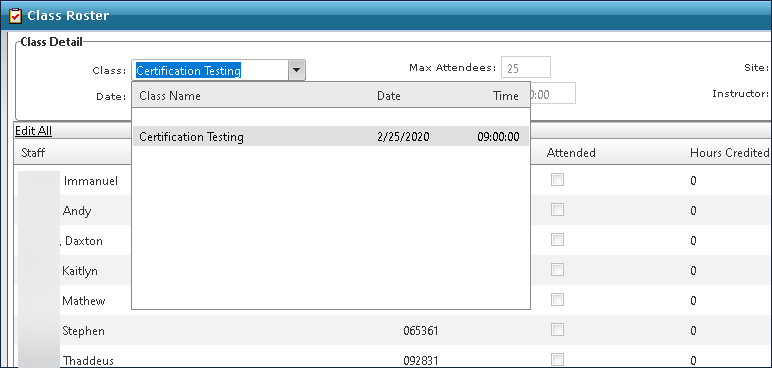
Select the class from the Class dropdown.
-
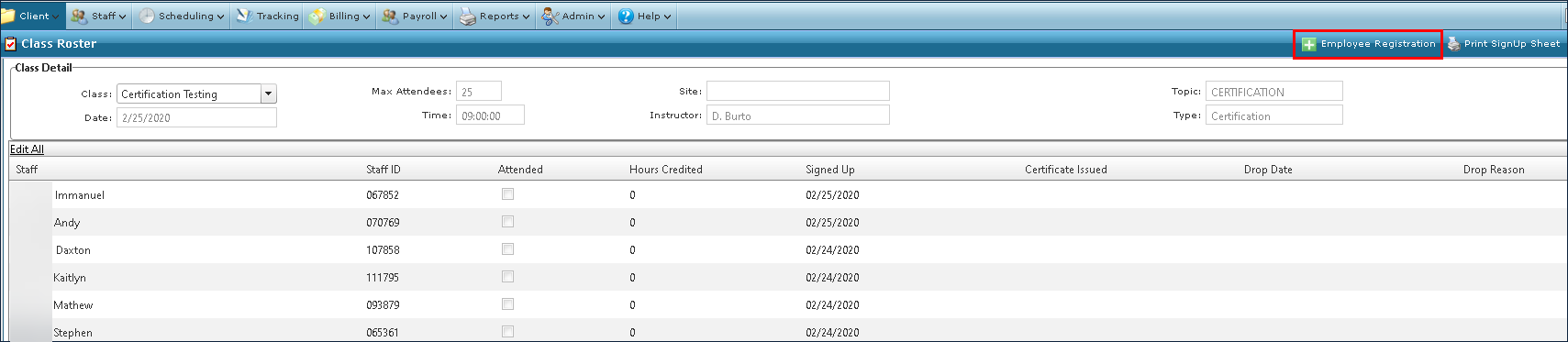
Click the Employee Registration button.
-
Sort the fields or use the search filters to locate the desired staff member(s).
-
Select the checkbox next to the staff member’s name(s).
-
Click Register Checked Employees.
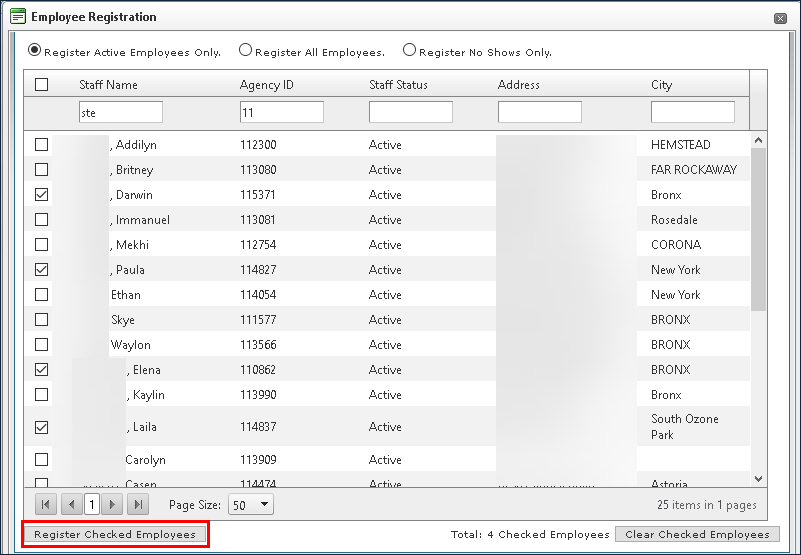
Clicking Clear Checked Employees clears all selections.