HHAeXchange University for Ohio

This section applies only to Ohio users who were registered before April 3, 2026.
-
Go to HHAeXchange University.
-
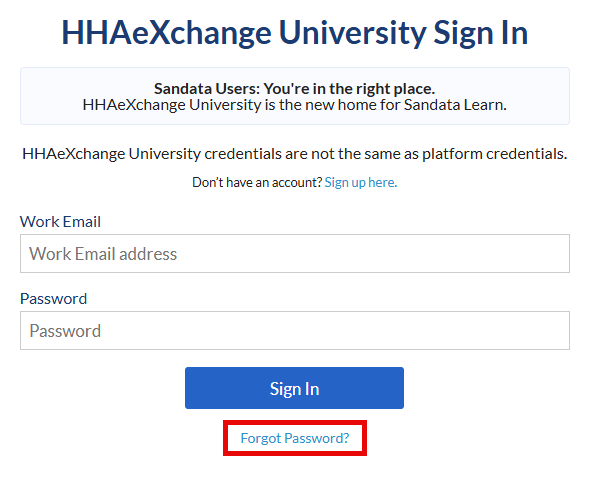
Select the Forgot Password? link.
-
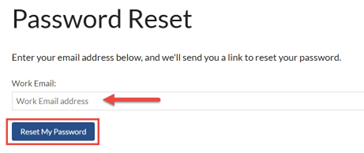
Enter your Work Email into the field and select the Reset My Password button.
This email MUST match the email username that was used to access your Sandata Learn Account.
-
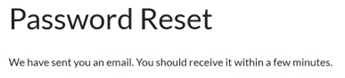
You will receive a confirmation notice that your password reset has been sent to your email. The email comes from university@hhaexchange.com.
-
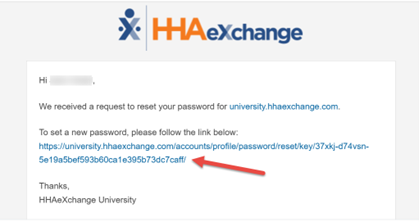
Select the link in your email to set a new password.
-
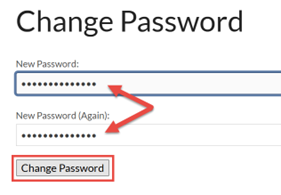
Create a password and select Change Password.
You can now log into HHAeXchange University. You can access your historical Sandata Learn content and completion certificates.
-
Go to HHAeXchange University.
-
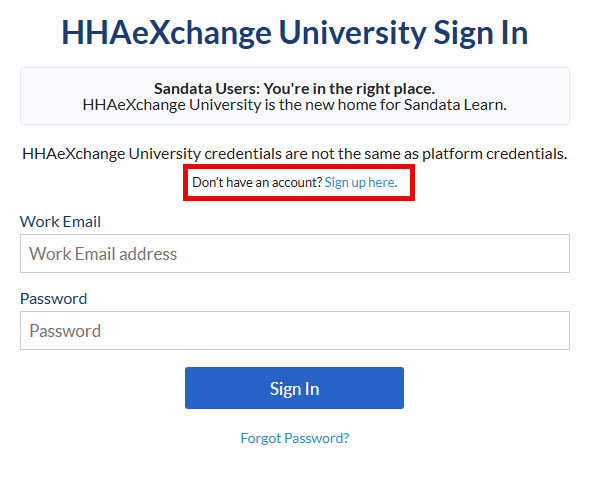
Select the Sign up here option.
-
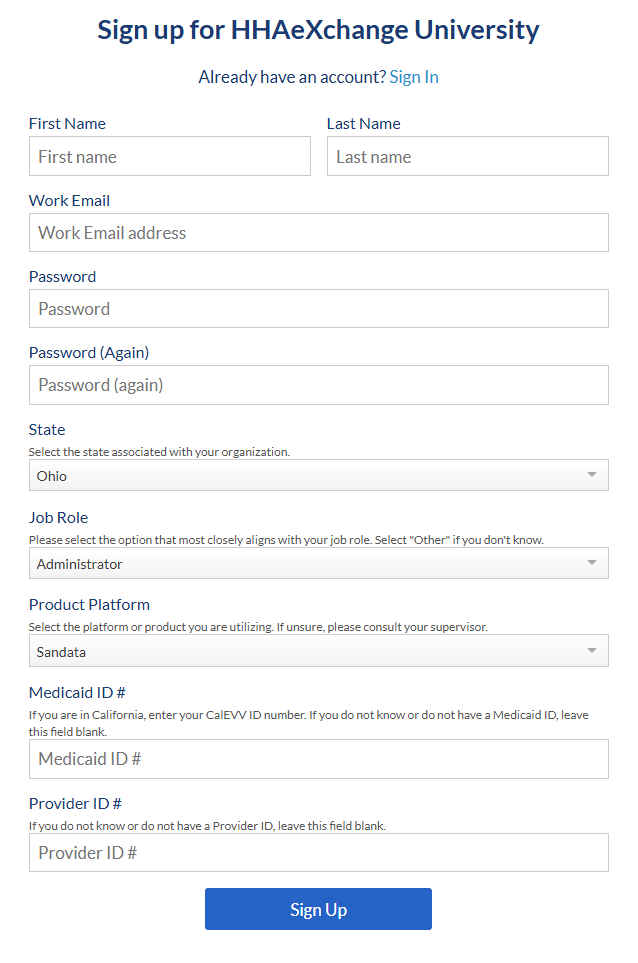
Fill out the First Name, Last Name, Work Email and Password fields.
-
For the drop-down lists select the following items:
-
State: Ohio
-
Job Role: Administrator
-
Product Platform: Sandata
-
-
If you know your Medicaid Identification Number and the Provider ID # enter the information into the corresponding fields.
The Medicaid Identification Number and the Provider ID # field are NOT required
-
Select Sign Up.
-
Select your Provider Type from the Home screen to begin.
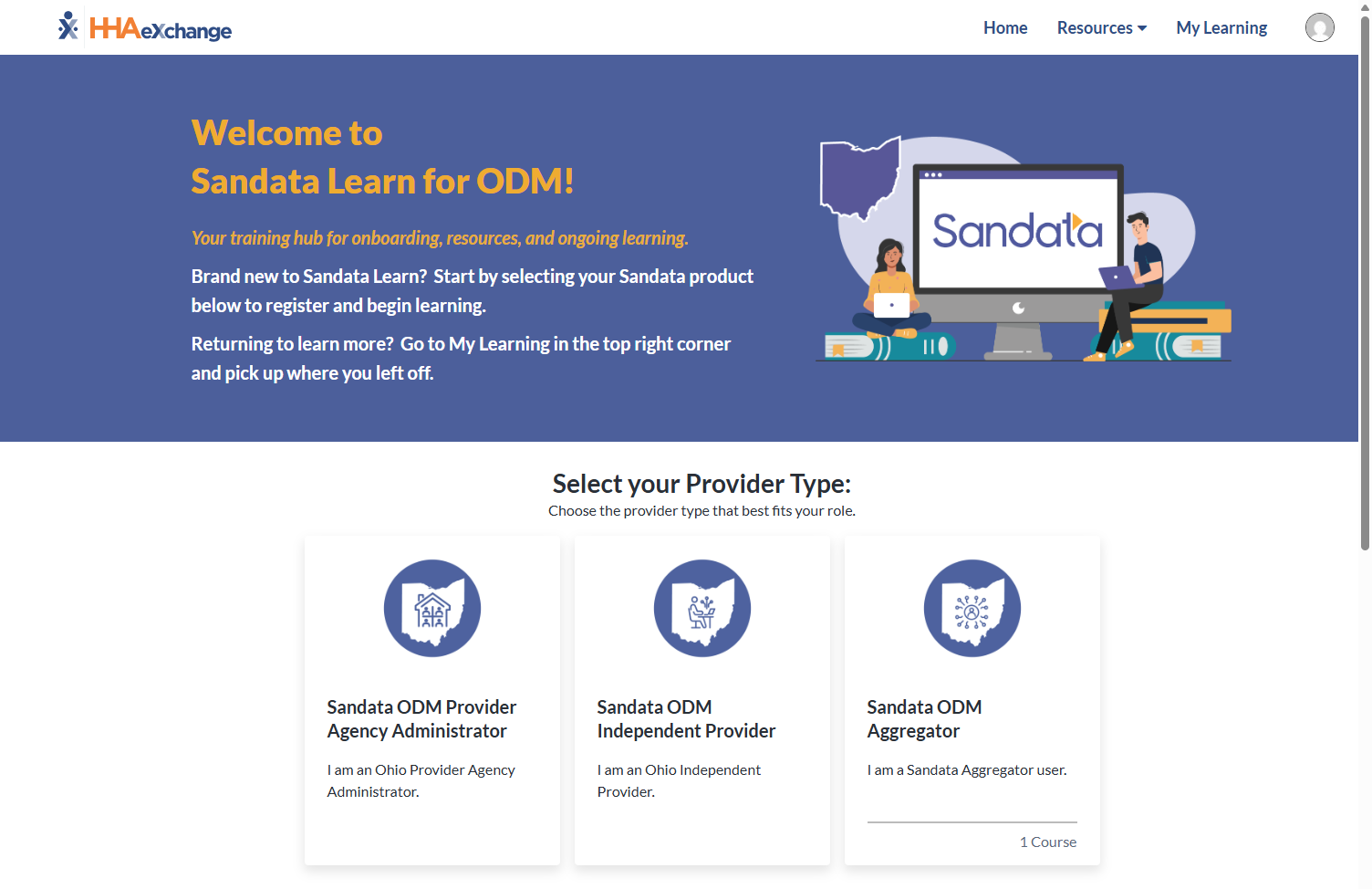
We have selected Sandata ODM Provider Agency Administrator for the remaining screenshots.
-
Select the desired training course from the options provided.
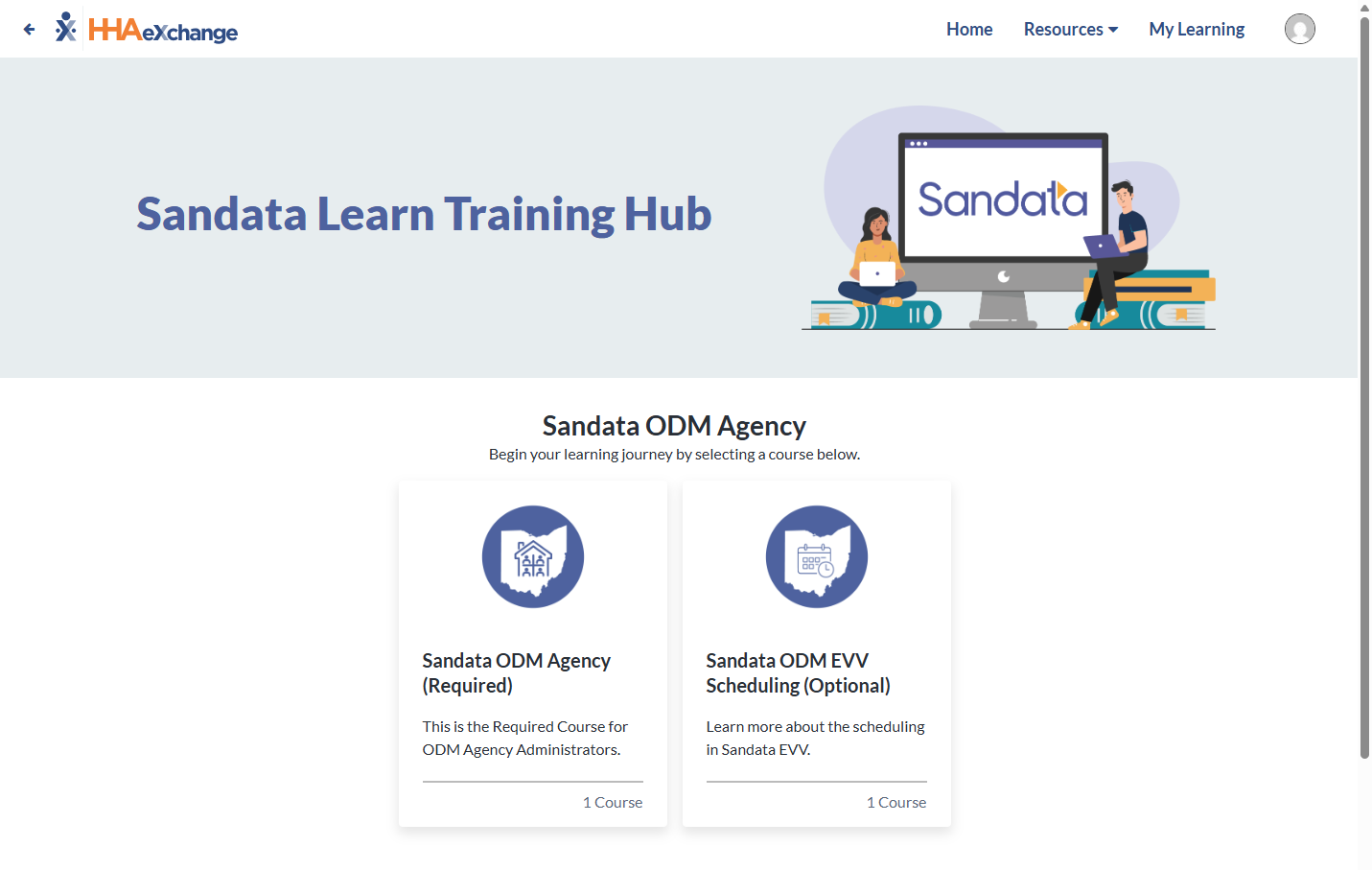
-
Select Register.
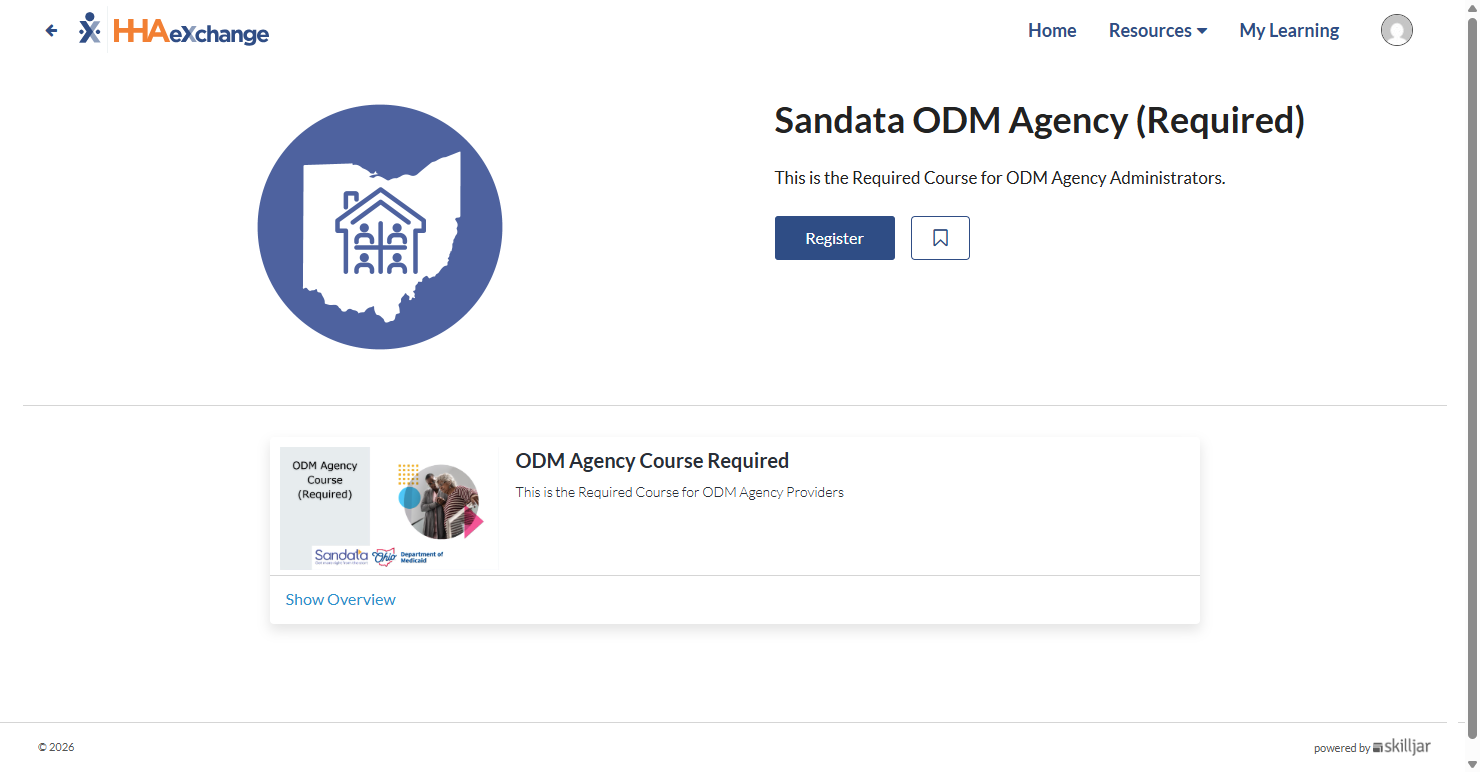
-
You can review a course overview by selecting Show Overview or begin your training by selecting Get Started.
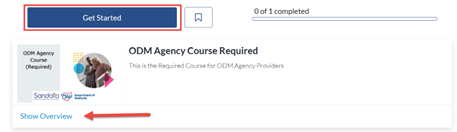
-
Go to HHAeXchange University.
-
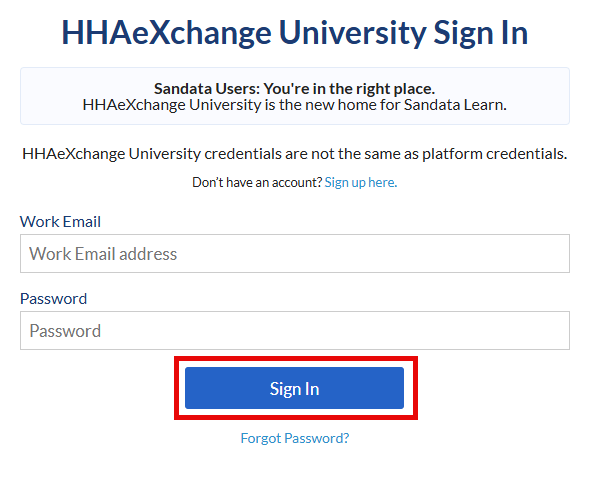
Sign in using your existing account credentials.
-
Select My Learning in the upper right-hand corner of the home screen.

-
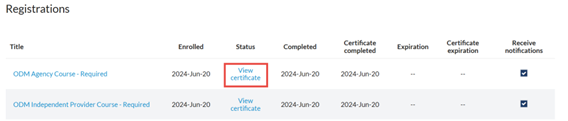
Scroll down to the Registrations section and select View Certificate on the desired course.
-
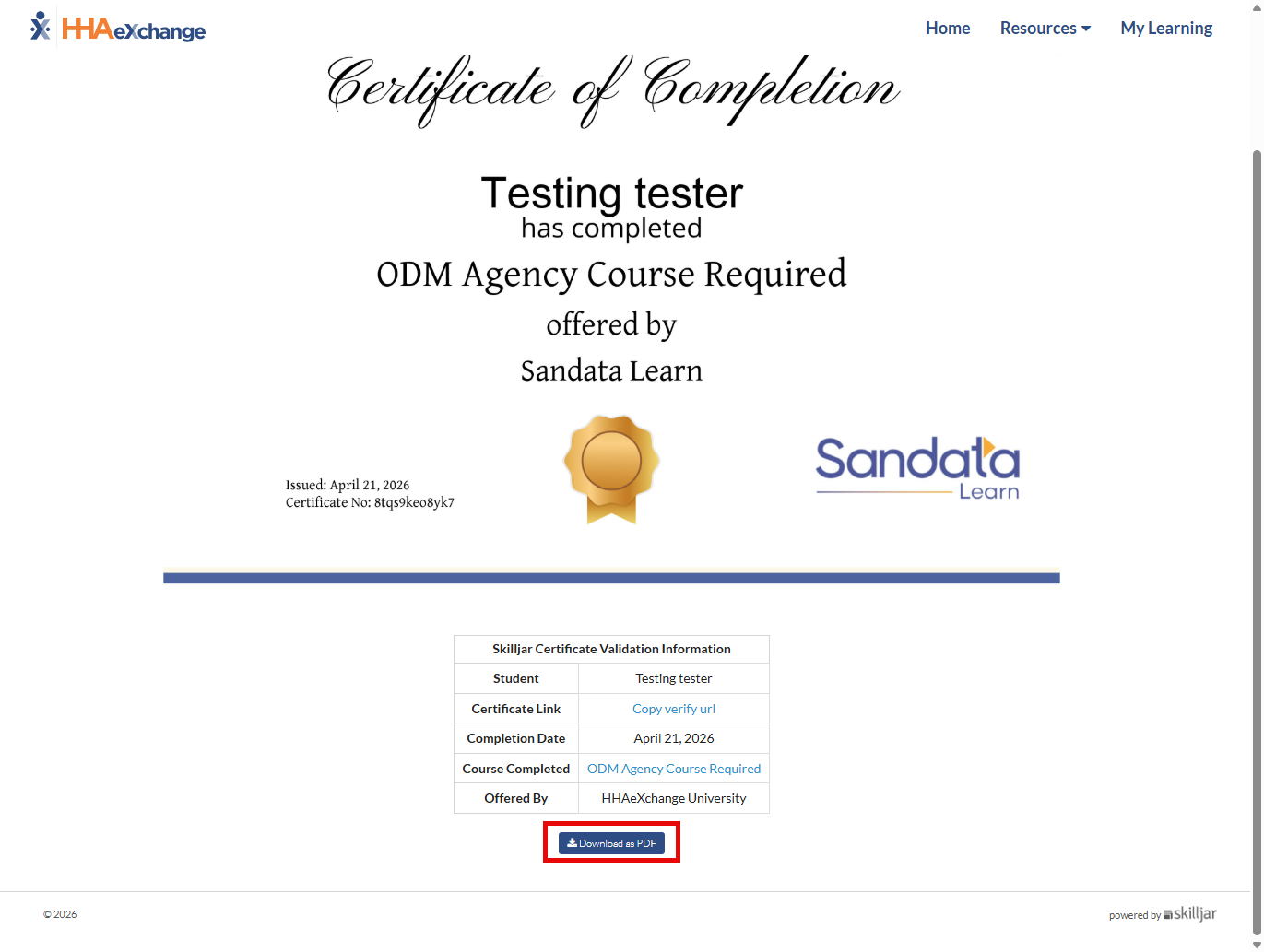
When your certificate generates, scroll down and select Download as PDF to download a copy of your certificate.