Order Attachments (Order Manager)
Use Order Attachments to store and manage documents related to a client’s order, such as certifications, care requirements, or other supporting files. You can add attachments to provide context, review them at any time during service delivery, and remove outdated documents as needs change.

To convey additional or relevant information about a client or the service being performed, an attachment can be added to an order.
To add an attachment:
-
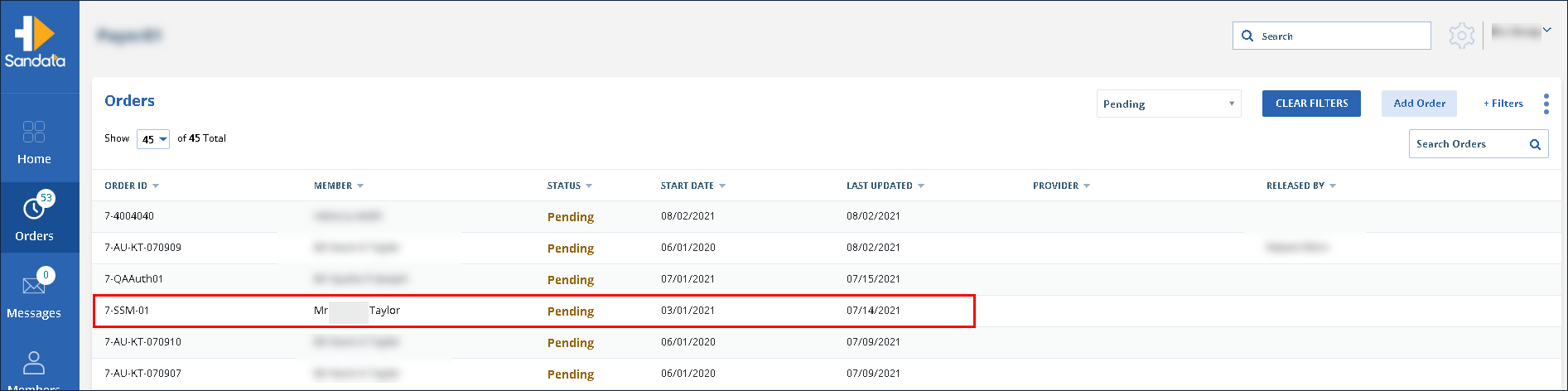
Navigate to the Orders screen.
-
Use the filters to locate and click on the order.
-
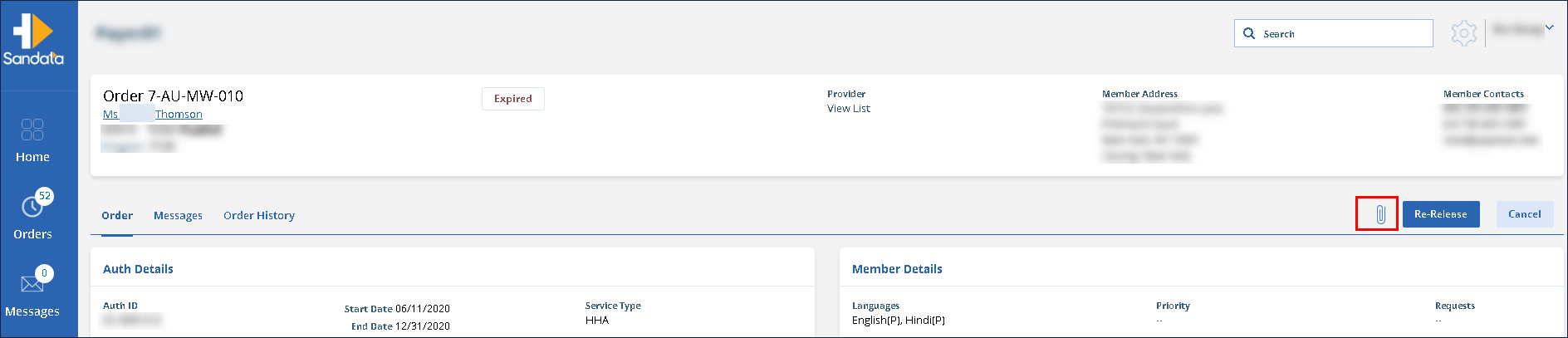
Click the Attachments button.
-
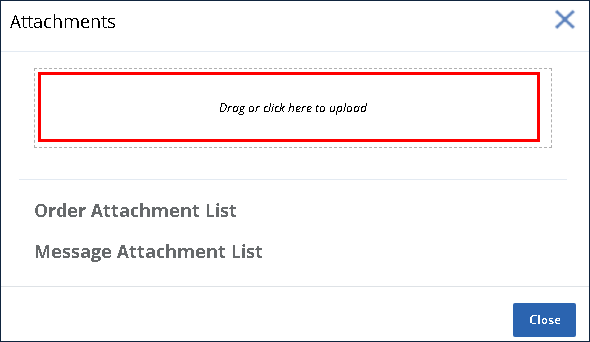
Drag the selected file into the Attachments box or click within the Attachments box to open the Select File window and select the file.
-
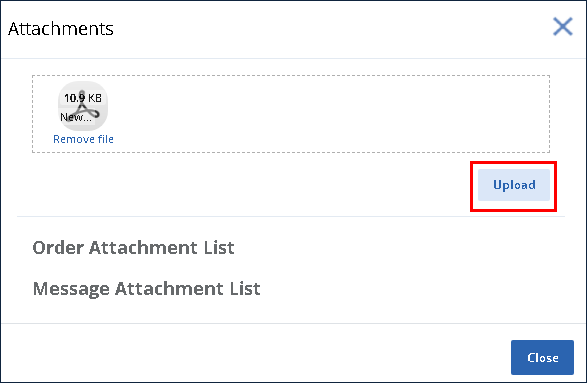
Click Upload.
-
Click Close.
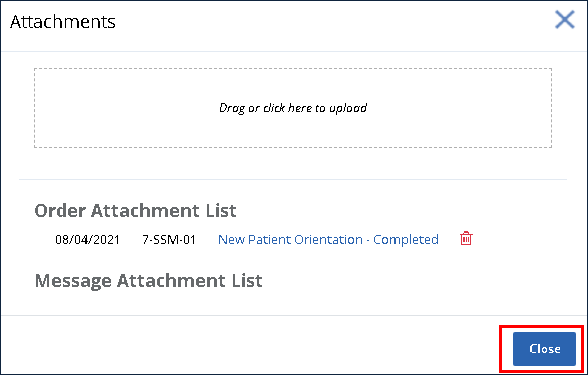
The attachment is successfully added to the order.
Documents attached to a member's order can be reviewed at any time to double-check certifications, care requirements or other information that may be needed over the course of the service.
To view an attachment on an order:
-
Navigate to the Orders screen.
-
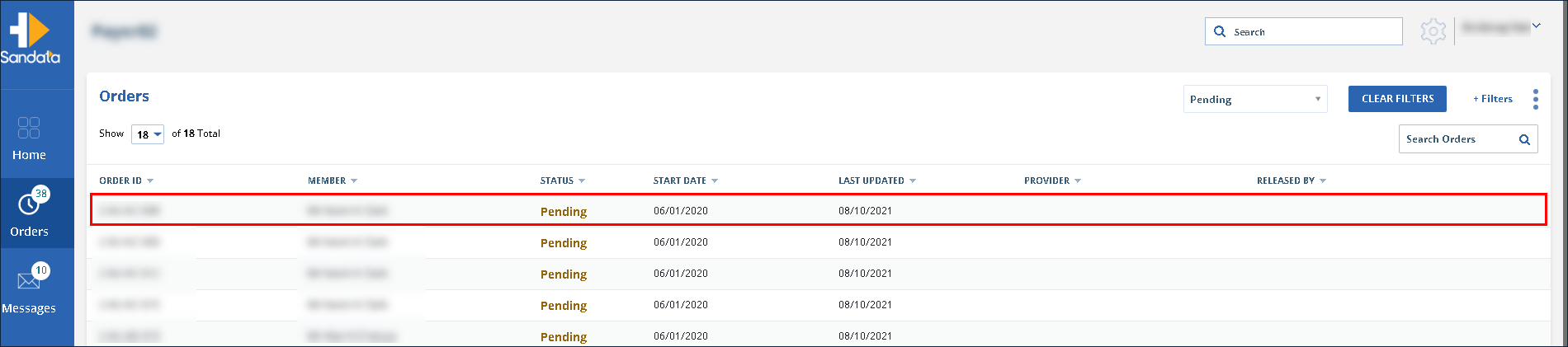
Use the filters to locate and click on the order.
-
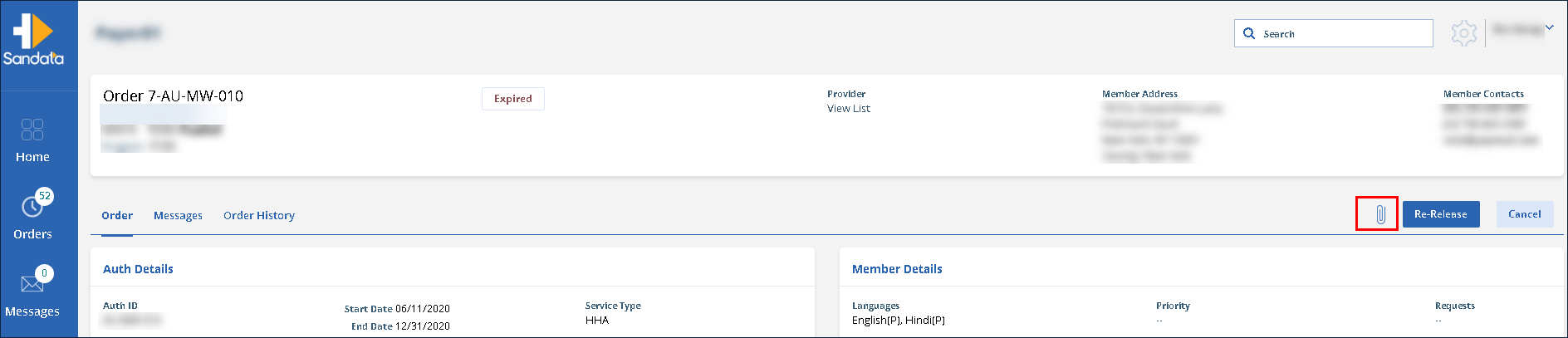
Click the Attachment icon.
-
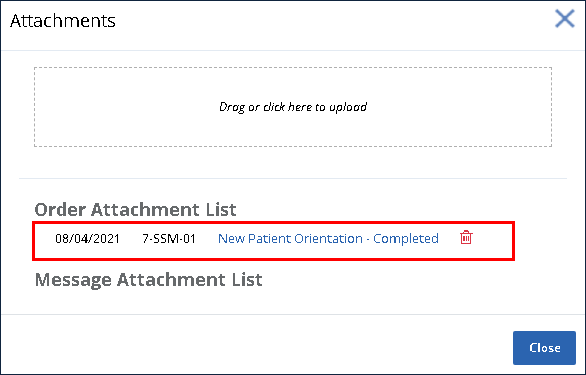
Click on the attachment to view it.
Members undergoing long term care may require re-certifications, renewals or other updates that can require removing an invalid or out of date attachment from their ongoing order.
To remove an invalid or out of date attachment from an order:
-
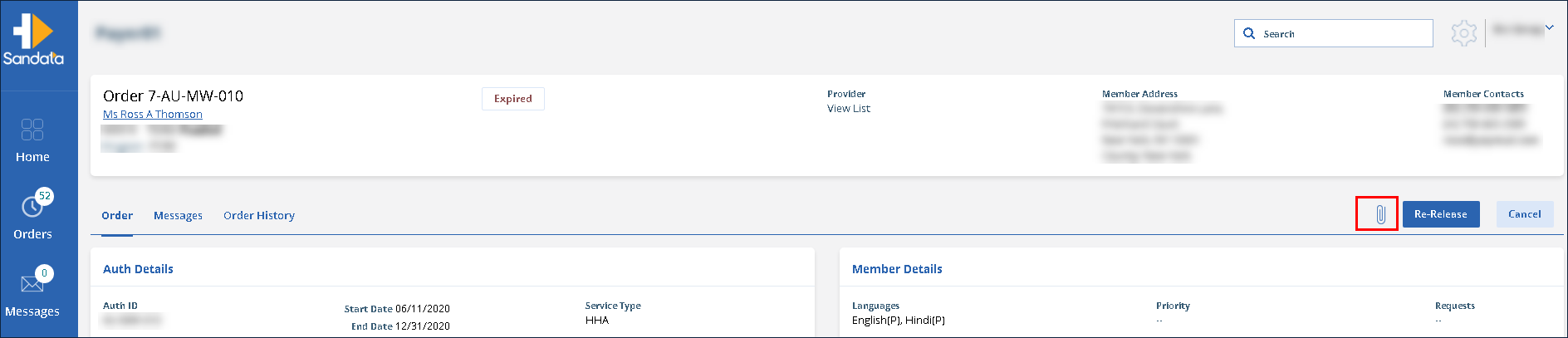
Click the Orders module and use the filters to locate and open the order.
-
Click the Attachments icon.
-
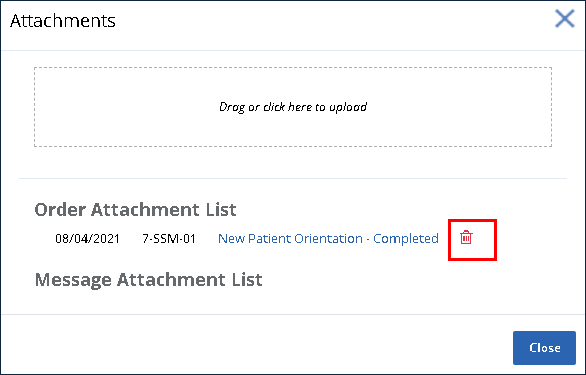
Click the Trash Can icon next to the attachment.
-
Click Yes, do it!
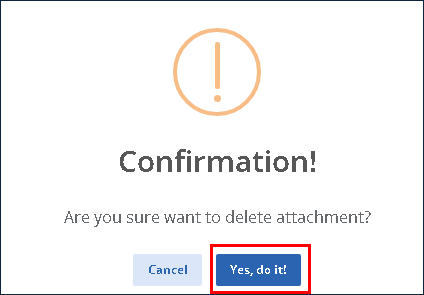
The attachment is removed from the order.