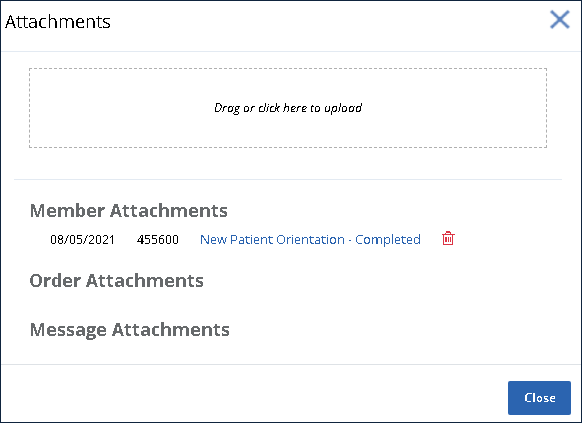
Add an Attachment to a Member Profile (Order Manager)
Occasionally it may be necessary to add additional information to a member’s profile via attachment. This could be a certification, additional background details or other paperwork that needs to be tracked.
To add an attachment to a Member’s Profile:
-
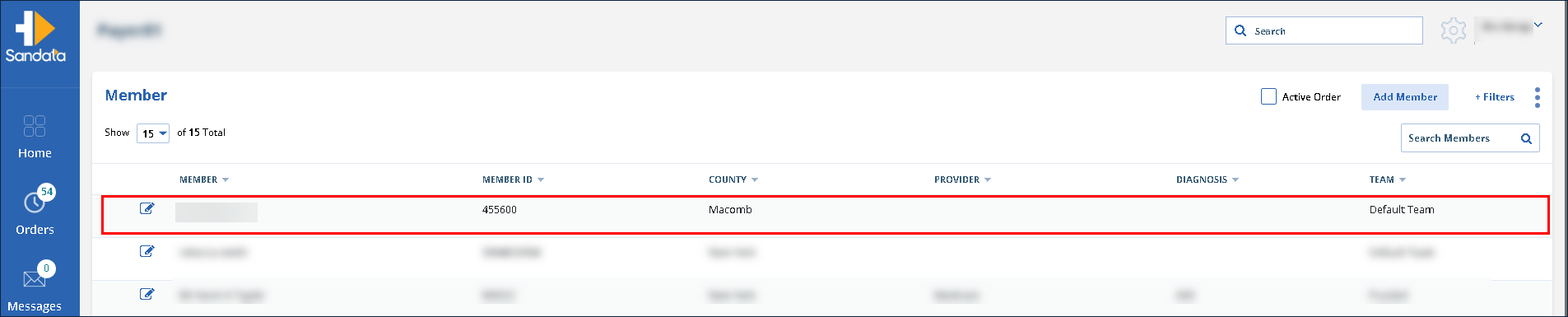
Click Members.
-
Locate and click on the Member needing the attachment.
-
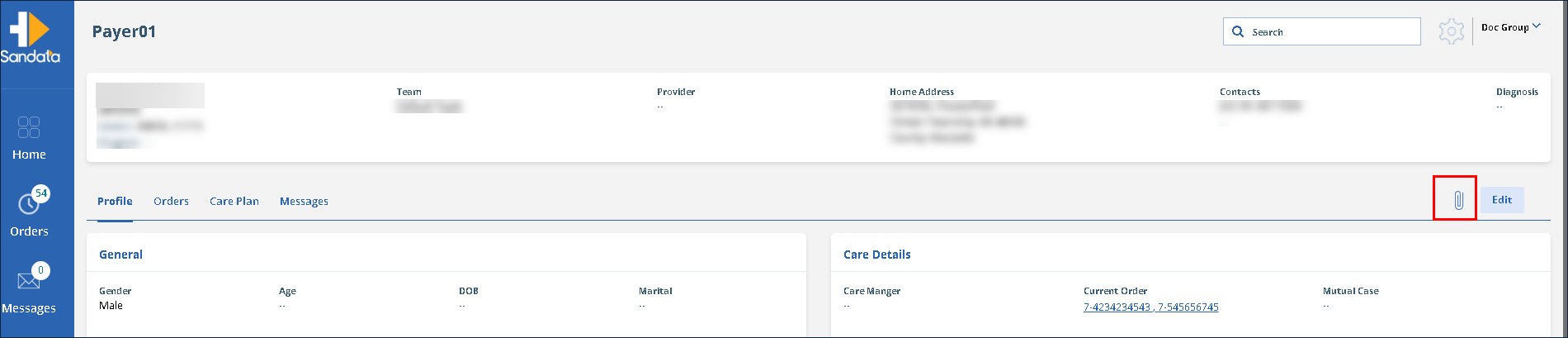
Click the Attachment icon.
-
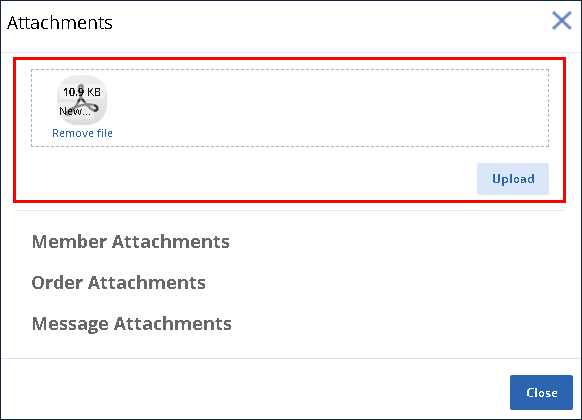
Drag the selected file into the Attachments box or click in the Attachments box to open the Select File window and select the file.
-
Click Upload.
The file is attached to the Member’s profile.