eTRAC Registration and Login
Registration in the eTRAC Portal is the first step necessary to download your Sandata EVV Welcome Kit. If you need to order or manage Sandata EVV devices, you must use eTRAC to do so.
Here is how first-time users can log into the eTRAC portal:
-
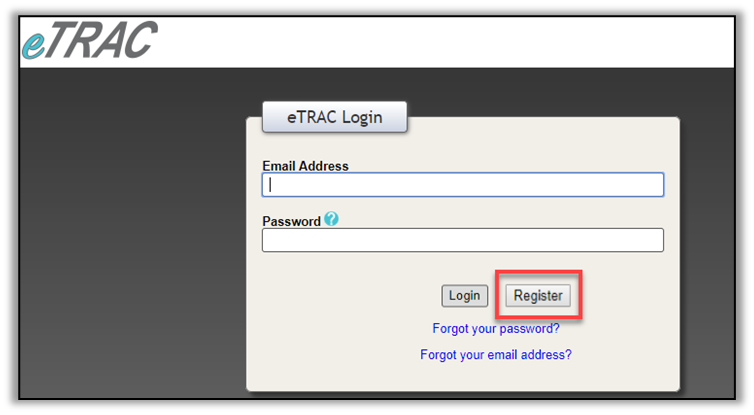
Use the following URL to access the eTRAC Portal: https://etraconline.net/login.
-
Select Register.
-
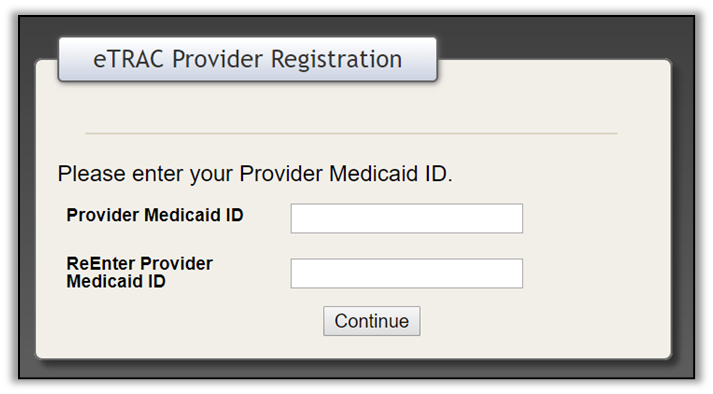
Enter the Provider Medicaid ID, and then again in the re-enter Provider Medicaid ID field to confirm. Select Continue.
-
Enter the email address on file with the Ohio Department of Medicaid (ODM) that matches your entered Medicaid Provider ID. If the email address you enter does not match what ODM has on file, the message displayed in red in the screenshot below appears. If you see this, call ODM at (800) 686-1516 to update the email address on file.
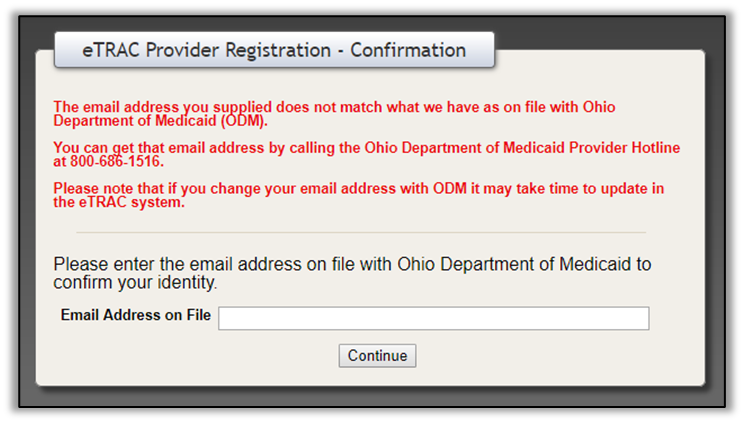
The above screen is only displayed for the initial user logging in to eTRAC. This user becomes the eTRAC Security Administrator. Additional users logging in to eTRAC are only asked to enter their PIN.
-
A screen with your Agency name or personal name for the email populates on the next screen. There are additional fields for you to enter information. Fill out your information and choose a password.
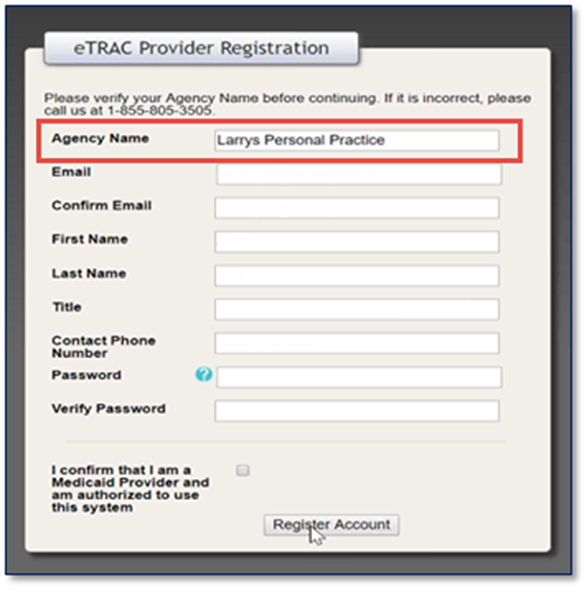
Additional users of the same agency require a security PIN to register themselves with eTRAC. The security PIN can be obtained from the agency eTRAC administrator. This administrator user has a Security tab at the top of the eTRAC menu bar.
-
Select the I confirm that I am a Medicaid Provider…system checkbox to confirm the user is a Medicaid Provider and authorized to use the system.
-
Select Register Account.
-
Download your Welcome Kit by logging onto eTRAC and selecting Welcome Kit.
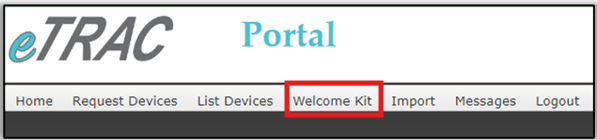
The Welcome Kit contains important user information to get started in the EVV program. It contains user login in information and links to get started. Users may access the eTRAC portal with the link sent to the email on file with the state. This email is generated after an agency completes the required training in HHAeXchange University.
-
Select Download next to each file.