Update an Unknown DCW/Employee Exception
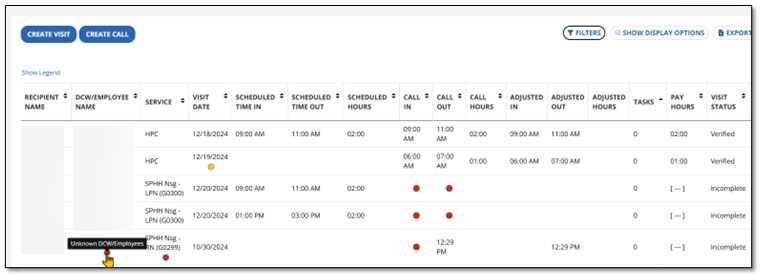
When a visit is recorded without an DCW/Employee name or ID, the visit is flagged with an Unknown DCW/Employee exception. Visits with Unknown DCW/Employee exceptions need to have the DCW/Employee added to the visit to resolve the exception and make the visit billable.
To resolve an Unknown DCW/Employee exception:
-
Select a visit from the Manage Visits screen.
-
Navigate to the DCW/Employee tab.
If you select the exception indicator in the DCW/Employee Name column, you are taken directly to the DCW/Employee tab.
-
Use the Filters button to open the DCW/Employee filters.
-
Enter the DCW/Employee’s first or last name, DCW/Employee ID, and/or Santrax ID, then select Apply Filters.
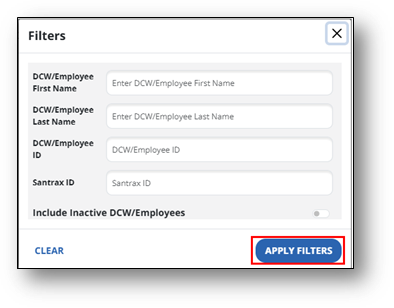
Turn on the Include Active DCW/Employees toggle to include DCW/Employees with a status of Inactive in the search results.
-
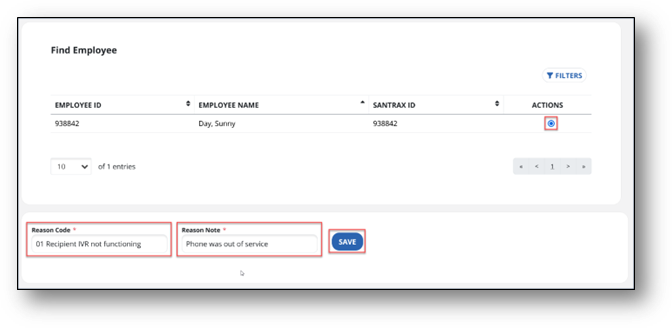
Select the matching DCW/Employee under the Actions column. Then select the Reason Code and provide a Reason Note if required. Use the Save button to complete the update.