Start an Unscheduled Sandata Mobile Connect Visit
-
Log in to Sandata Mobile Connect.
-
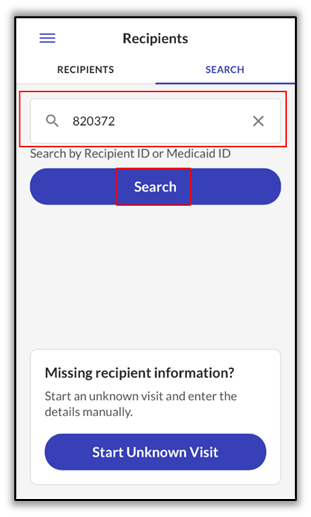
Tap the SEARCH field and enter the 12-digit Medicaid ID or EVV system-generated 6-digit Recipient ID of the Recipient.
If the Medicaid ID entered is not found, the DCW/Employee can still call in and out by starting an unknown visit.
-
Tap the SEARCH button. If the ID entered does not match any Recipient, a No results found message displays.
-
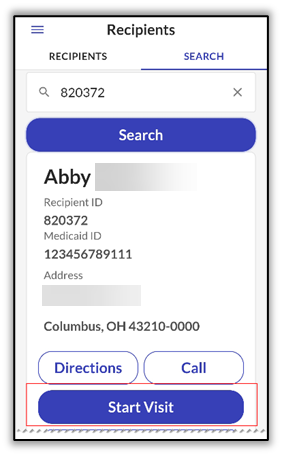
If a matching Recipient record is found, the record displays with several options. Tap Start Visit.
-
Select the Service from the dropdown list, then tap Continue.
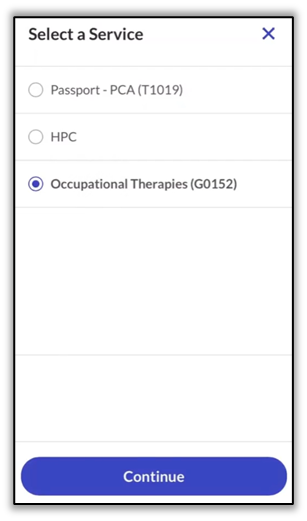
The Service dropdown list is based upon the Recipient record. If all payers and programs display, it means the Recipient record does not have a defined service.
-
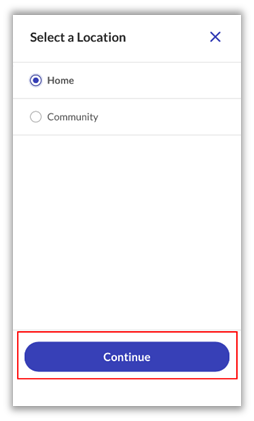
Select the location where services begin. Tap Home or Community and then tap Continue.
-
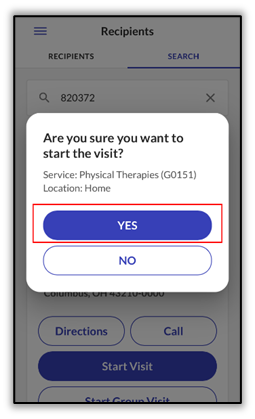
A pop-up screen appears asking the user to confirm the start of the visit. Tap YES.
-
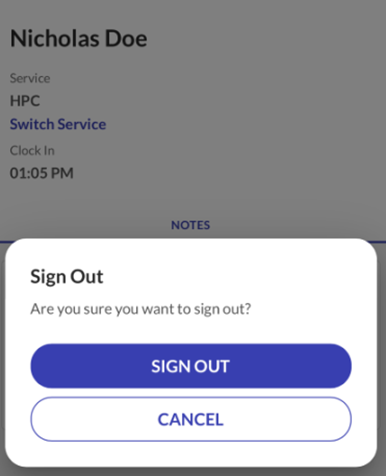
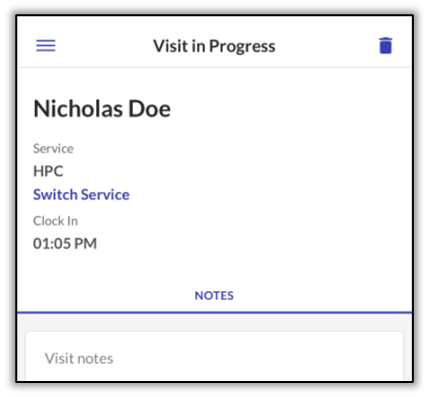
The visit is now in progress, and Sandata Mobile Connect continues to log hours worked while the user is signed out.
-
The ABANDON VISIT button (Trash Can icon) allows the in-progress visit to be stopped so that a new visit can be started. This is used in cases when the visit was completed but the DCW/Employee forgot to call out. An abandoned visit appears in Sandata EVV as an incomplete visit and must be updated or corrected in Visit Maintenance.
-
Tap Sign Out and proceed with providing care.