Start a Scheduled Sandata Mobile Connect Visit
A schedule can be created in Sandata EVV and then appear under the Visits tab. The DCW/Employee does not need to search for the Recipient and can start the visit from the schedule.
-
Locate the EVV Device or the DCW/Employee’s personal device.
-
Log in to Sandata Mobile Connect.
-
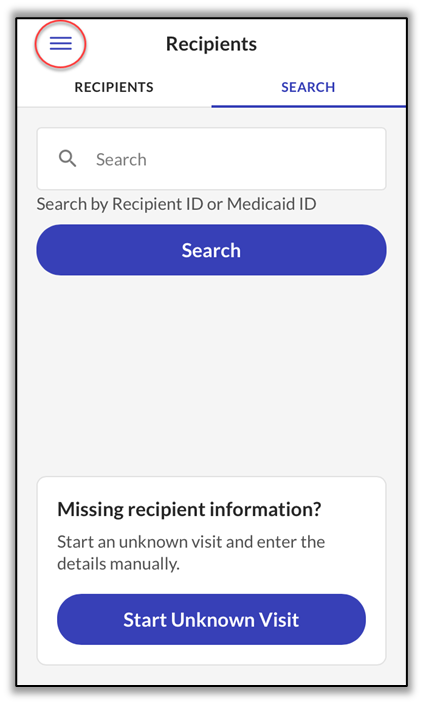
In the upper left-hand corner, tap the Three Bars for the navigation menu.
-
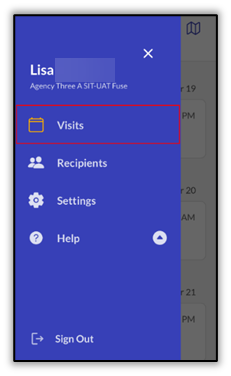
Tap Visits.
-
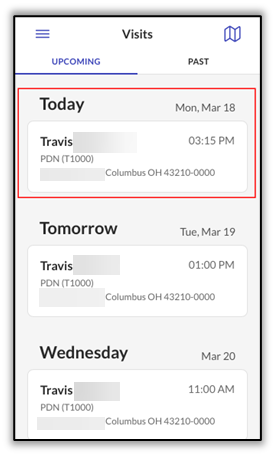
Tap the Recipient’s schedule to start the visit for today. The scheduled visits are displayed; however, you can only start the visit for the current date.
-
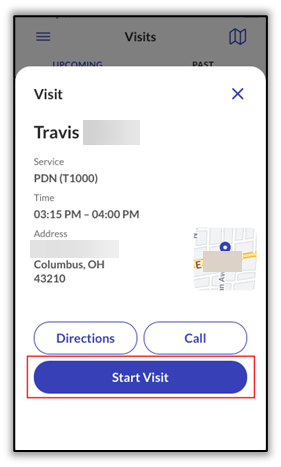
A pop-up displays to confirm the visit details. Tap Start Visit.
-
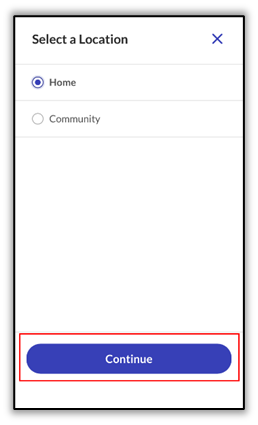
Select the location where services are starting. Tap Home or Community and then tap Continue.
-
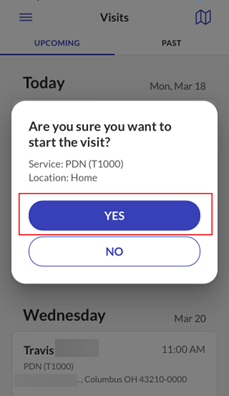
A pop-up display asks the DCW/Employee to confirm the start of visit. Tap YES.
-
Log out of Sandata Mobile Connect.