Start and Complete a Sandata Mobile Connect Visit in Offline Mode
You can start and end a visit on the Sandata Mobile Connect app when your device is not connected to the internet. This is called Offline Mode. Offline Mode can occur when there is low or no internet connection.
As long as you have logged into the app at least once when it was connected to the internet, you will be able to use the app in offline mode. Sandata Mobile Connect saves all data and transfers that data to Sandata EVV automatically once the internet's signal strength is strong enough and you log into the app.
The Help, Contact, and Report Issue links do not work in offline mode.

-
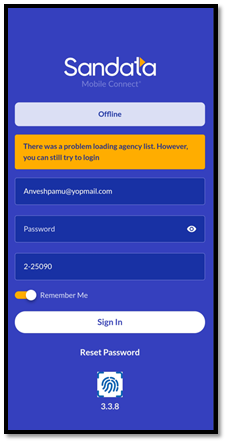
To begin, log into the app as usual. If there is no internet connection, an Offline banner displays with a note that alerts you that there was a problem loading your agency list, but you can still log in.
-
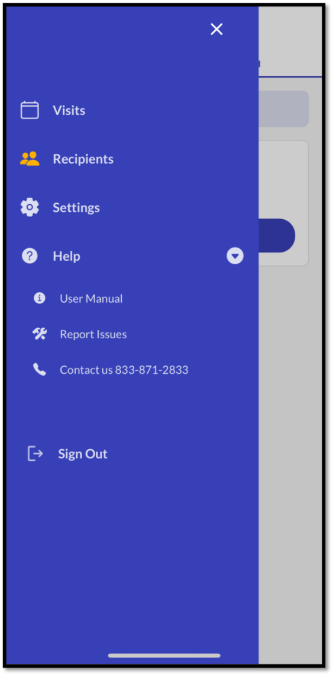
Open the menu screen. Your DCW/Employee name and agency are hidden.
-
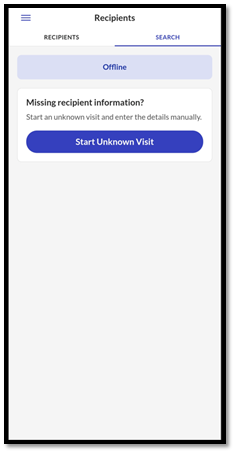
To start a visit, tap Recipients. You are not be able to view Recipients.
-
Select Search, and then tap Start Unknown Visit.
-
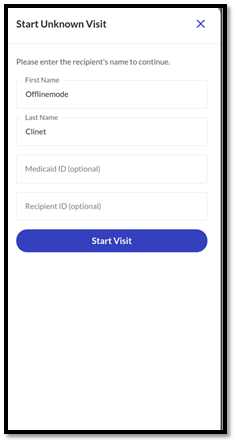
Enter the Recipient's First Name and Last Name and tap on Start Visit.
-
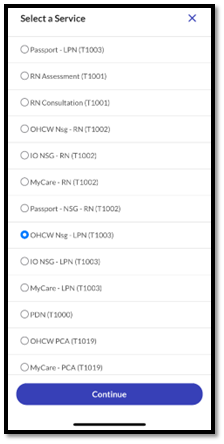
Select a Service for the visit and tap Continue.
-
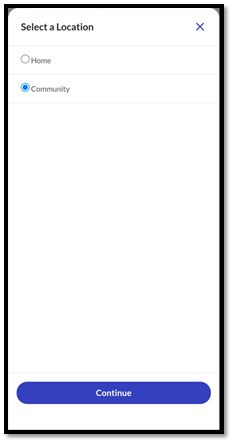
Select the service location of Home or Community and tap Continue.
-
A pop-up screen asks if you are ready to start the visit. Confirm you are ready to start the visit by tapping YES.

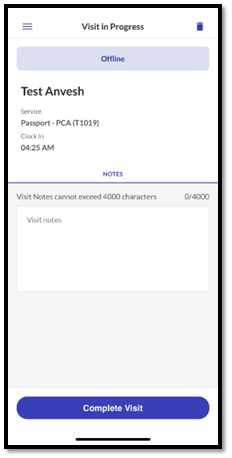
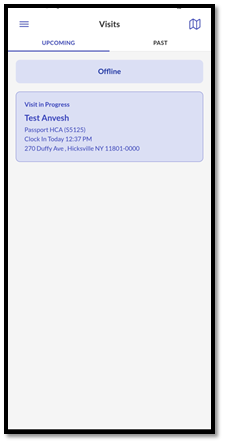
You have started a visit in offline mode. You can add tasks and notes if you would like to record those details of the visit.
-
Once the visit is complete, tap the Visit in Progress.
-
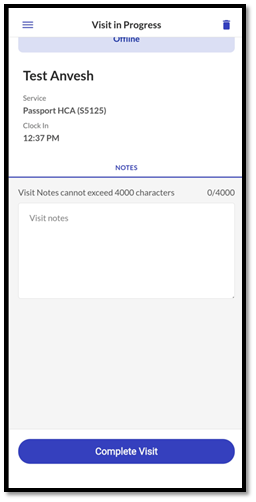
Tap Complete Visit.
-
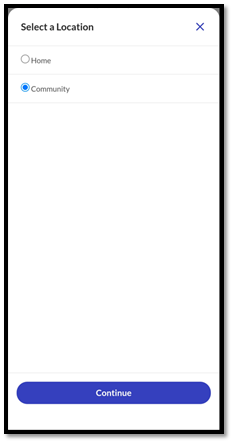
Select the location of the service and then Continue.
-
Review the Visit Summary screen and if everything is correct, tap Confirm.
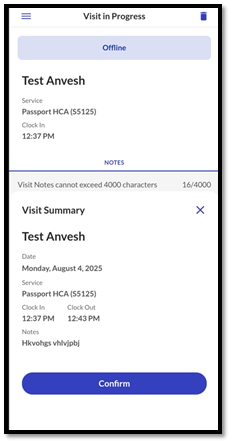
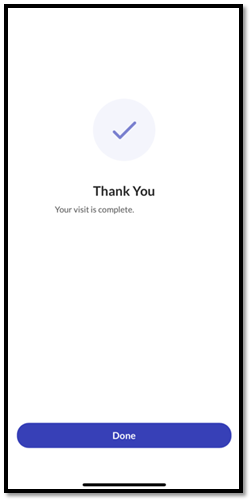
A notification displays showing that the visit is complete.