Reset a DCW/Employee's Mobile User Password
You can reset a DCW/Employee’s Sandata Mobile Connect password in their DCW/Employee profile.
-
1. Open the DCW/Employees module and select the profile of the DCW/Employee whose password you need to reset.
-
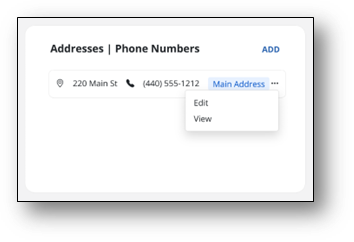
Select the Ellipsis to open the options menu, then select Edit.
-
Select the Reset Mobile User Password button.
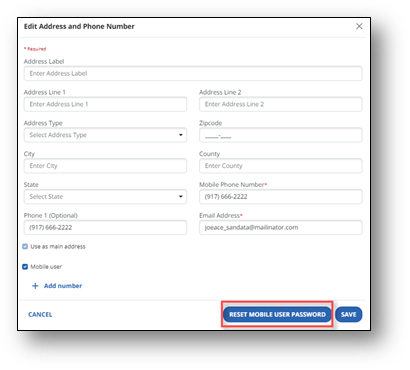
An email with a temporary password is sent to the email address in the DCW/Employee’s profile. After typing in the temporary password, the user is prompted to set a new password.