Schedule a Report
Scheduling reports is like running reports. You still provide a timeframe and any other filters, but instead of running the report immediately, you select the date and time at which the report should run. After the report runs, you receive an email notification that the report is ready to download.
To schedule a report:
-
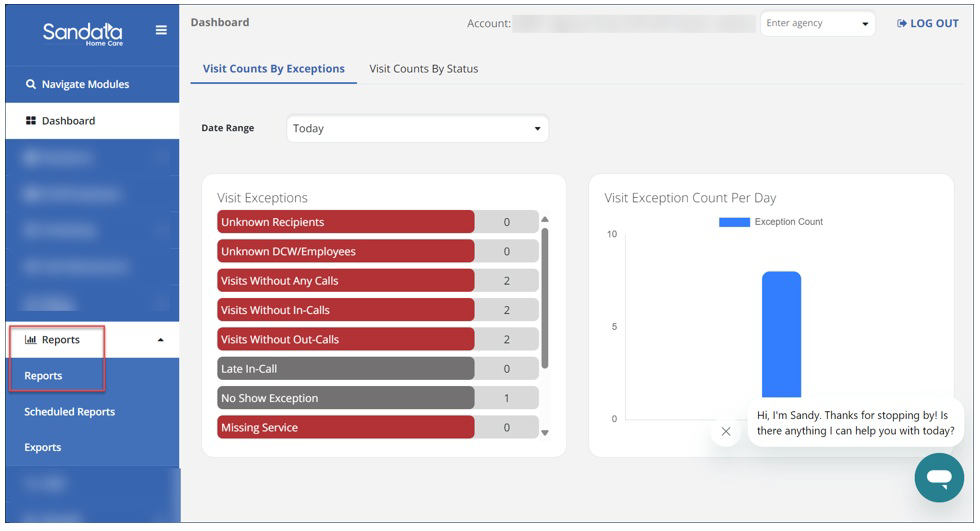
Select the Reports dropdown from the menu, then open the Reports module.
-
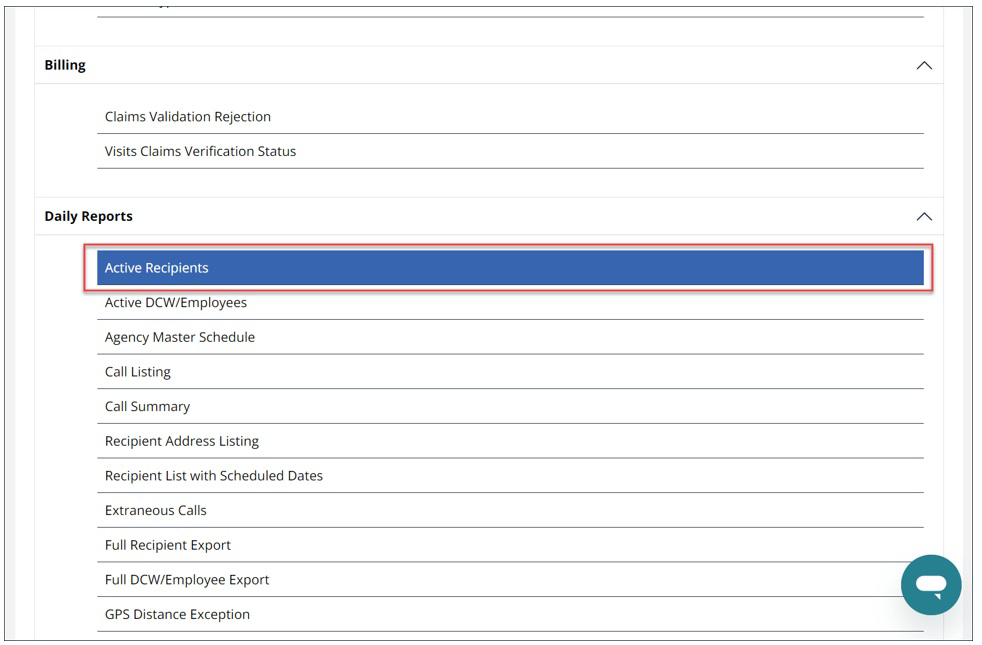
Select the report you want to run.
-
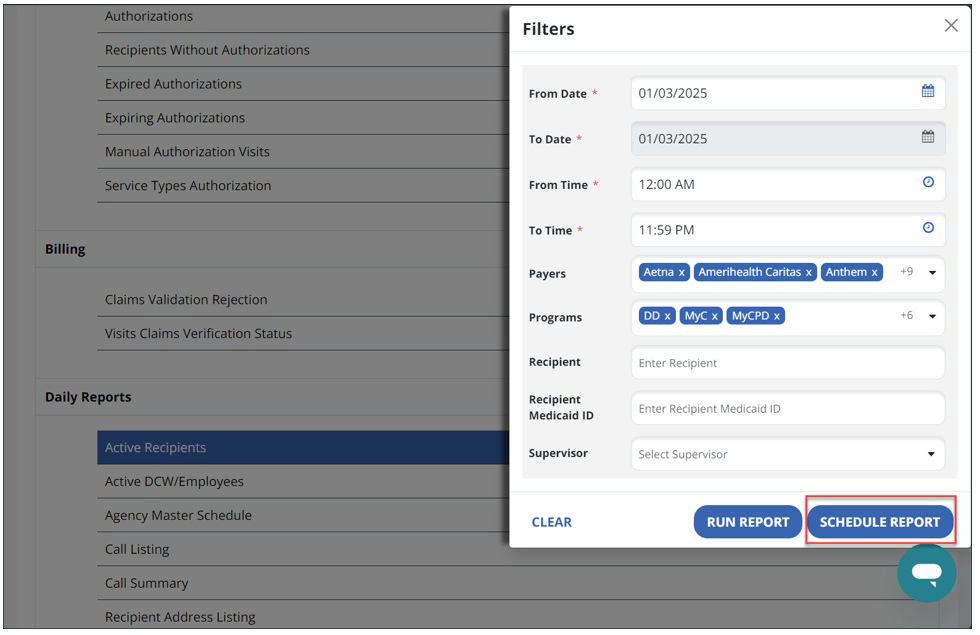
Enter filters for the report, including the timeframe. Select Schedule Report.
-
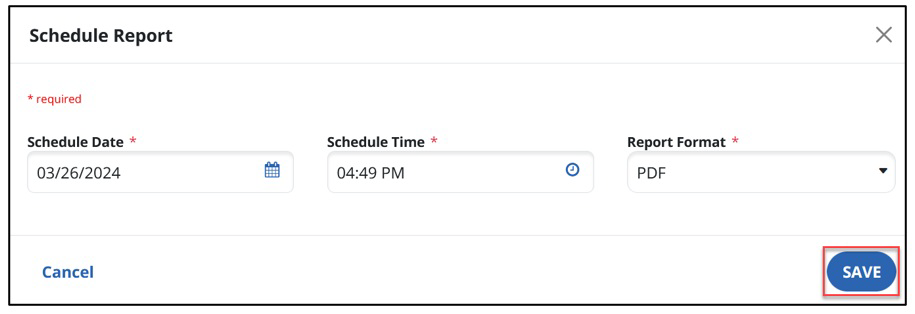
Enter the Date and Time for which you’re scheduling the report and select the Format for the report. The format can be either an Adobe Acrobat (PDF) file, or an Excel spreadsheet. Use the Save button to continue.
-
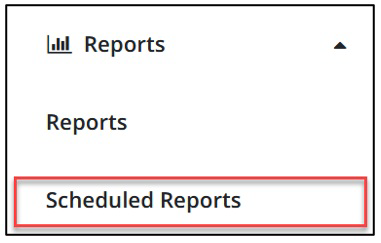
After the report has run at its scheduled time, you can download the results from Scheduled Reports. Open the Reports dropdown from the menu, then select Scheduled Reports.
-
When a scheduled report has been completed, a Download icon appears in the Actions column on the line for the report. Select the Download icon to download the results.
