Merge Calls
When a DCW/Employee calls in for a visit from an unknown recipient number or enters an invalid recipient ID, the call does not link to a scheduled visit in the system. This is why you may see a call in or call out from the same visit dates with the same DCW/Employee, but one or both is missing the recipient's name. In this instance, you can merge the calls to resolve the exception.
-
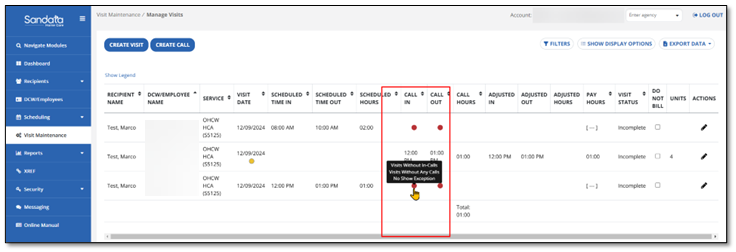
From the Visit Maintenance screen, select either the in or out call field.
-
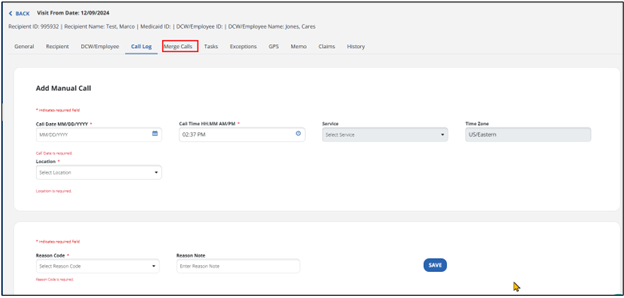
This takes you to the Call Log screen. If the system detects separate calls that can be merged for a single visit, the Merge Calls tab displays. Select the Merge Calls tab.
-
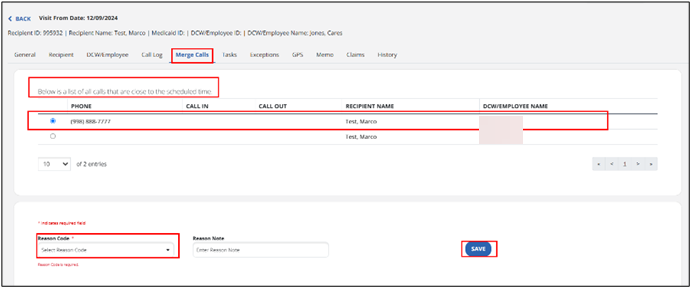
In the next window a list of calls that are close to the scheduled time display. Select the Radio Button of the call to merge.
-
Select the Reason Code. Then enter a Reason Note, if needed.
-
Select Save. You are now able to see the updated visit information in the Call Log.