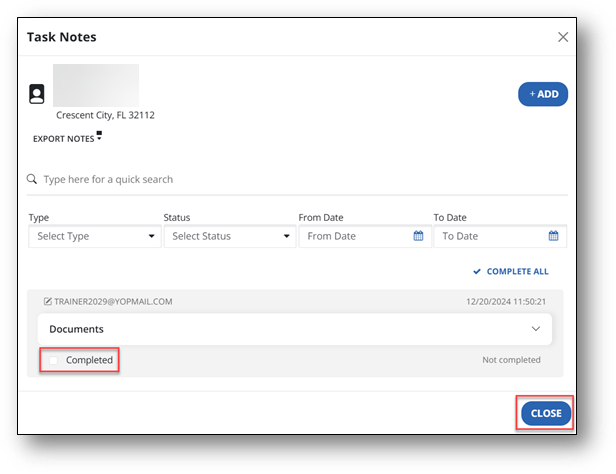
Add and View DCW/Employee Notes
Follow these steps to add a task note to an DCW/Employee’s profile.
-
Go to the DCW/Employees screen.
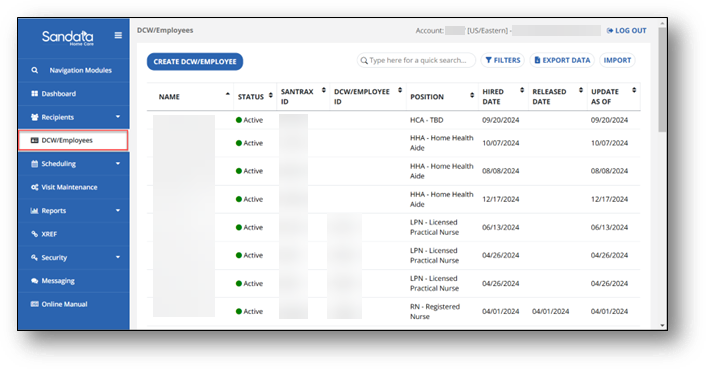
-
Use the quick search, then select the DCW/Employee’s name to open the direct care work or employee profile.
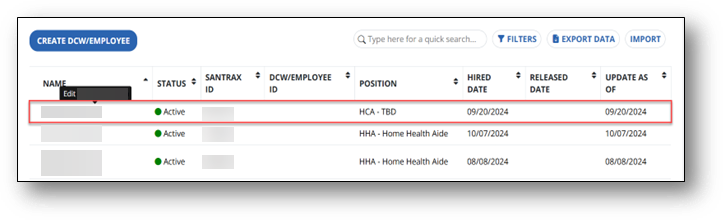
-
Select Notes.
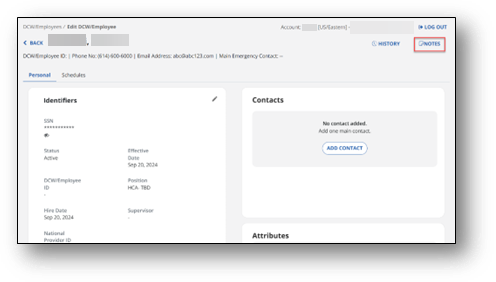
-
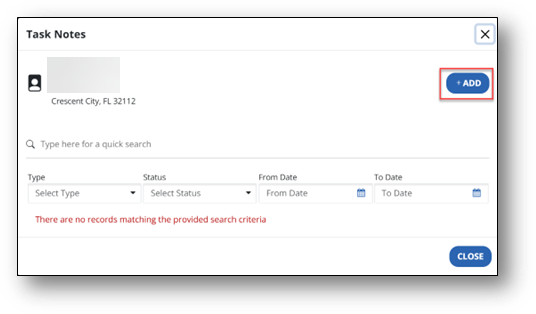
Select +Add to add a new task note.
-
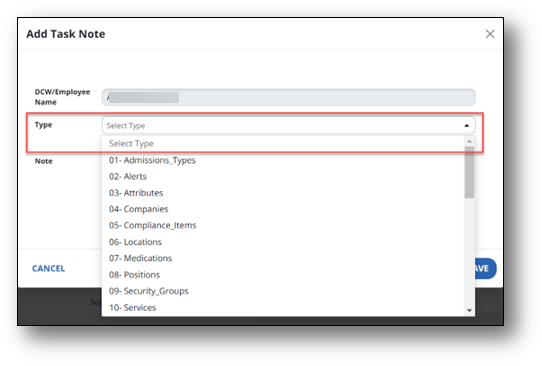
Select the Type of note being added from the dropdown menu.
-
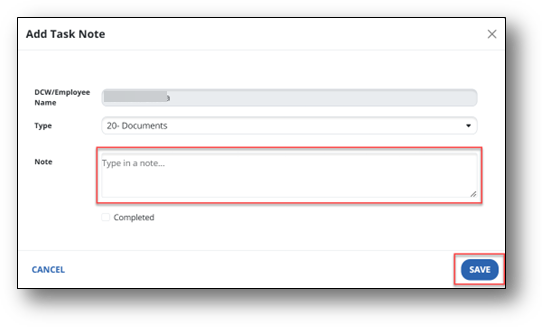
Fill in your task note in the Note section and select Save.
-
After the task is finished, the task note can be marked as complete by selecting the Checkbox next to Completed and then Close.