Edit a Recipient's Schedule
When you need to reschedule a visit for a recipient, you can do that from the Recipient Management module. Simply start by finding that scheduled visit.
-
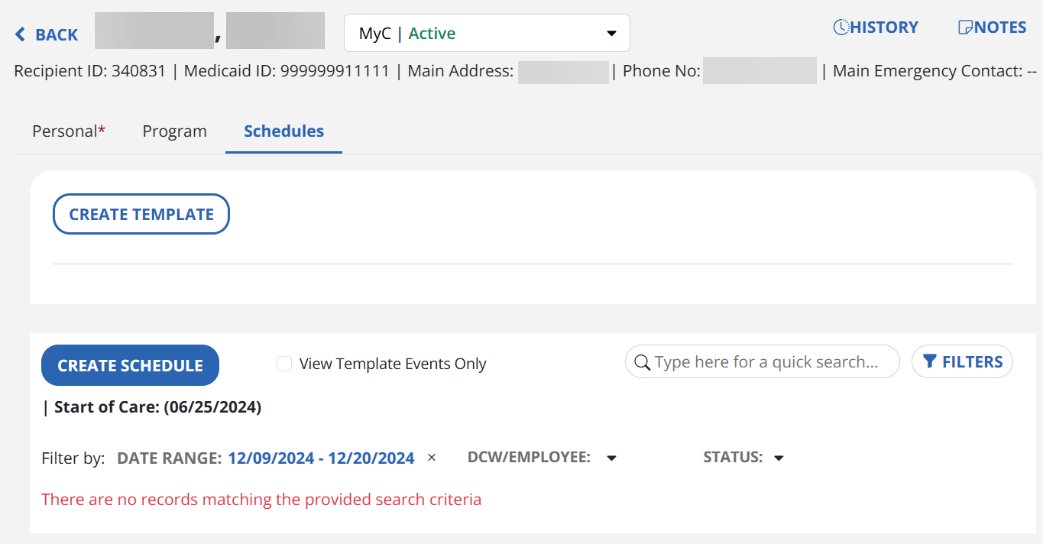
From the Recipient Management module, find and select the recipient. This takes you to the Edit Recipient screen. Use the Filter by options to find the service you need to edit or reschedule. The date range defaults to the current week plus the next week.
-
To see all scheduled visits, remove the date range by clicking on the x.
-
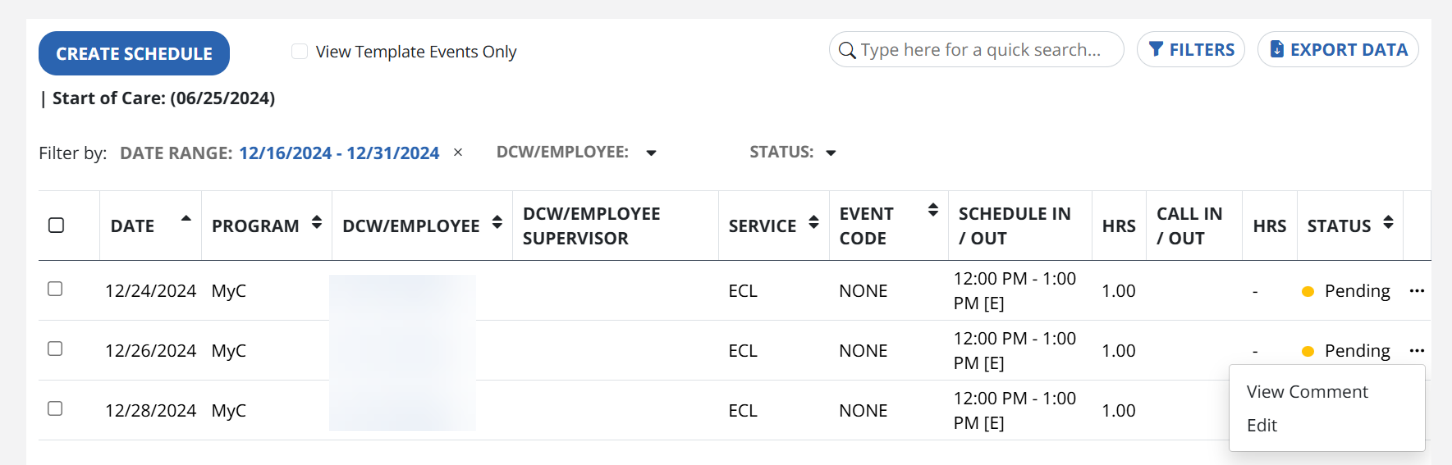
Select the Ellipsis icon, and then select Edit for the visit line you want to edit.
-
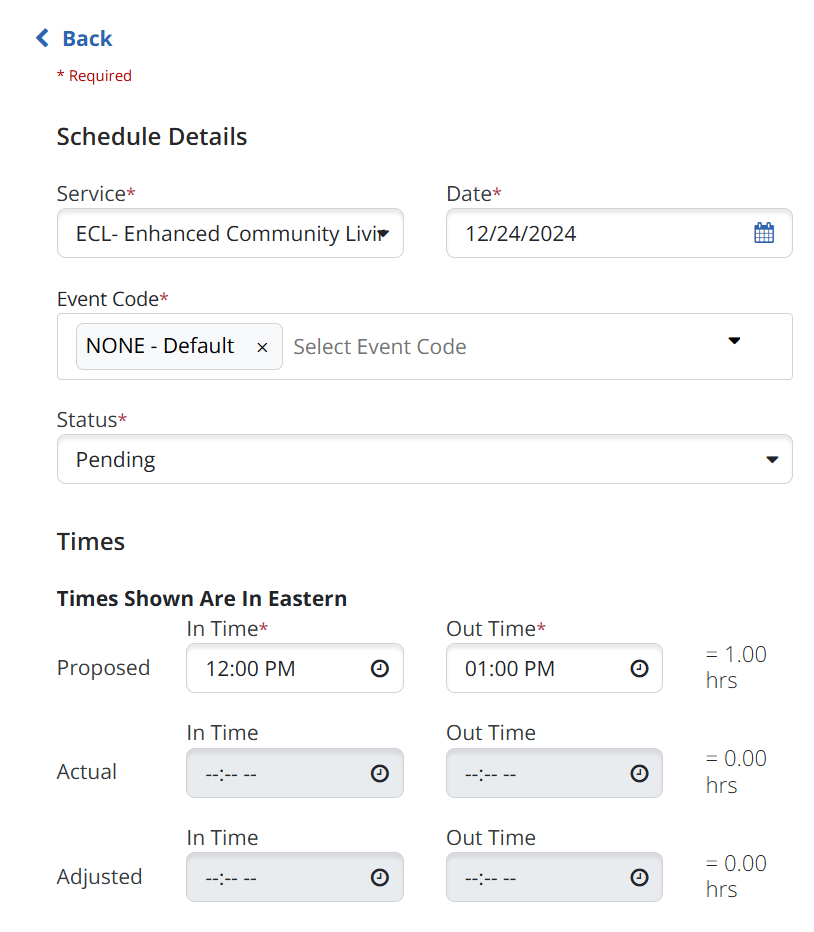
The Edit Schedule screen opens. Then, you can use the Date and Time fields to edit the schedule. Select Save Changes.
-
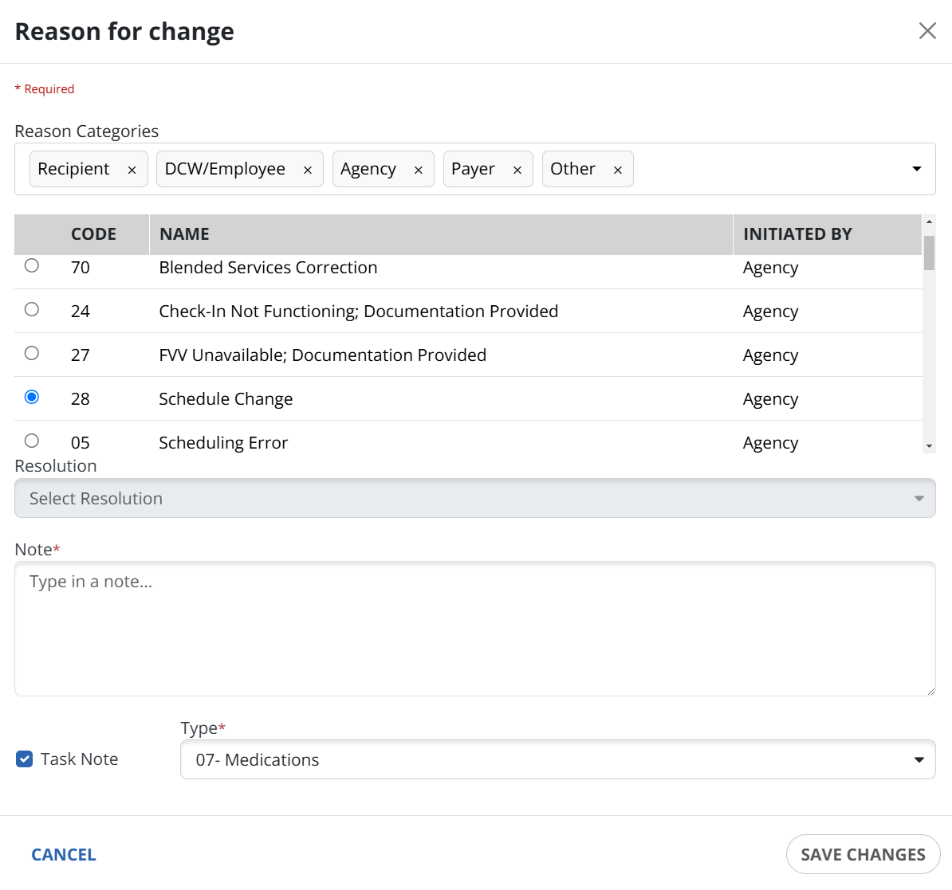
You are asked to provide a reason for change in the next window. Select the code and type in a note. If you want to add this as a Task Note, check the Task Note box and select a Type from the dropdown window.
-
Select Save Changes.