Create a Schedule
You can create visit schedules for your recipients, either for one visit or for recurring visits. You can also add a DCW/Employee to the schedule. When using the Sandata Mobile Connect app, caregivers can simply clock in to a scheduled visit.
-
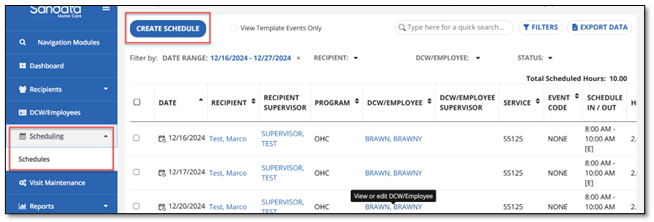
From the Scheduling module, select Create Schedule.
-
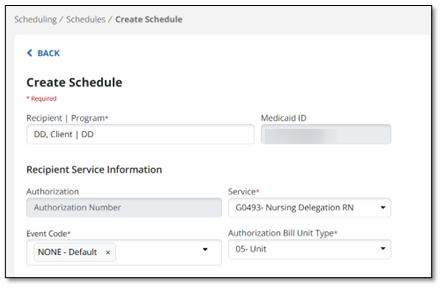
Once you start typing a recipient’s name in the Recipient Program field, you can select the Recipient and see their service and authorization information. Select a Bill Unit Type, Service and Event Code (required fields).
-
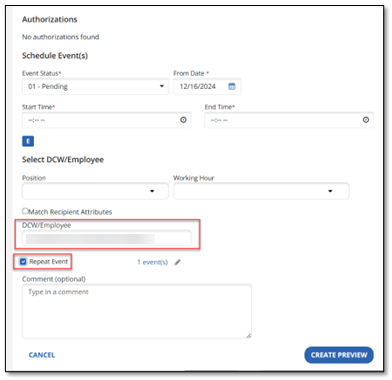
Enter the date, and the start and end times. The Event will be in Pending status until it occurs, when the system updates the status to Confirmed.
-
Begin typing in the DCW/Employee that is scheduled for this visit and select it.
-
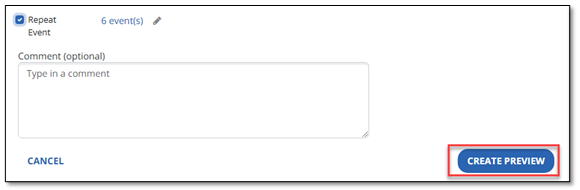
If this is going be a recurring event, check the Repeat Event box.
-
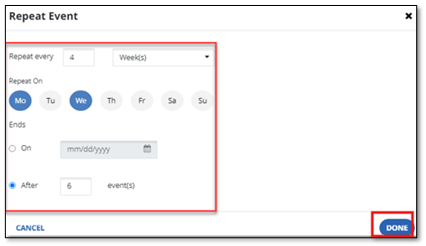
When you select Repeat Event, the pop-up window allows you to choose the recurrence, and the days of the week the visits should occur. The schedule requires an end date, so enter a specific date or enter a specific number of occurrences. Once entered, choose Done.
-
Select Create Preview.
-
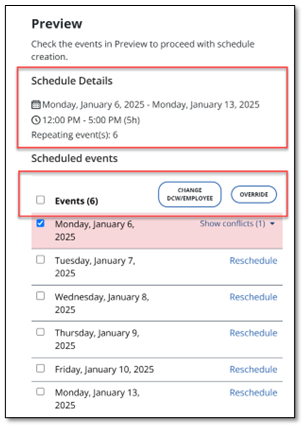
Preview the schedule details. Any scheduling conflicts show, and you can change the DCW/Employee or Override. Respond to any conflicts and then select Save. This creates all the schedules that are checked and in the Schedule Review section.
-
To view or edit this schedule, go to the Schedule module or the Recipient module, Scheduling tab.