Cancel a Schedule
A schedule can be canceled from either the Recipient Management module or the Scheduling module. Follow the steps below for either one.
-
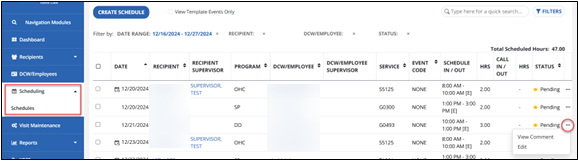
In the list of schedules from either module, use the Ellipsis on the right and choose Edit. You may also choose other fields (except for employee or client name) to edit the schedule.
-
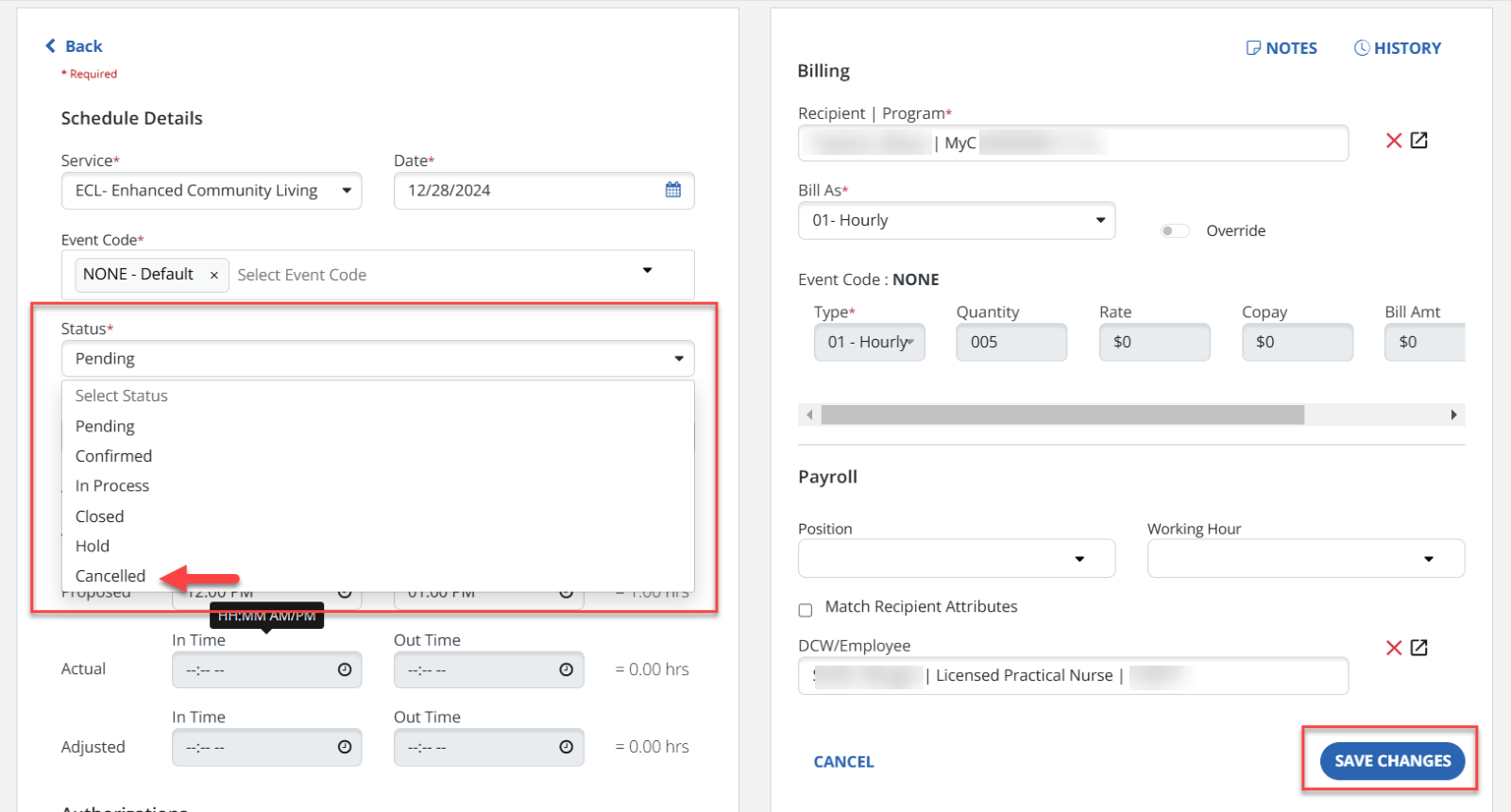
On the Schedule Details screen, select the Status dropdown. Choose Cancelled, then select Save Changes.
-
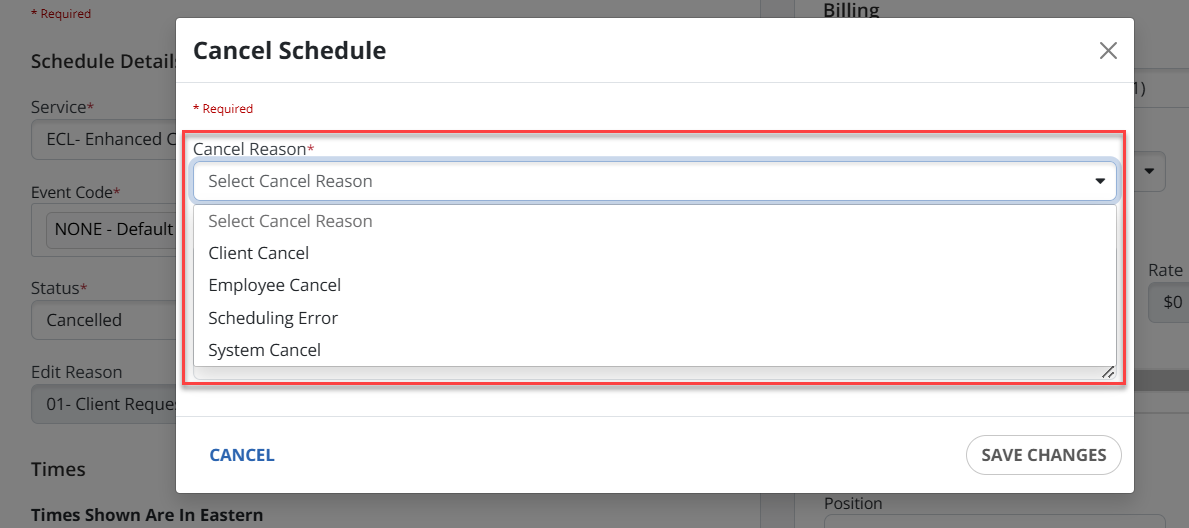
In the Cancel Schedule window, choose a reason for the cancellation from the menu. Then select SAVE CHANGES.
-
Add an optional Note. Then select SAVE CHANGES.
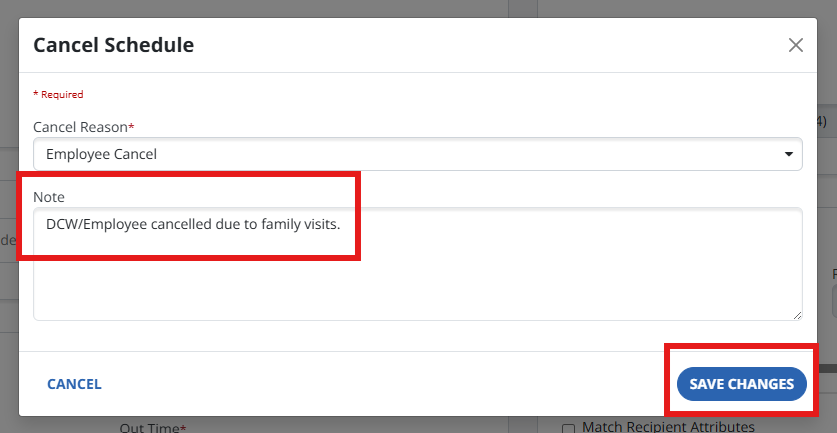
A pop-up message indicating the cancellation was successful displays.
-
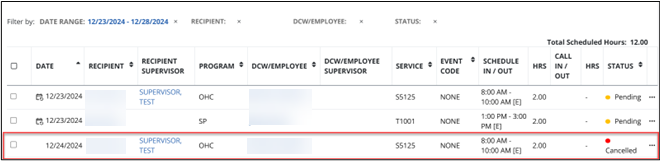
When you go back to view that item in the list of Schedule list, the status shows as Cancelled in the Status column.
-
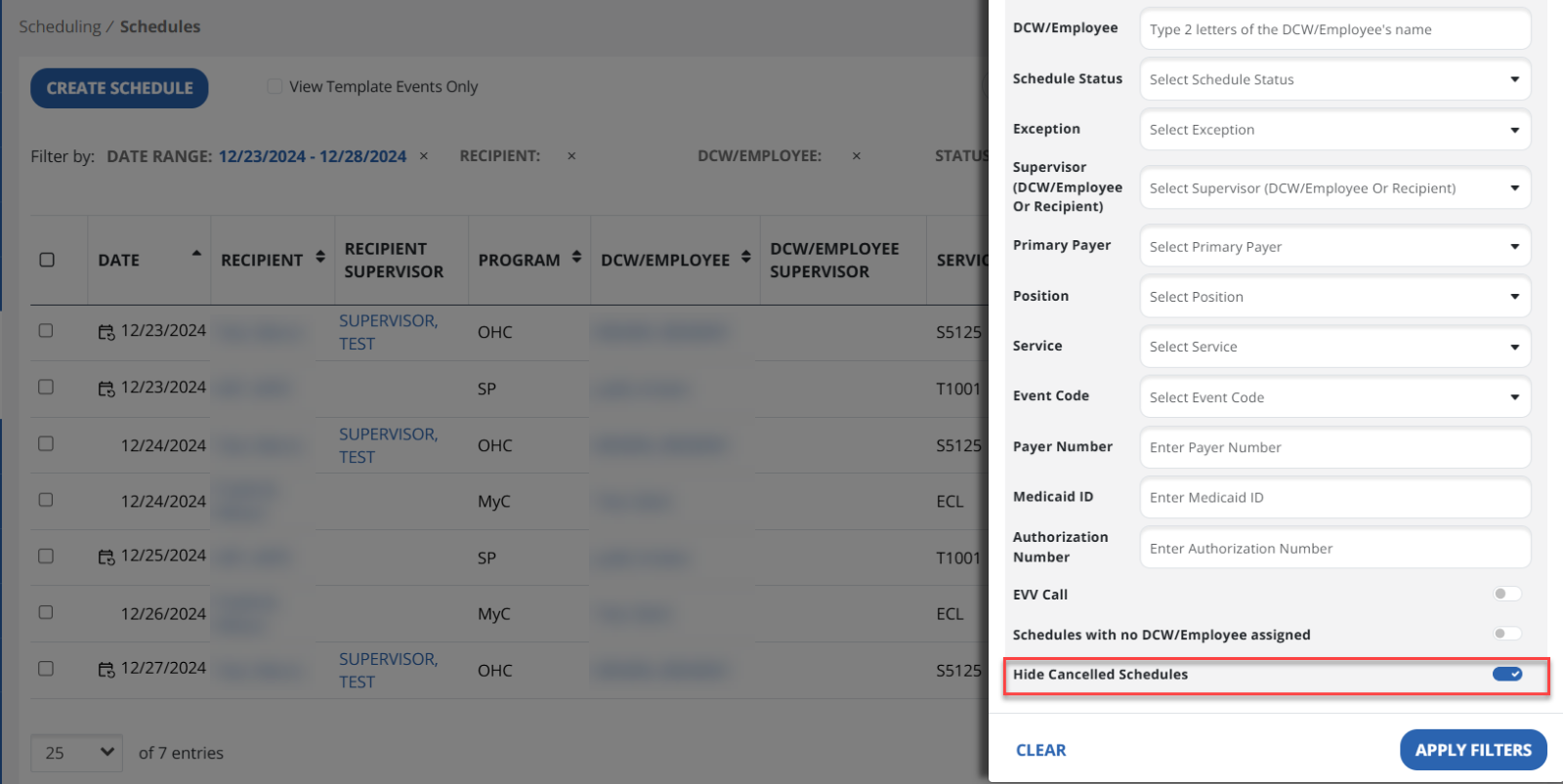
If you do not see the canceled schedule, use the Filters on the top right of your display. At the bottom of the Filters screen, disable Hide Cancelled Schedules and select APPLY FILTERS.