Batch Edit Multiple Schedules
You can edit multiple scheduled visits at once using the Batch Edit feature in the Scheduling module. This is helpful when you need to change an employee or service on more than one scheduled visit.
-
Navigate to the Scheduling module.
-
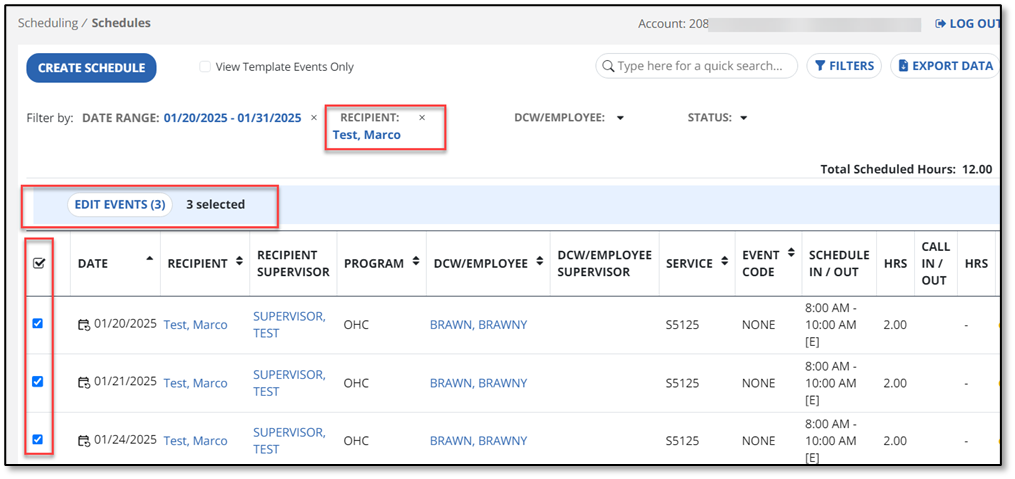
Use the quick filters to narrow the search for a recipient’s schedule.
-
Select a schedule or schedules using the Checkboxes in front of the scheduled visit(s) or select the Box in the column header to select all visits in the display. The Edit Events button appears.
-
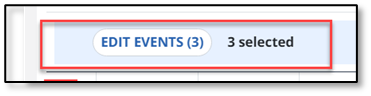
Select Edit Events. The number in the parentheses shows how many events you are editing in this process.
-
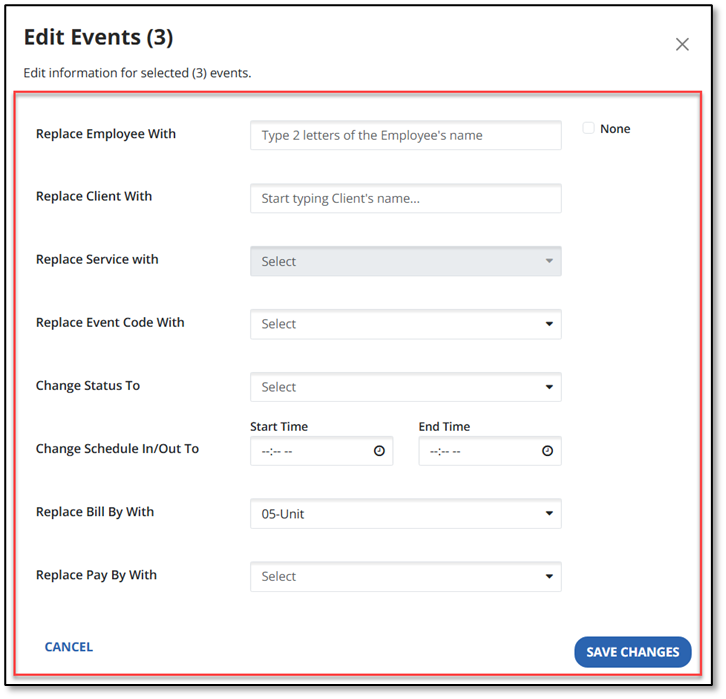
In the Edit Events window, edit the fields that you need to adjust for the selected visits. You can replace the DCW/Employee, Recipient, Service, and Start and End times, among others.
-
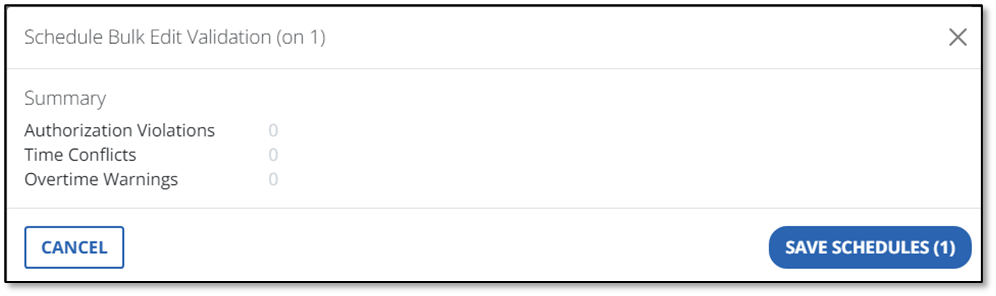
Select Save Changes. You then see a notification with any conflicts caused by the change. In the image below, no conflicts are indicated.
-
Review the Summary, and select SAVE SCHEDULES to accept. The visit(s) update with the new information. If there are conflicts to resolve, choose Cancel to make additional adjustments.
-
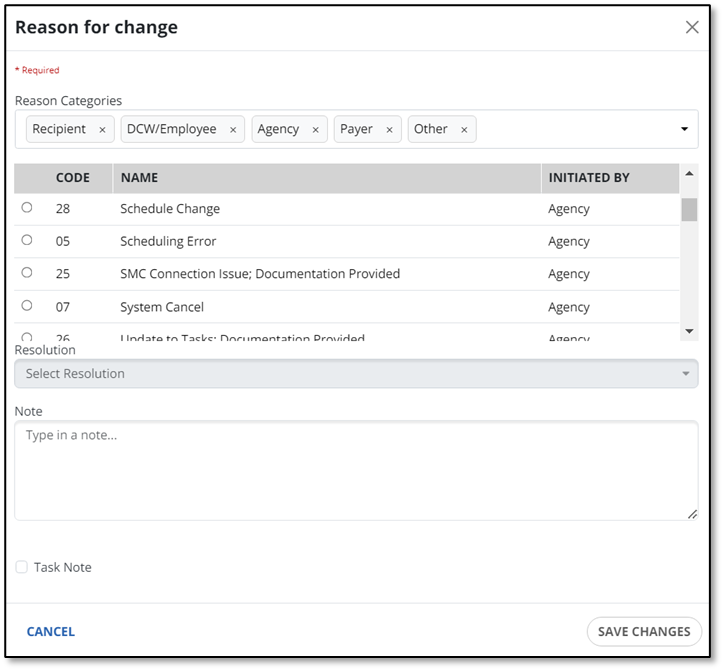
If your program requires a reason code for the schedule change, you are asked to choose a Reason Code for the change. Notice the CODE, NAME and INITIATED BY columns when you choose the Reason Code. If needed, choose the Resolution reason and add Notes. Then select SAVE CHANGES.