Adjust Call Times and Dates
If a visit has missing or incorrect dates or call times, visit the General tab of the Visit Details screen to adjust the dates or times.
-
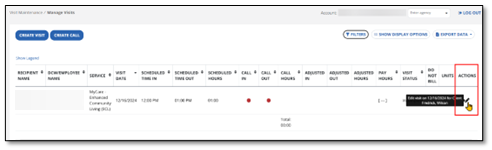
From the Visit Maintenance screen, select the Pencil icon from the ACTIONS column. This takes you to the Visit Details screen.
-
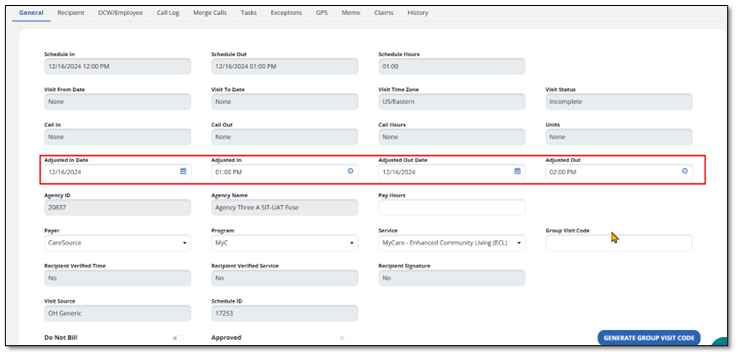
On the General tab, enter the adjusted dates and times into the adjusted in and out fields.
-
As for any exception update, select the REASON CODE and enter a REASON NOTE, if it applies.
Use the REASON NOTE field to add additional information about the visit. Some REASON CODES require a REASON NOTE.

-
Select SAVE. You now see the adjusted date(s) and time(s) for the visit.
