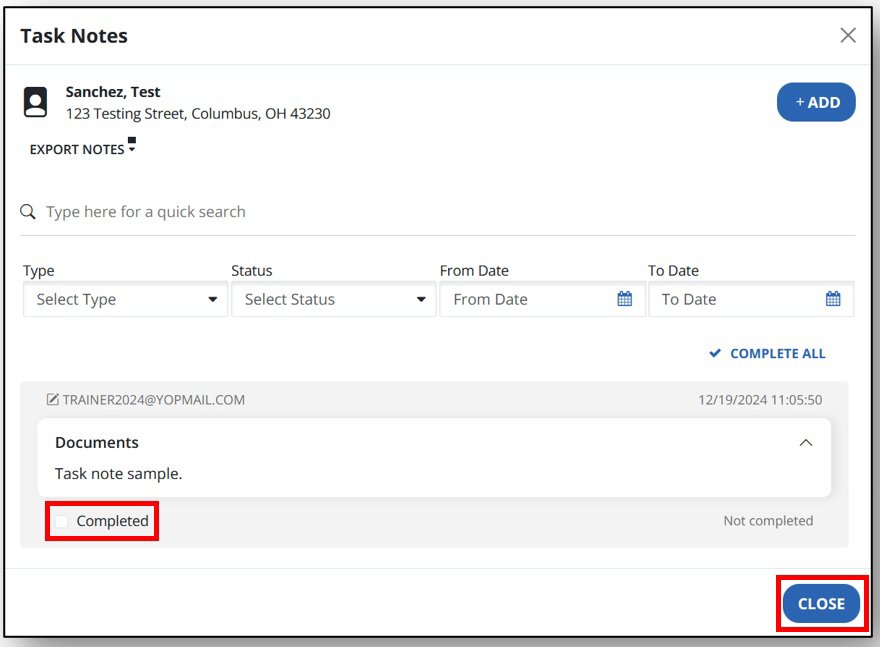
Add Recipient Notes
Here is how to add a task note to a recipient’s profile.
-
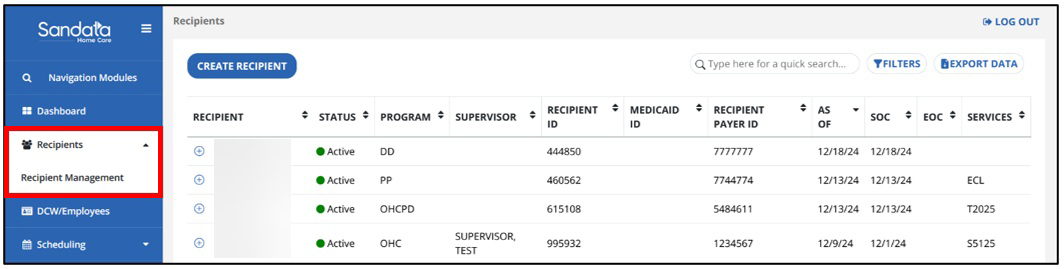
Navigate to the Recipient module and select Recipient Management.
-
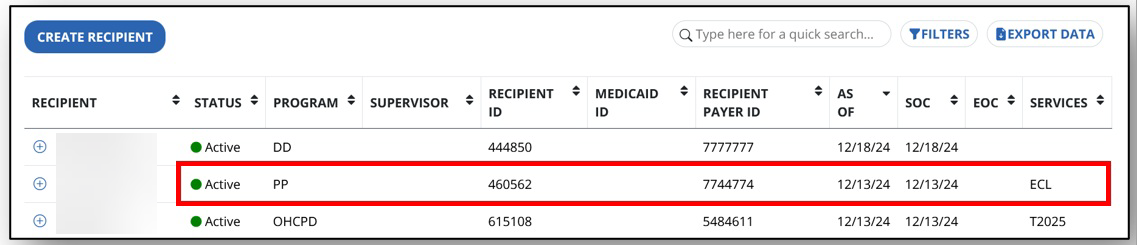
Select the Recipient to open their profile. Do not use the plus sign to the left of the recipient’s name. The plus sign is used to add an additional program to the recipient.
-
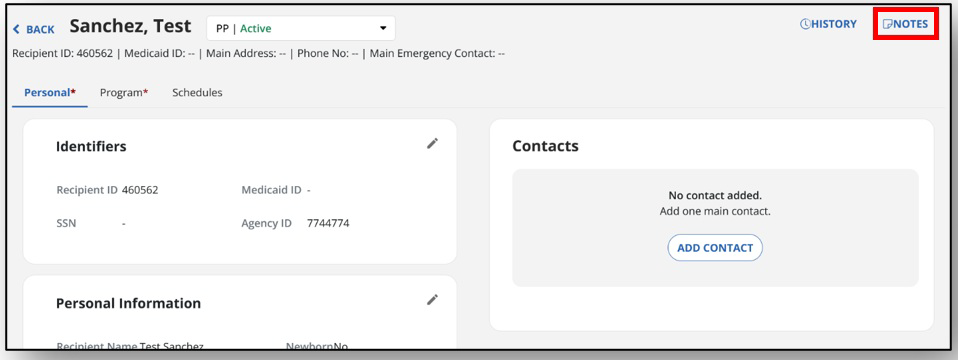
Select Notes at the top of the screen.
-
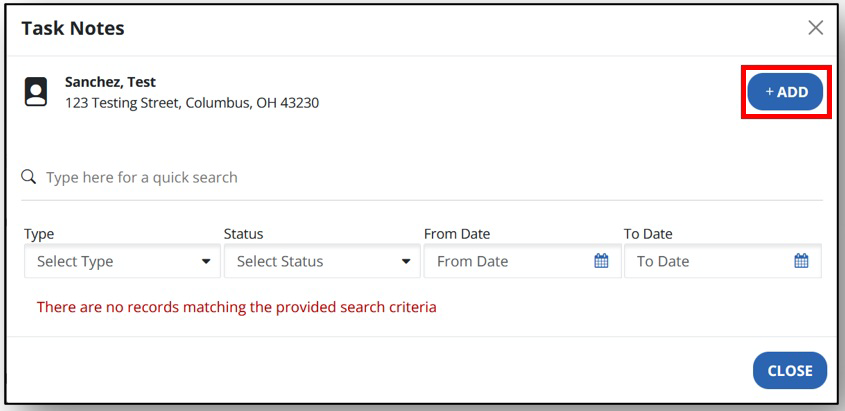
Select +Add to add a new task note.
-
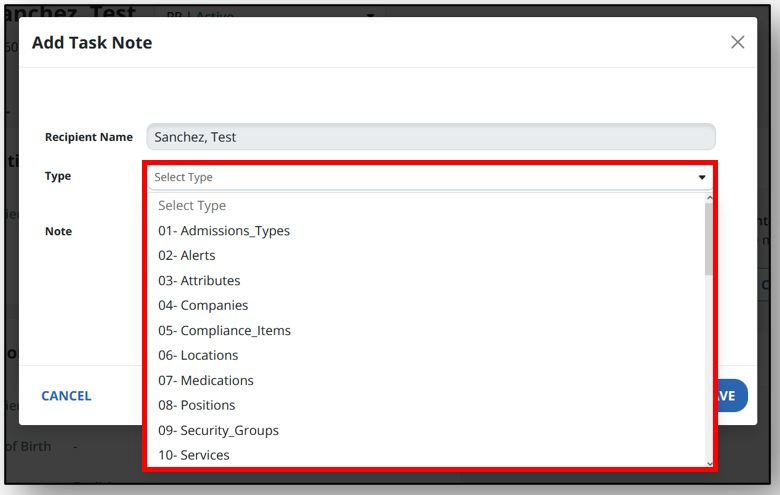
Select the Type of note being added from the dropdown menu. This varies based on your program.
-
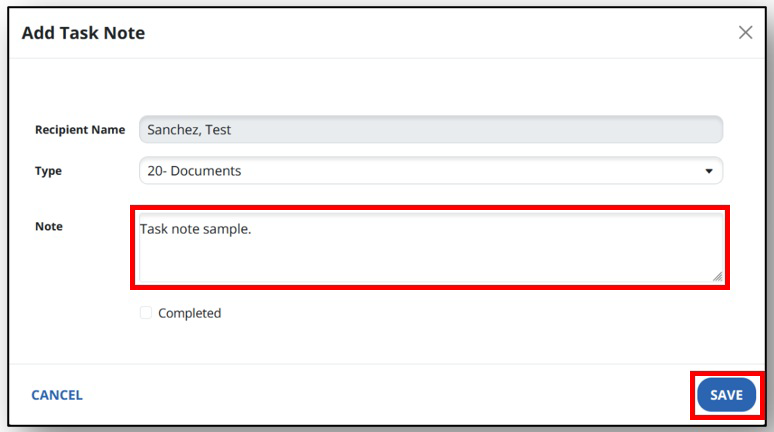
Fill in your task note in the Note section and select Save.
-
After the task is finished, an employee can mark the task note as complete by selecting the checkbox next to Completed and then Close.