Add Recipient Contacts
Adding recipient contacts can be done at any time after the recipient is in the system. Add at least one per recipient as an emergency contact.
-
Open the recipient’s profile.
-
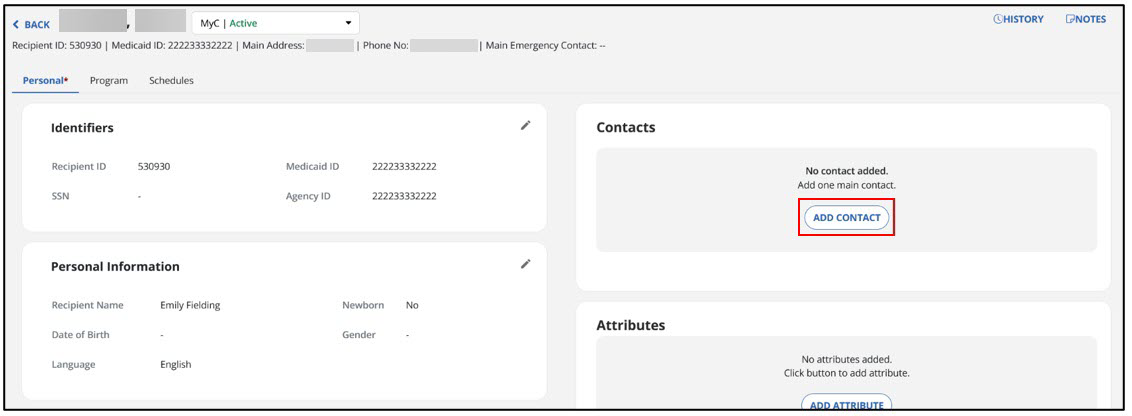
In the Personal tab, go to the Contacts section. Select ADD CONTACT.
-
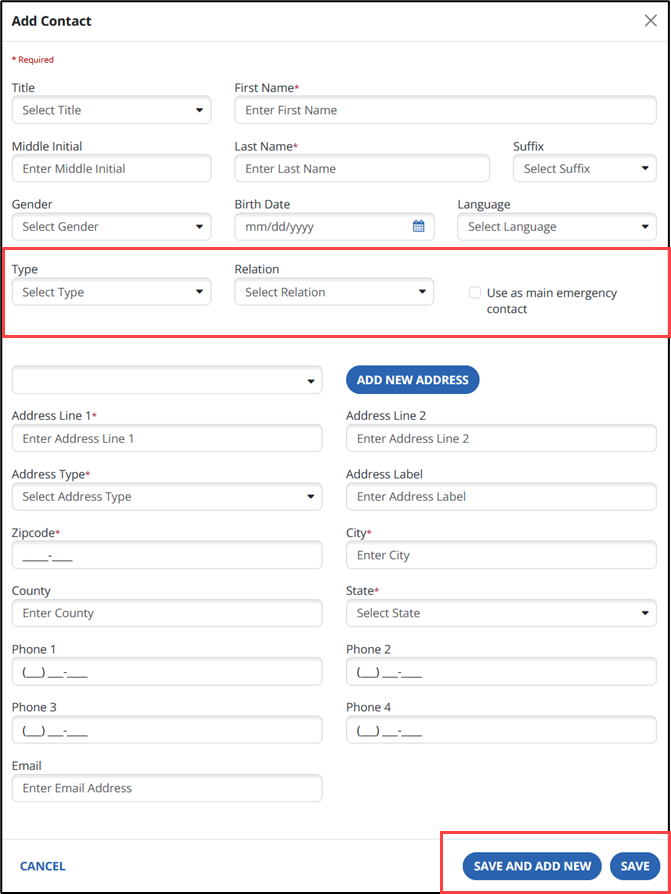
Complete the fields in the window. Fields with an asterisk (*) are required. Select SAVE.
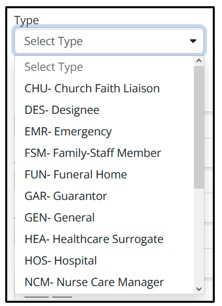
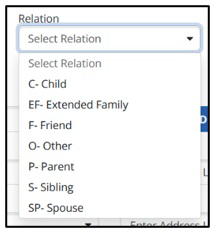
Use the Type and Relation dropdown menus to select the type of contact and the relation to the recipient.
-
Select SAVE. Use the SAVE AND ADD NEW button to add another contact without leaving the screen. You may add multiple contacts based on the type of contact and relationship to the client.
-
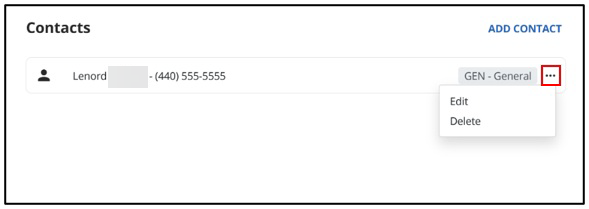
To edit or delete a contact, click the Ellipsis to open the options menu.