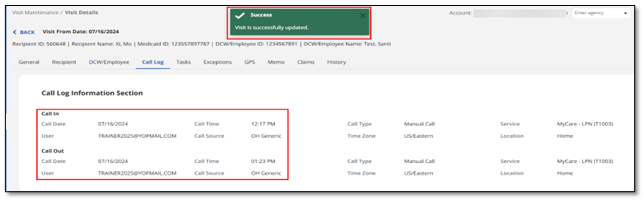
Add a Manual Call to an Existing Visit
If a visit has missing or incorrect dates or call in/out times, using the Visit Maintenance screen, select the in or out call red button. To save a visit that has been changed, users may be required to enter a Reason Code and Resolution Code.
-
The Red Dot in the Call In or Call Out column shows a missing call exception. This can be in either one column or in both.
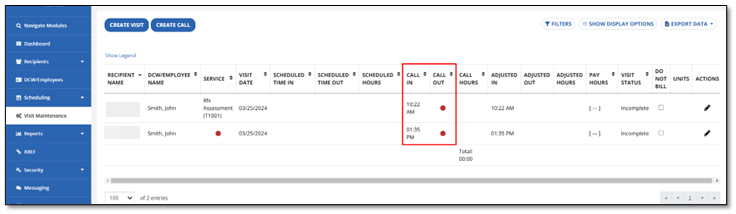
-
Select a red dot to go to the Visit Details Call Log tab.
-
Fill in the required fields for the in or out call.
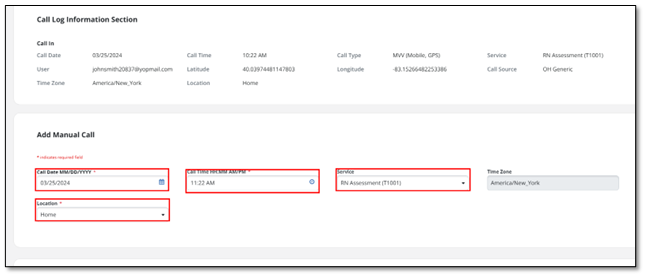
-
Select the Location and Reason Code. Use the Reason Note field to add additional information about the visit. Some Reason Codes require a Reason Note.
-
Select Save.
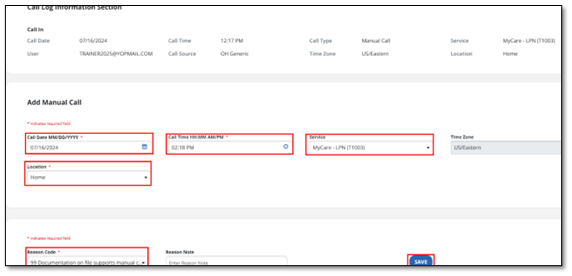
-
If both calls were missing, once the call in has been added and saved, you receive additional prompts to Add a Manual Call. This is your call out. The call in appears at the top of the window.