Rollback and Resubmit Claims
This help topic contains instructions on rolling back billing files and resubmitting claims.

This should only be completed when the entire or majority of the file has failed/denied.
For claim files where a majority was denied/rejected, follow the below steps and then change the status of the individual invoices that were paid back to 06 - Bill Sent.
Individual invoice steps are listed in the section Changing an Individual Invoice Status.
-
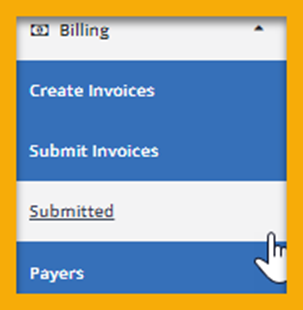
In Your EVV Instance, access the Billing > Submitted tab on the left-hand side of the screen.
-
Locate the file using the search filters provided.
-
Click the file name to open it.

-
Scroll to the bottom of the file results.
-
Select Rollback.

-
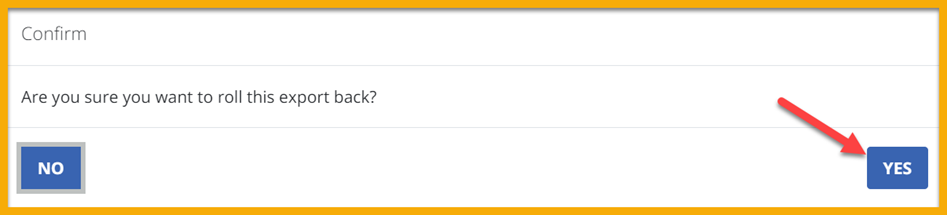
The system asks if you wish to confirm this choice. Select Yes.
-
You receive confirmation that the claims were rolled back successfully.
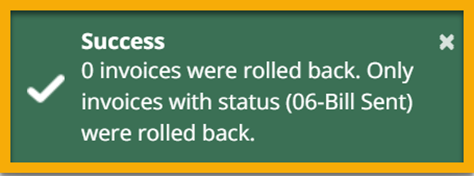
This places all invoices from this file back to a Billable status to be resubmitted.
The following process can also be completed by accessing the Invoices Tab within a Client’s profile.
-
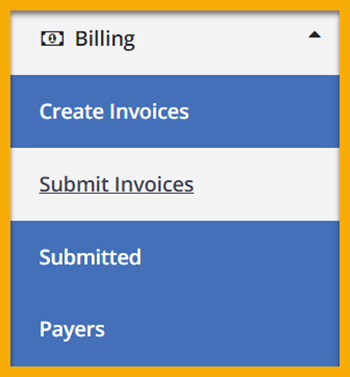
Navigate to Billing > Submit Invoices on the left-hand side of the screen.
-
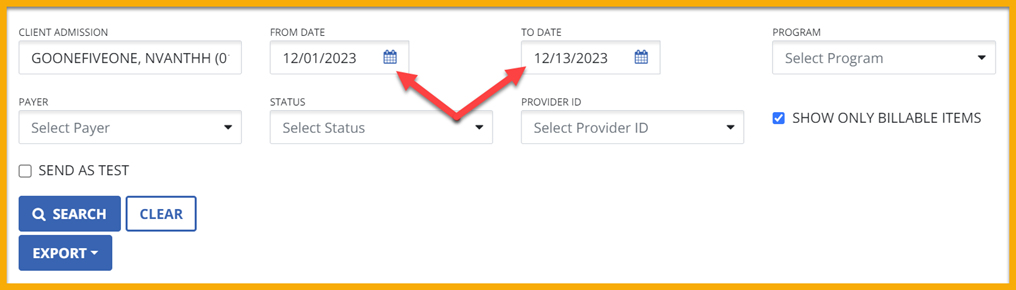
Using the Search Filters, search for the desired invoice to rollback/change the status of. The date range on this screen refers to the date the invoice was created, NOT the date of service.
-
Make sure to unselect SHOW ONLY BILLABLE ITEMS as an invoice that has already been submitted is not currently in a billable status.
-
Select the Pencil Icon on the invoice you wish to change the status of.

-
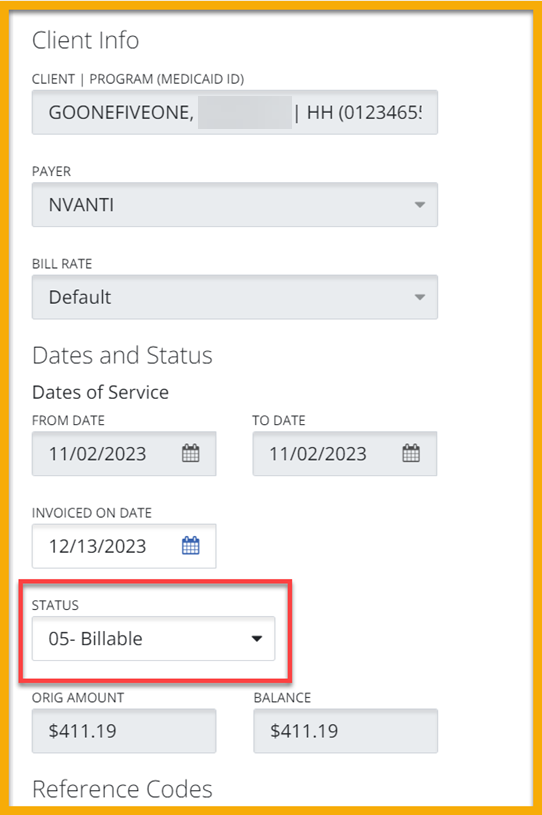
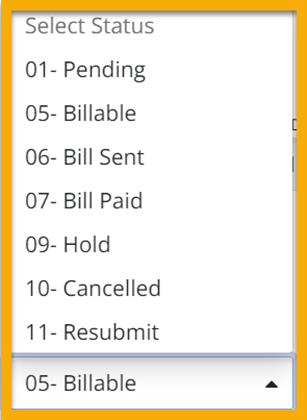
In the Invoice Details, change the Status of the invoice to the appropriate selection:
-
05-Billable: Change to this status when you simply need to resubmit the invoice.
-
06-Bill Sent: Change to this status when you rolled back a whole file but this invoice in the file was paid and does NOT need to be resubmitted.
-
10-Cancelled: Change to this status when you need to edit the visit in any way that would alter the monetary value of the visit.
-
-
Make any necessary changes and resubmit your claims.
-
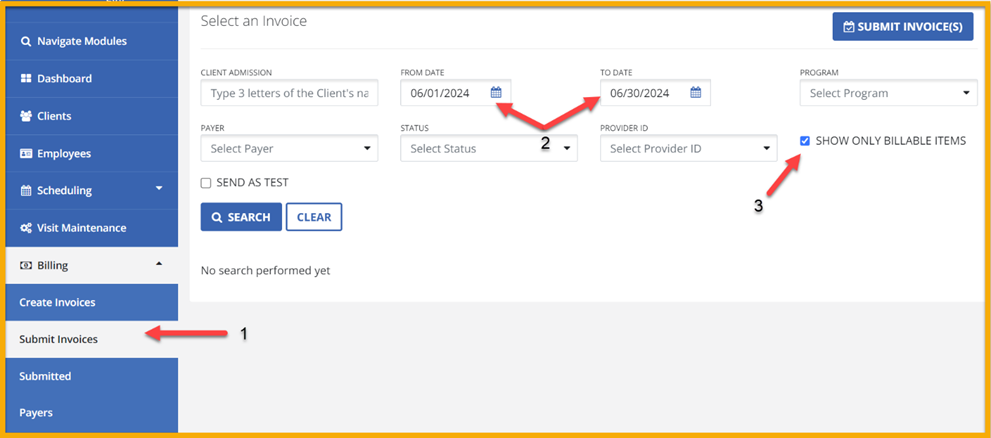
Navigate to the Billing > Submit Invoices screen on the left-hand side.
-
Filter for your desired invoices. The date range on this screen refers to the date the invoice was created, NOT the date of service.
-
Ensure SHOW ONLY BILLABLE ITEMS is selected.
-
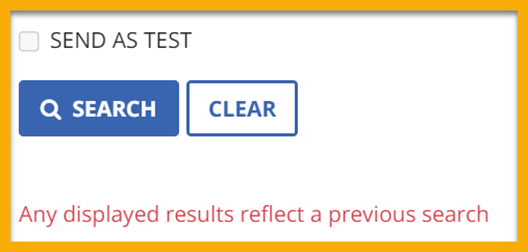
Select the Payer field and refresh the screen by selecting Search. If Search is not selected, you will see the following message: Any displayed results reflect a previous search.
-
Select Submit Invoices.
-
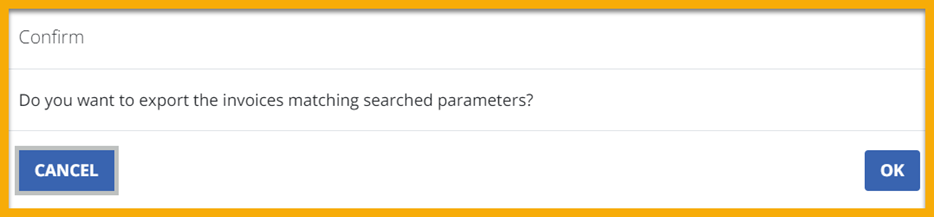
A pop up appears asking you to confirm if you want to export the invoices matching the searched parameters. Select OK.
-
A green Success box displays indicating that your invoice data was submitted successfully.