New EVV Billing Module
Billing data for Friday, May 23rd , 2025, and forward, is handled in the new batch-based module.
To learn more about the new Billing module, see our step-by-step EVV Billing guides.

The Billing Dashboard provides a quick view of your account information across tiles.
Use the From and To fields to limit the data to a specific date range.
Use the tiles to guide you with your billing tasks. For example, you may want to start with Unbilled Visits or Rejected Claims.
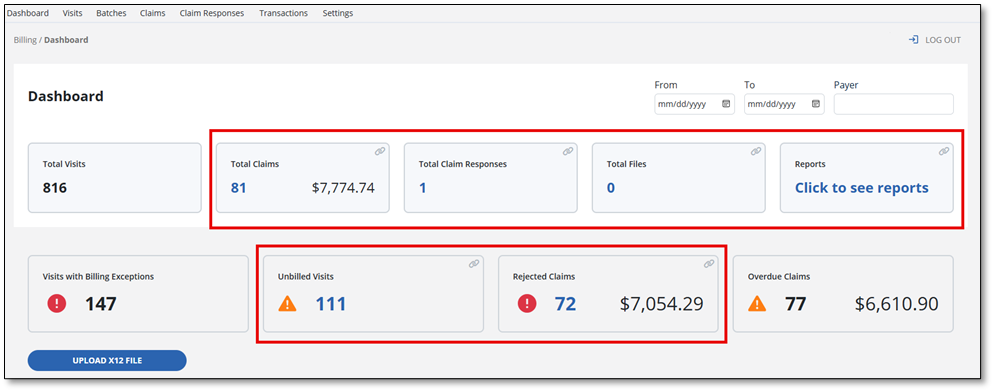
Each tile provides the following billing information:
-
Total visits: displays the total number of visits that have occurred. These are all the visits in visit maintenance.
-
Total claims: displays the number of total claims submitted, and the dollar value of those claims.
-
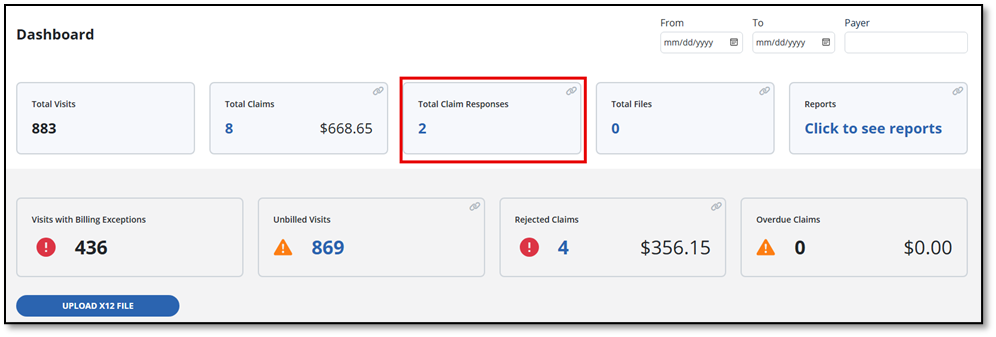
Total Claim Responses: displays the number of total claims that have responses.
-
Visits with Billing Exceptions: shows the total number of visits with billing exceptions. Exception details are shown in the visit details screen of the billing module.
-
Unbilled Visits: displays the total number of unbilled visits.
-
Rejected Claims: displays the number and dollar value of claims that have been rejected. The Payer has rejected the claim (see these in the batch view).
-
Overdue Claims: displays the total number of overdue claims, along with the dollar value of the overdue claims. Visits that are billable but have yet to be submitted.
-
Reports: takes you to a screen to run the Visits and Claims reports.
Upload X12 File Button: Select to open your file explorer and upload an X12 file. When you upload this file, the system will parse it and create a claim status transaction that pays the claim. The system will tell you how much of the claim is paid and create an invoice.
In the navigation menu, when you select Billing, you now see the new menu items, starting with Dashboard. Billing is now based on processing visits into batches, where creating batches uses the same general process as creating invoices.
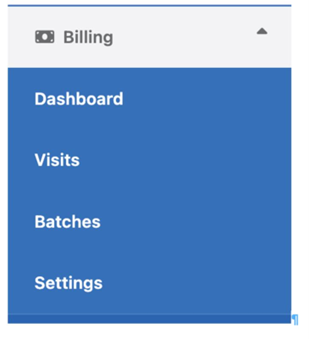
To begin billing, you must create a new invoice, which is now called creating a new batch. This is found in the Visits module.
-
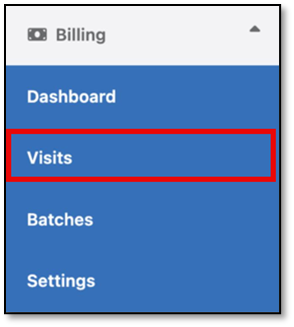
Start by selecting Billing > Visits.
-
This opens the Visits page. Here you can select the date range for the visits to bill.
-
Next, use the SYNC button to display the most up-to-date visit information.

-
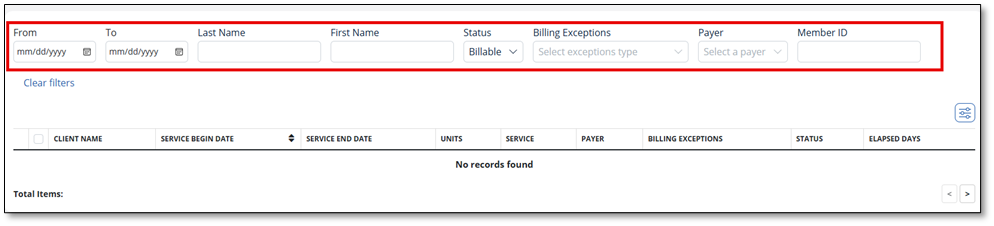
The visits for the selected dates load. Only those visits showing as Verified in Visit Maintenance are displayed.
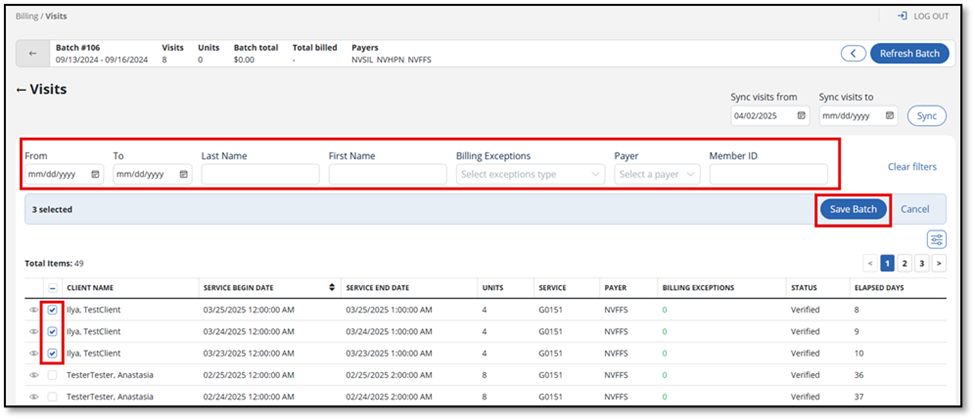
You can further narrow your search by using the From, To, Last Name, First Name, Status, Billing Exceptions, Payer, and Member ID search fields. Select SYNC again after selecting your filters.
-
To view visit details, use the Eye icon. This opens the Visit Details page in the Billing module.

In addition to all the visit information, the Visit Details page includes the billable amount, the service lines, and any billing exceptions.
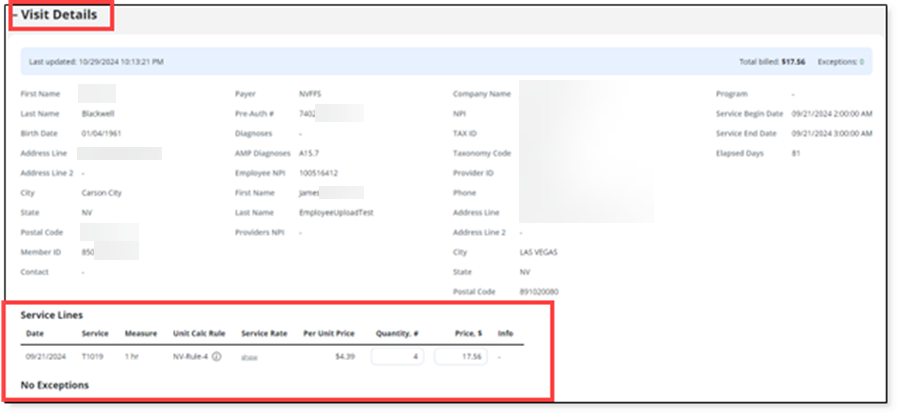
Notice that the URL is different from the other Sandata EVV URLS. This is important to have when working with customer support. Here is an example:
https://fhir.uat.us-east-1.sandata.com/billing/#/visits/2159574090
-
Use the back arrow to return to the Visits screen.
-
Use the checkboxes to select the visits you want to include in the batch. Selecting the checkbox next to Client Name will select all visits.
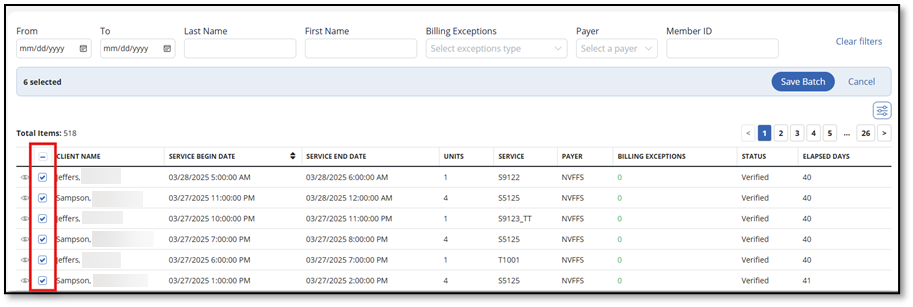
-
Once all visits are selected, choose Save Batch.
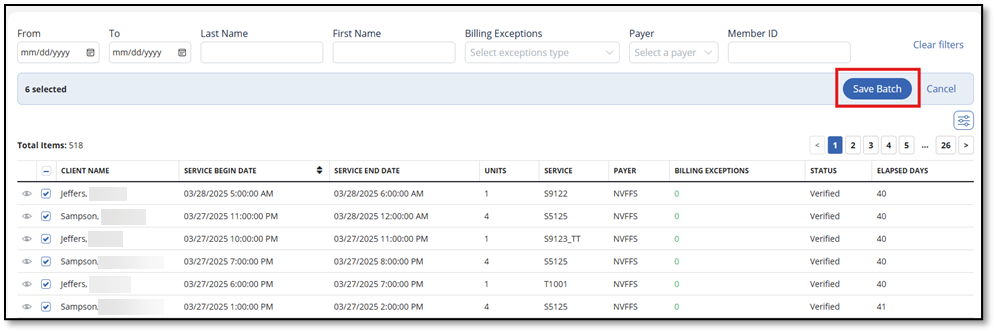
You are now directed to the Batches screen.
This replaces the previous version of submitting Invoices.
-
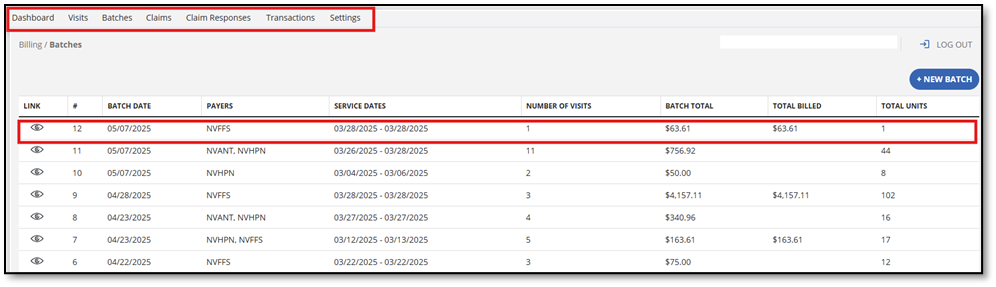
Navigate to Billing > Batches.
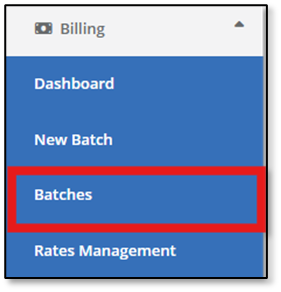
The Batches screen displays the batches that you have created. Notice the navigation menu at the top of the screen.
-
Select the batch you want to submit.
-
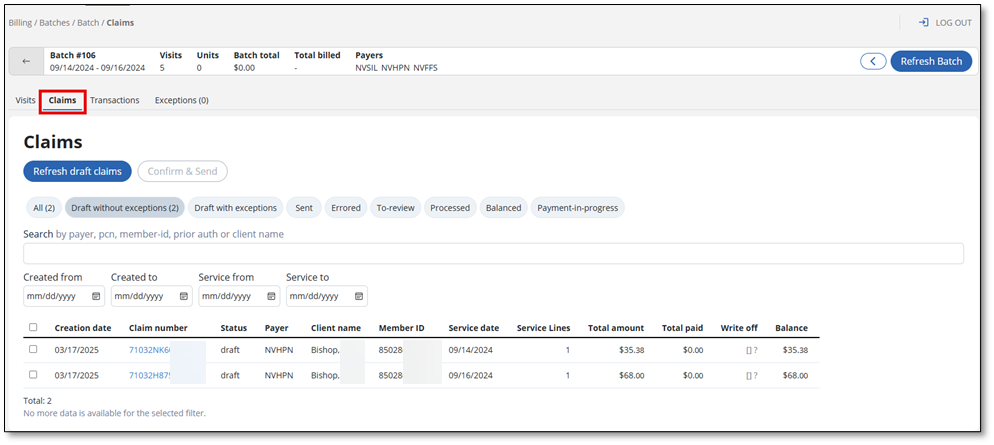
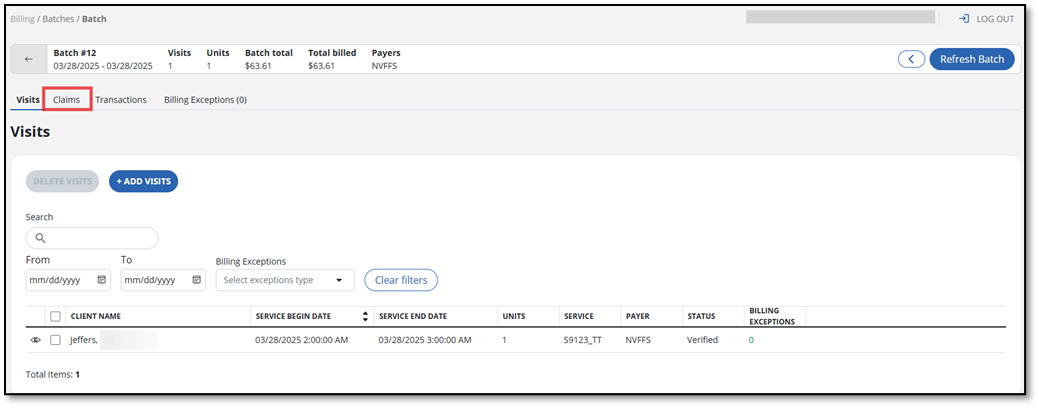
Inside this batch, select the Claims tab.
-
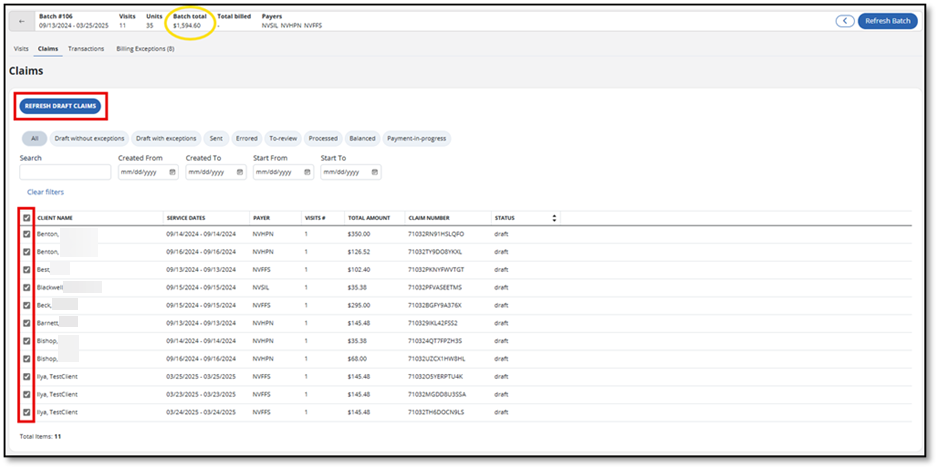
Under the Claims tab, review the claims in the list. Use the filters to help sort the claim information and status. Notice the number in parentheses. This refers to the number of claims related to that tab.

In this table, each claim status is defined:
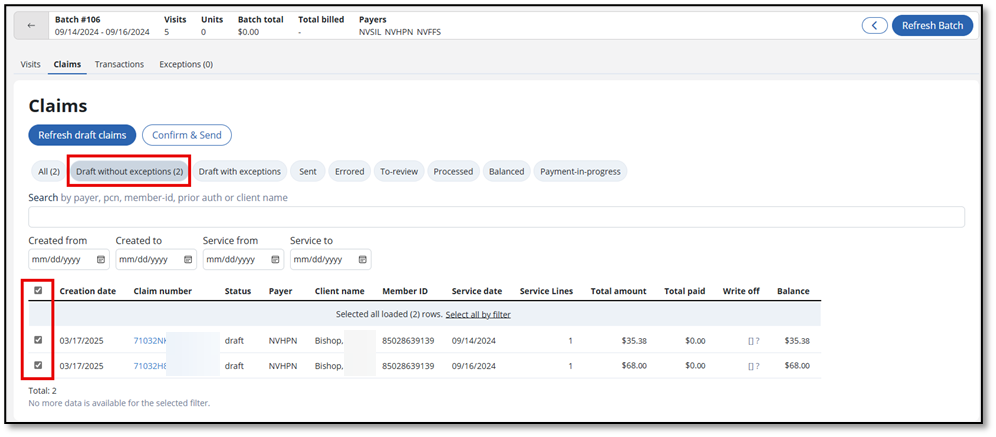
Claim Status Definition All View all claims that are in the batch. Draft without exceptions View claims in draft form not yet submitted. Draft with exceptions View claims with billing exceptions in draft form not yet submitted. Sent View claims that have been sent for payment. Errored View claims that have been previously submitted, but need to be revised before resubmitting. To review View claims that need to be reviewed before re-submitting; there is an action that needs to be taken. Processed View claims that have been submitted for payment: the clearinghouse has received the claim. Balanced View claims that were paid. Payment-in-progress View claims submitted awaiting payment. We have received a message back from the clearinghouse that the payer has received the claim. -
Select Draft without exceptions and select each visit that is to be billed in this batch. If all, choose the top checkbox to select all.
-
Before you send, if you need to add a visit to a batch, select the Visits tab, and select + Add Visits.
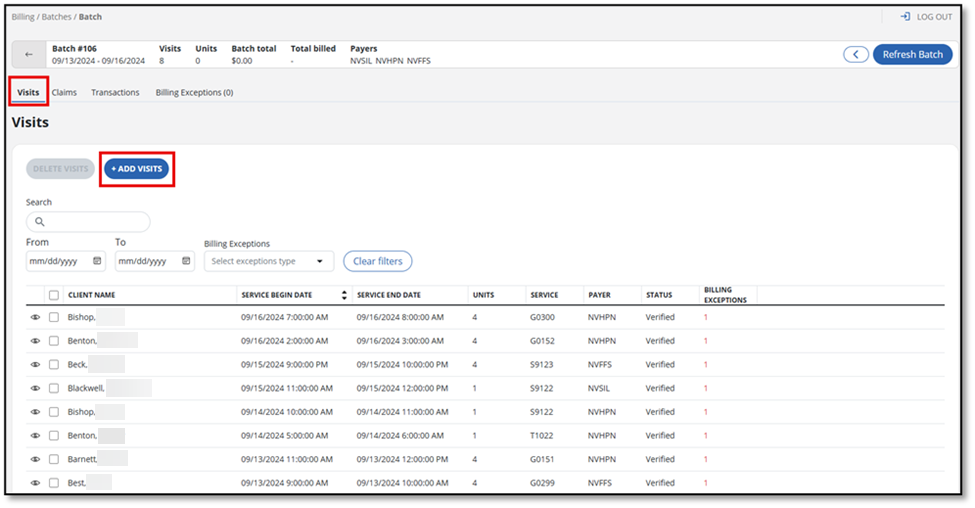
This takes you back to the Visits page, where you can select the visit(s) to add to the batch by selecting the checkbox next to Client name and then select Save Batch. Use the filters to find the visits you want to add.
-
Back inside of the Batch, revisit the Claims tab. Choose the top checkbox to select all, then select Refresh Draft Claims to see the new batch total. Do not skip this step!
-
-
Select Confirm & Send to send the claims ready for payment.
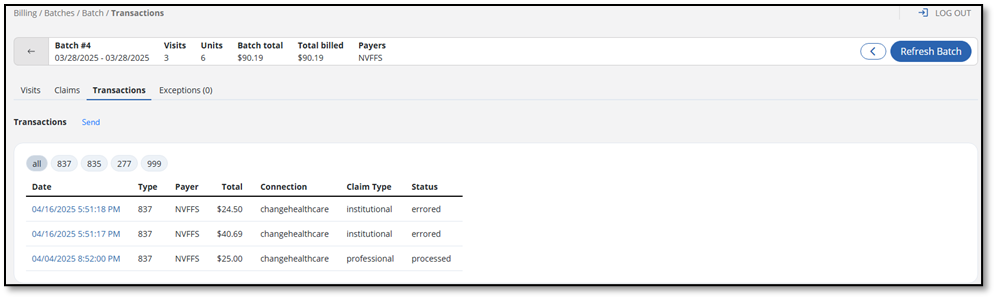
The batch is now listed as a set of claims under the Transactions tab. Here you can view the status of the claims.
There are new reports in the billing module, which are not available in the EVV Reports module. These are basically exports of your filtered data. Access these reports via the Billing Dashboard.
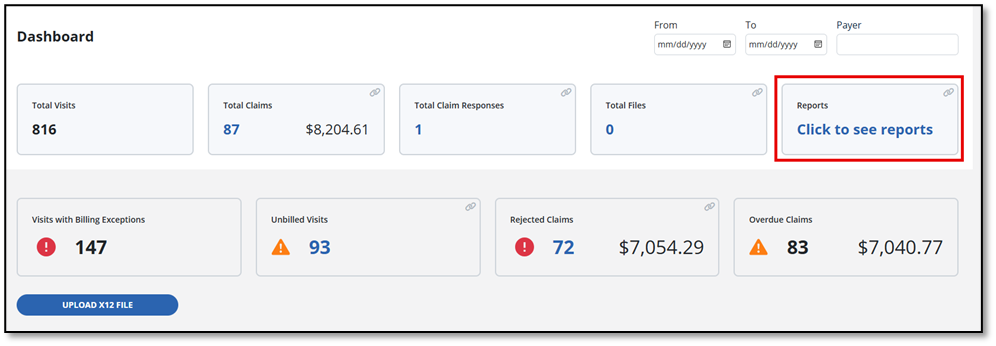
Once selected, you have access to view the Claims report and Visits report. Use the Eye icon to view.

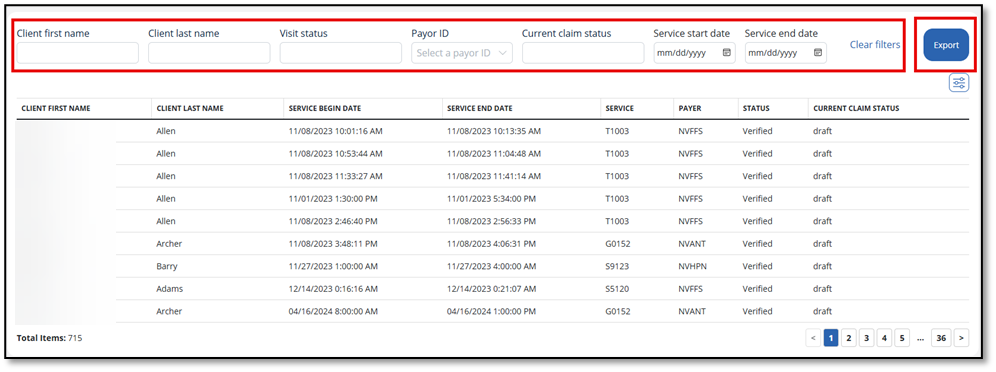
Once inside of the report screen, use the search fields to narrow the reporting data. Click on the Export button to export the report to an Excel file.
To view Claim Responses, go to the Billing Dashboard and select the number on the Total Claim Responses tile.
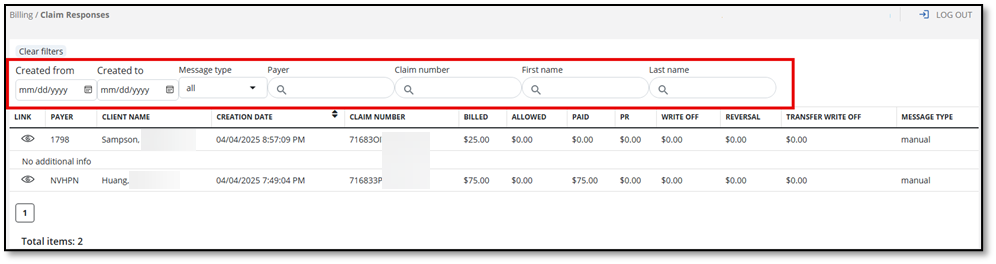
This takes you to the Claim Responses page where you can use multiple filters to sort the claim responses. Some column headings are sortable.
Select the Eye icon to view the Claim Response page.
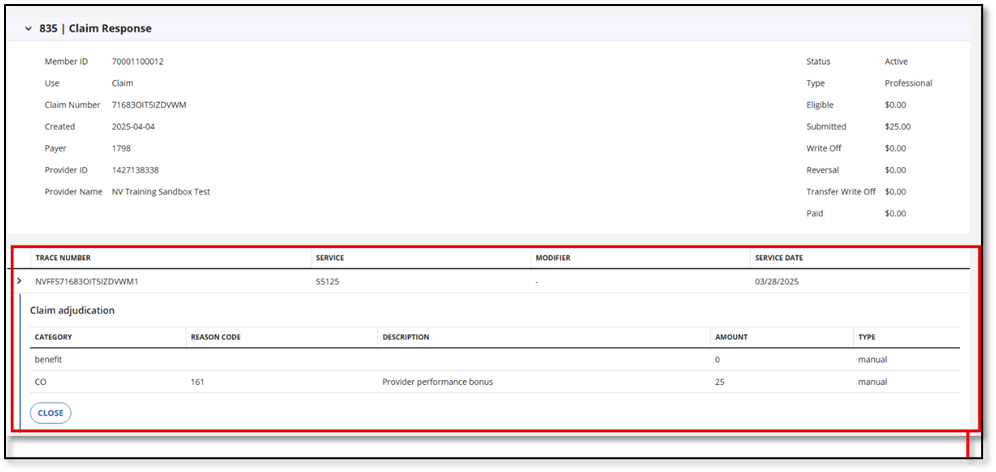
The top half of the Claim Response page gives you basic information about the claim you have selected.
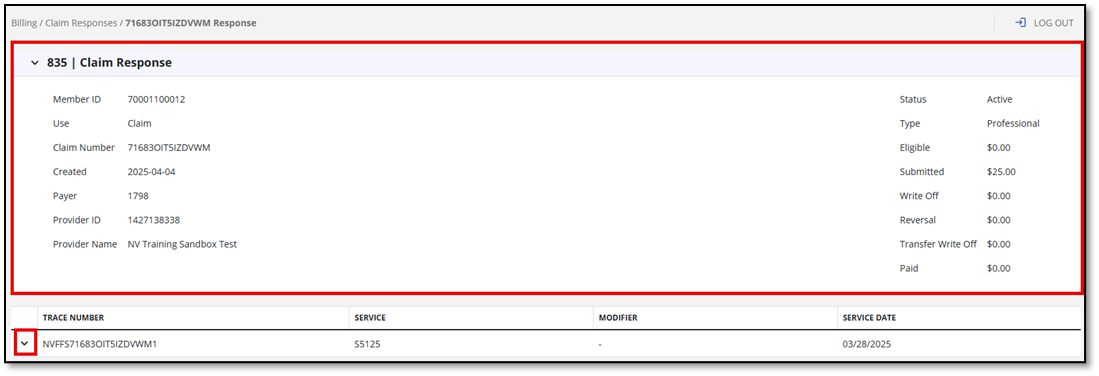
Use the Dropdown Arrow to view more details.
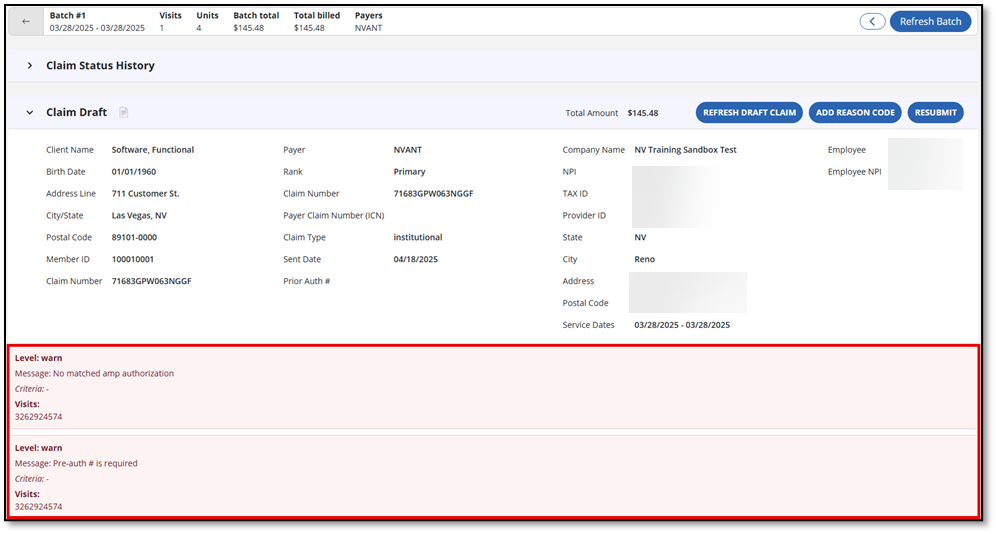
There will be claims that are returned or errored that you will need to resubmit.
Inside the claim you can view the error that needs to be resolved. In the example below, the claim needs the billing exceptions (update authorization) resolved before being resubmitted.
To find Claims that need to be resubmitted:
-
Locate the claim in the Claims tab which can be found inside of a batch.
-
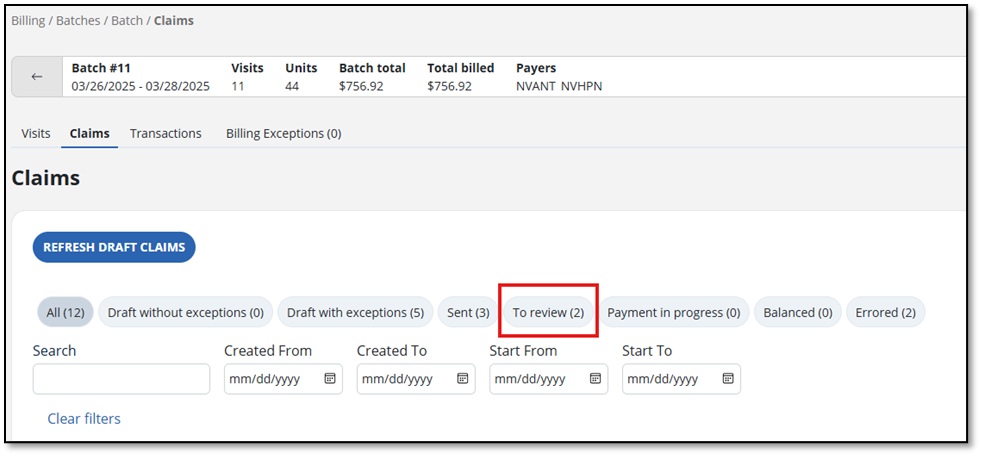
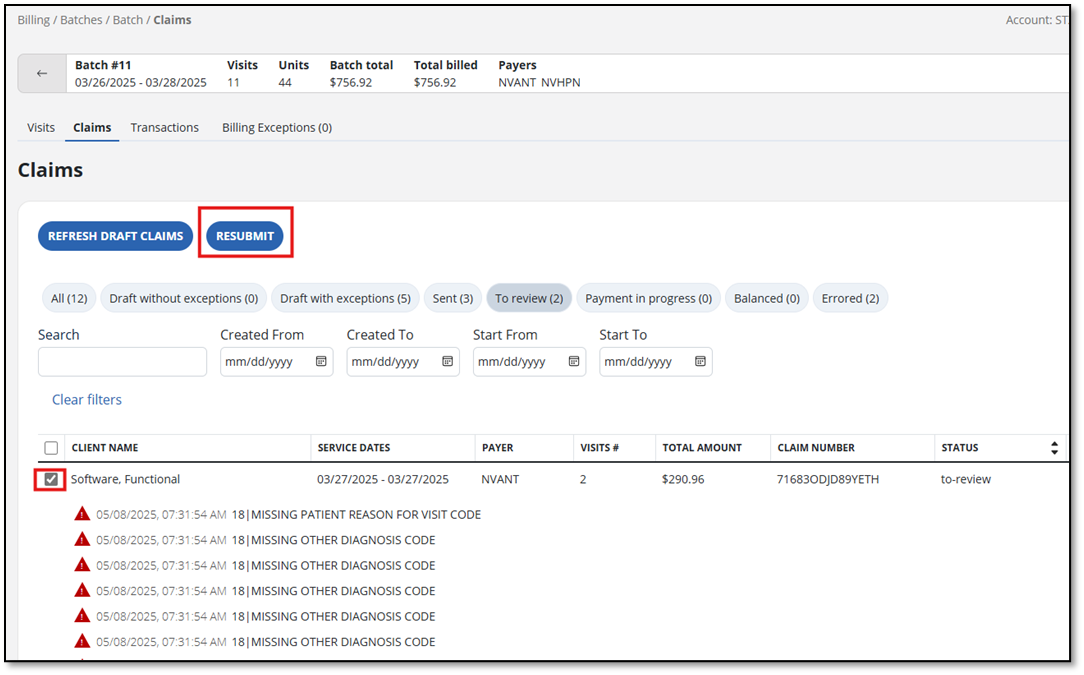
Use the filters to sort for claims in To-Review status.
-
Find and select the claim you wish to process again. Once selected, the RESUBMIT button appears. Select RESUBMIT.
-
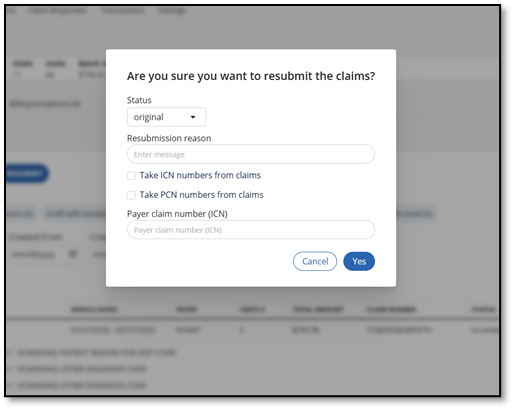
The resubmit window will open. All fields are optional.
Fields:
-
Status: Select the correct status for this re-submission.
-
Original: The Payer did not receive the claim draft.
-
Replacement: Change was made to claim draft.
-
Void: There was an issue with the claim amount, or the Payer has requested a different recoupment amount.
-
-
Resubmission reason: Enter the reason you are re-processing this claim.
-
Take ICN/PCN numbers from claims: Select this checkbox to use the original claim’s ICN number in the resubmitted X12 message. The ICN is the claim number in the payer system (You can find it in the payer portal). Use this if the payer already has the claim in their system.
-
Payer Claim Number (ICN): Enter a new ICN number here if you have not received a response from the Payer.
-
-
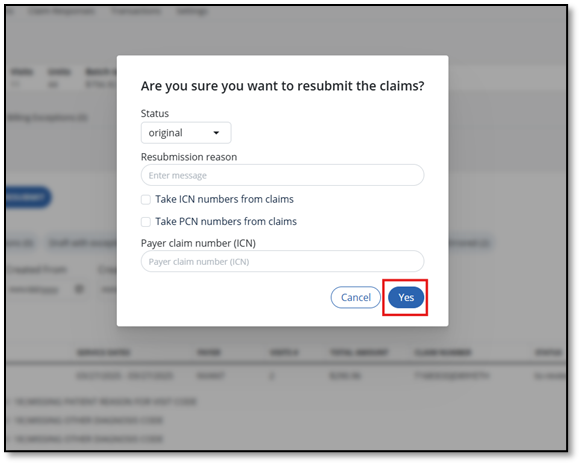
Select Yes to resubmit the claim.
Here are a few examples of billing exceptions that need to be resolved. Resolve the exception in the Client profile, under the Program tab.
| Billing Exception | Description |
|---|---|
| Client Date of Birth | There is no Date of Birth on the Client profile. Update the Client profile in Visit Maintenance. |
| No authorization match | The authorization information in the Client profile needs to be added or updated. |
| Missing Diagnosis code | The diagnosis code in the Client profile needs to be added. |