Navigate Multiple Agencies in Sandata Mobile Connect
Different types of Providers may use different STX Accounts for authorized services. As a Caregiver, check with your Agency to find out which STX Account goes with each provider type for the services you are providing through the Sandata Mobile Connect App. It’s very important to use the right account so that visits are recorded and billed correctly.
When starting a visit, you will need to know the Client name, Services Authorized, Client ID, and the correct STX Account. To help you stay organized, we have provided a reference sheet for you to fill out ensuring you are in the correct account in the Sandata Mobile Connect App.
-
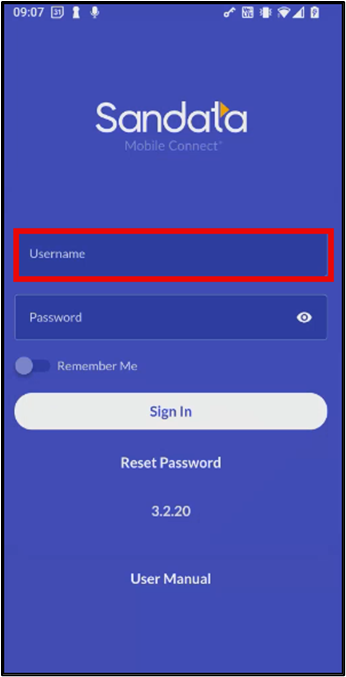
Start by signing into the App with your sign in information. In the Username field, type in the email address associated with all the accounts. Make sure your email address is the same for all accounts you are associated with.
-
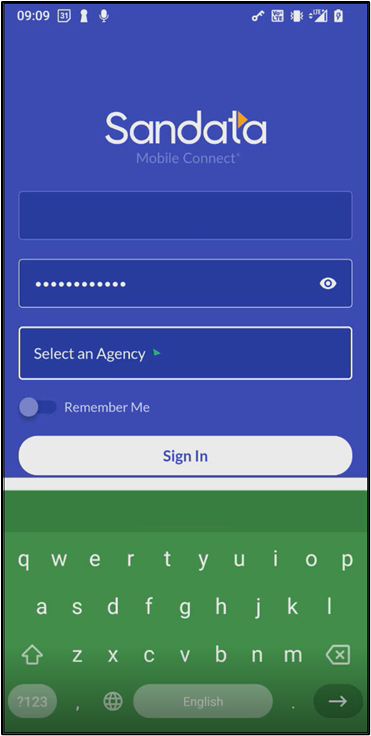
Once you have entered your email address and password, the app recognizes the Agency accounts you have associated with that email address. A dropdown menu with the Agency option appears.
-
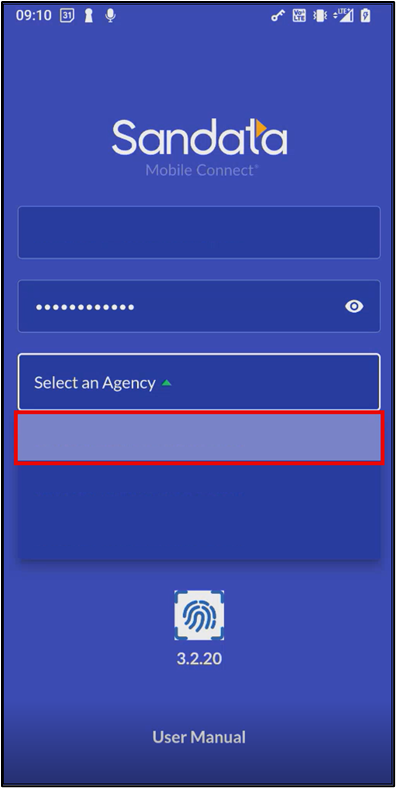
Tap Select an Agency and select the Agency (STX Account) that is associated with the services you are currently providing. Check with your Agency or use the reference sheet to select the correct account.
-
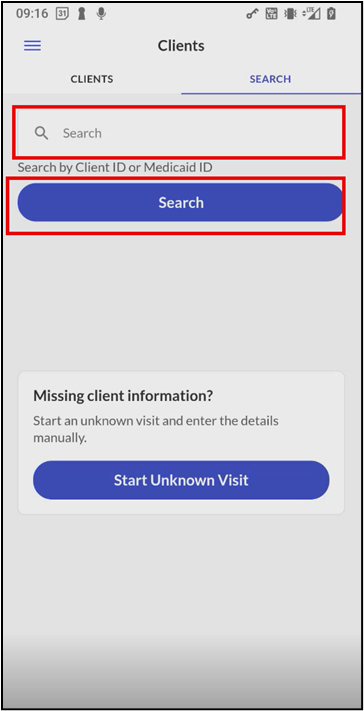
After signing in, under Visits, search for Clients by searching by entering the Client ID or Medicaid ID. After entering, select Search.
-
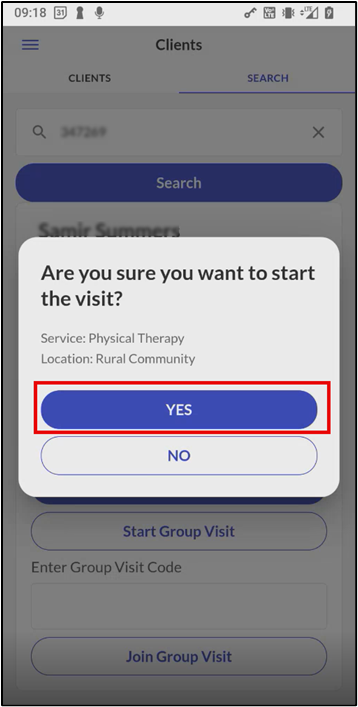
Before starting the visit, this is another opportunity to make sure you are in the correct account. Make sure the service is authorized for the Agency account you are signed into. If correct, select Yes to start the visit.
This signs you out of the Sandata Mobile Connect app, and you are free to start your visit.
Once you have clocked out of your visit for your first service, and have additional services to render for this client, you will need to log out and log back into the correct Agency account repeating the steps provided.