Overlapping Billing Authorization Selection
This can cause confusion during billing and can lead to claim denials. This article covers the new workflow created to select the correct authorization for billing.
Overlaps occur when:
-
Two authorizations exist with different date ranges that overlap (users cannot edit or delete these authorizations).
How to Identify the Issue:
-
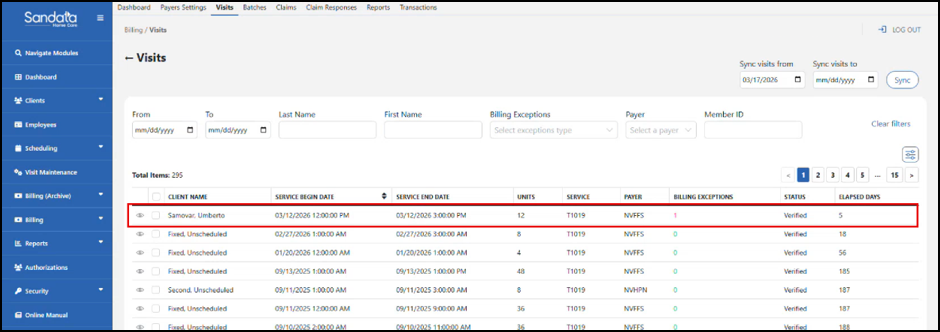
Go to the Billing Visits page and locate the billing exceptions. In the example below, this visit is verified but has a Billing Exception.
-
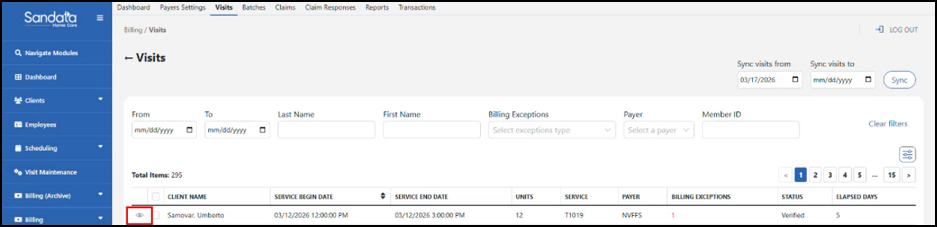
Select the Eye Icon to open the visit details.
-
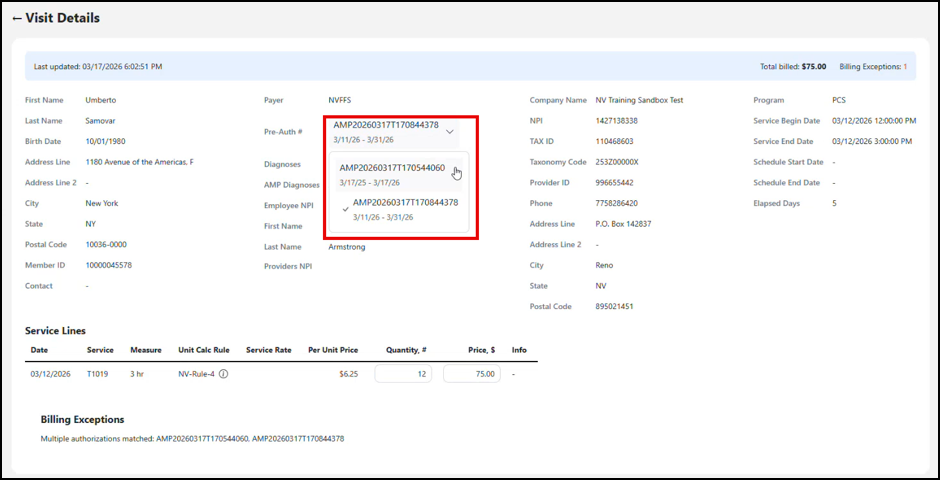
Locate the Pre-Auth # field, there is now an option to select the correct authorization for this visit. Use the down arrow to view the authorization options.
-
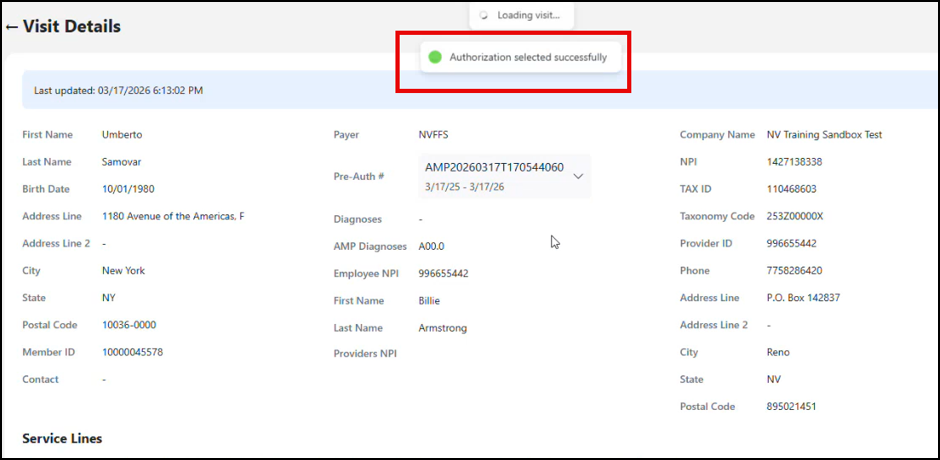
Once selected, the visit will be updated and ready to proceed to billing. A confirmation message will appear to confirm the visit has been updated.
-
Proceed with billing as you normally would.