Position Management

Agency Administrators can add positions in Sandata Enhanced EVV and align them with the services being provided to the client.
-
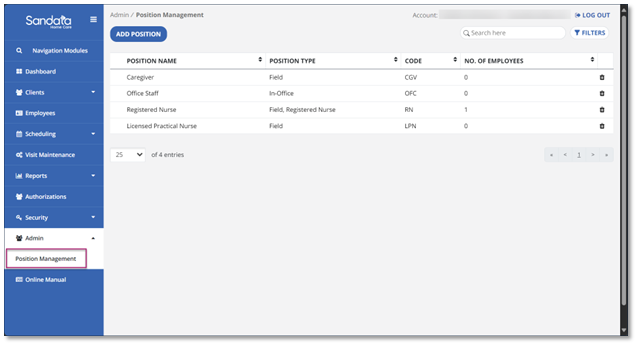
Go to the Admin module and select Position Management.
-
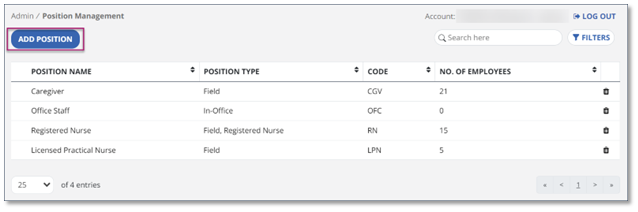
To create a new position, select Add Position.
-
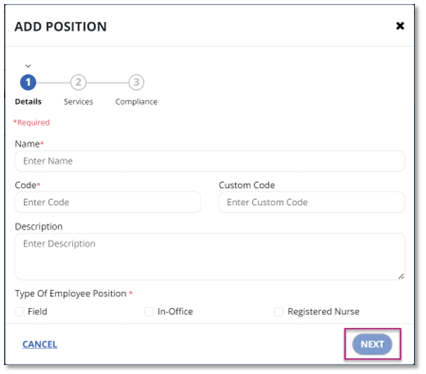
Complete the details screen with all the required fields including Name of the Position, Code, and the Type of Employee Position (Field, In-Office, or Registered Nurse). Then, select Next.
-
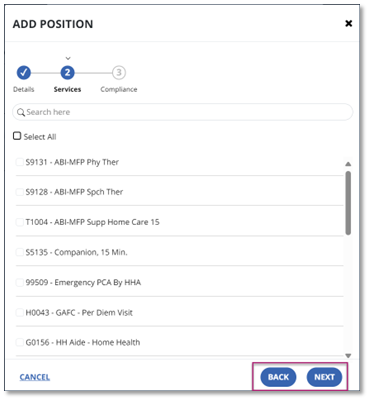
Select the Services that someone in this position would be able to perform. Once you have selected the desired services, select Next. Select Back to go to the previous Details screen.
-
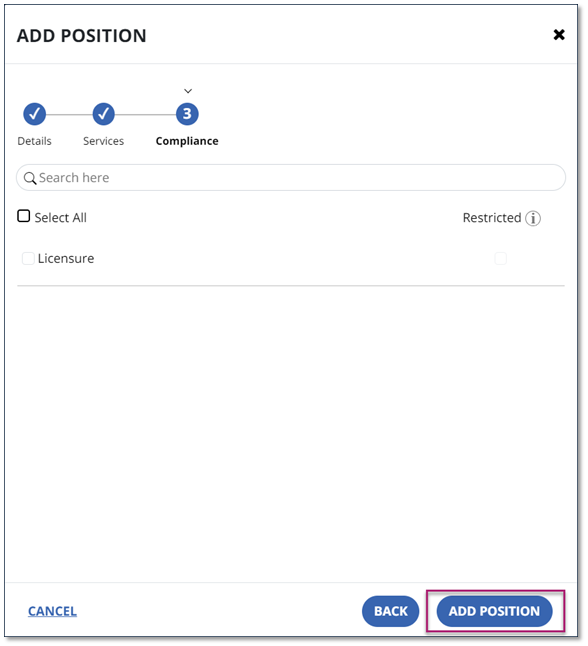
On the Compliance screen, select the licensure. If selected, this restricts scheduling based on an unmet compliance item. Select Add Position to create the new position with the associated service(s).
Agency Administrators can edit positions and connect them with different services depending on their needs.
-
Go to the Admin module and select Position Management.
-
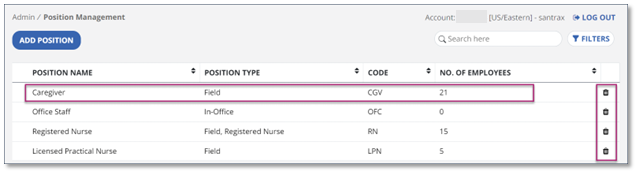
To edit a position, select the Position Name, Position Type, Code, or No. of Employees fields. To delete the position, select the trash can icon.
-
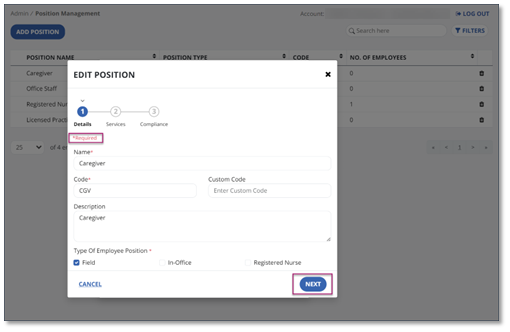
Once you’ve selected the position you would like to edit, begin editing the Details. The fields that contain a red asterisk are required.
-
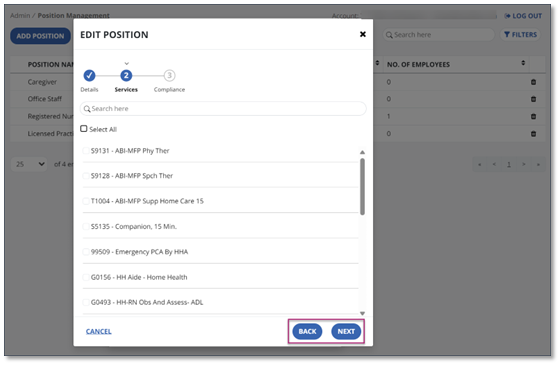
Change the services you want to associate with the position. If you’d like to associate all services to the position, select the Select All option. You can select Back to change the Details again if you need to.
-
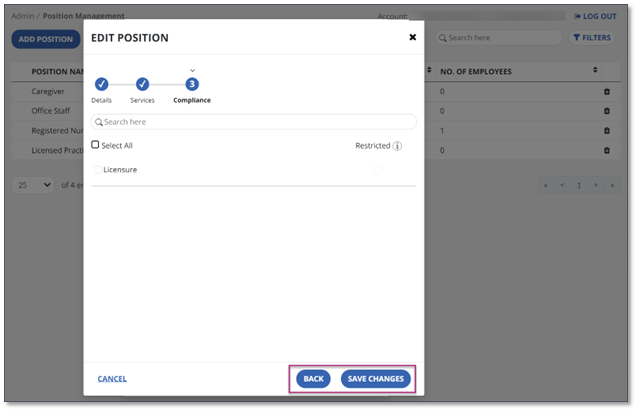
Select licensure. Remember, selecting licensure will restrict scheduling of those services only to those employees associated with this position. Select Save Changes when you’ve completed your edits.