Change Program to Update Client Profile
When creating a client in EVV, you will want to check and make sure the correct information is present in the client profile. For example, the client will have their Payer information brought in, but the Program Details will go to a DEF, or Default, program, or, in the case of a Payer and Service which could connect to multiple programs, the program will be identified as MULTI. For reporting, scheduling, and visit capture purposes, you may want to update the program, so it accurately matches the Payer information.
These steps are only for clients who do not have an authorization attached to their profile.
-
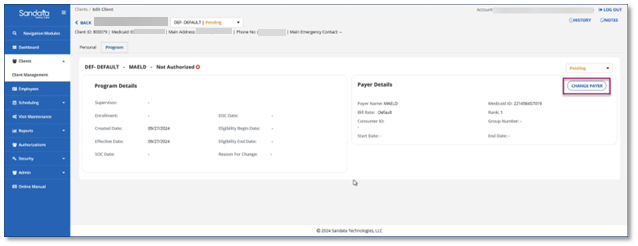
Navigate to the Client module, select the client you want to edit, and select the Program tab. Select Change Payer.
Note: You’ll notice there is no Schedule tab in this client’s profile. You’ll need to follow these steps to enable scheduling for this client. To change the program, we will be updating the payer.
-
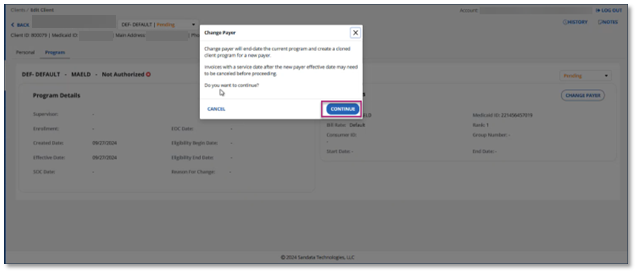
A message box appears. Remember, you are not changing the Payer, but updating the Program associated with the Payer and updating the Client profile. Select Continue.
-
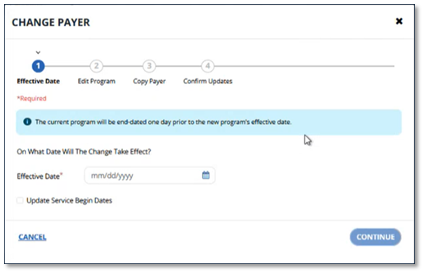
Choose the Effective Date for this change.
-
Select the Program you want to associate with the Payer. The Programs listed are those that align with the services and Payer combinations provided by your State Program.
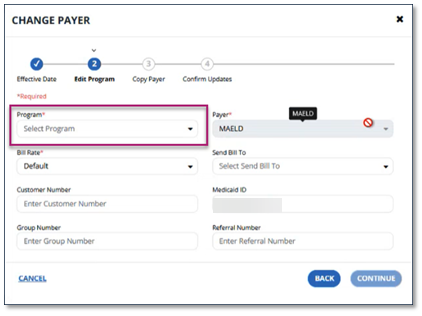
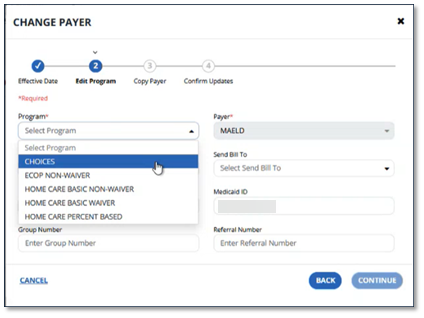
-
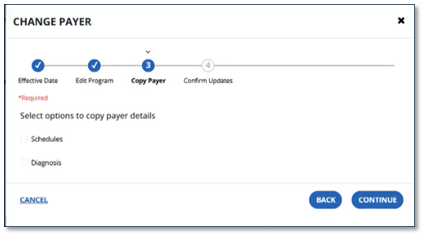
On the Copy Payer details screen, there are options to copy payer details. Since this is the first time you have updated this client’s profile, you can simply select Continue. If you were to edit it later, you would be able to copy this information.
-
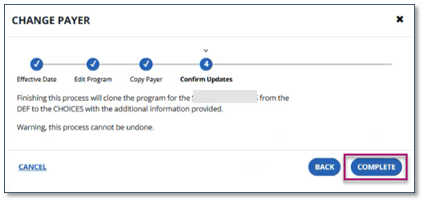
The Confirm Updates screen informs you the process cannot be undone and that the program is changing from DEF or MULTI to the program you have chosen. Select Complete.
-
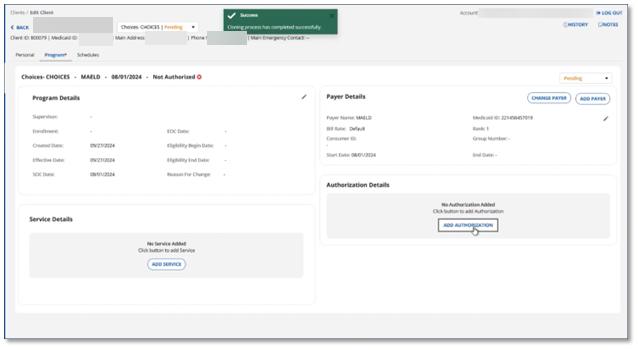
After you have confirmed the change, you now see a complete client profile. You are now able to add Authorizations and Services to the client, and you now see the Schedules tab on the client profile.